

Platform integration
You can show regatta results, an entry list or a ranking leaderboard directly on your own website – e.g. the website of a club, an organizer or a class association. All it takes is pasting a short JavaScript snippet generated in the Upwind24 panel into your page. The embedded table fetches the latest data on its own, so new results and entries appear on your website without any extra work.
How does it work?
Section titled “How does it work?”The Platform integration page consists of three cards:
- Access token – a unique key of your account, which the embedded code attaches to every data request.
- Authorized domains – the list of domains on which the embedded tables may be displayed.
- Table embedding – a generator of ready-to-paste code.
A table is displayed only when the code contains a valid token and the page you paste it into belongs to one of the authorized domains. This way nobody can use your code on another website.
Step 1: Check your access token
Section titled “Step 1: Check your access token”The token is created automatically the first time you open the Platform integration page. You don’t need to copy it by hand – the code generator inserts it into the code for you.


If you need the token elsewhere, click the copy icon in the Access token field – you will see the message Access token copied to clipboard.
Step 2: Add authorized domains
Section titled “Step 2: Add authorized domains”-
On the Authorized domains card, click Edit.
-
In the Domains field, enter the domains of the websites where you will embed the tables – one per line.
-
Click Save changes. You will see the message Authorized domains updated.
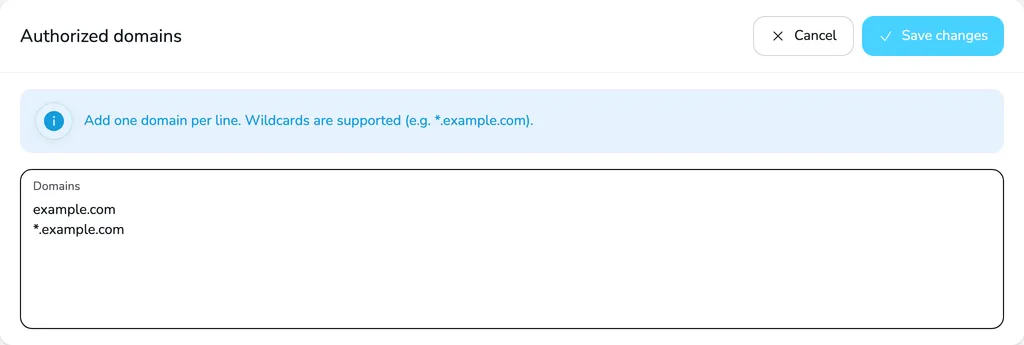
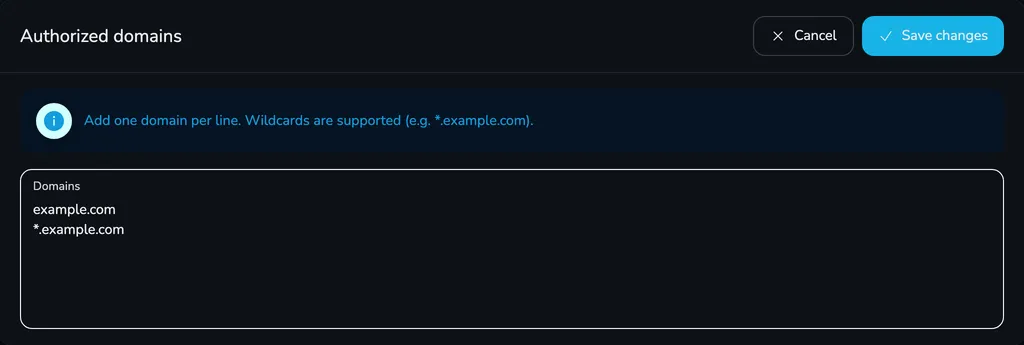
How to enter domains:
example.com– only theexample.comdomain itself.*.example.com– all subdomains, e.g.www.example.comorresults.example.com, but notexample.comitself. If your website works at both addresses, add both lines, as in the screenshot above.- You can also paste a full page address – the protocol, port and path are ignored, e.g.
https://www.example.com/resultsmeans thewww.example.comdomain. - A domain covers both
http://andhttps://addresses, with any port.
Step 3: Generate the embed code
Section titled “Step 3: Generate the embed code”-
On the Table embedding card, choose the Table type:
- Regatta results – the leaderboards of all regatta divisions,
- Entry list – the regatta entries split into divisions,
- Ranking leaderboard – the leaderboards of the selected ranking.
-
In the Regatta field (or Ranking – for a ranking leaderboard), start typing the name and pick an item from the list.
-
Choose the Table language: Polski or English. Column headers, the search field and table messages are displayed in this language.
-
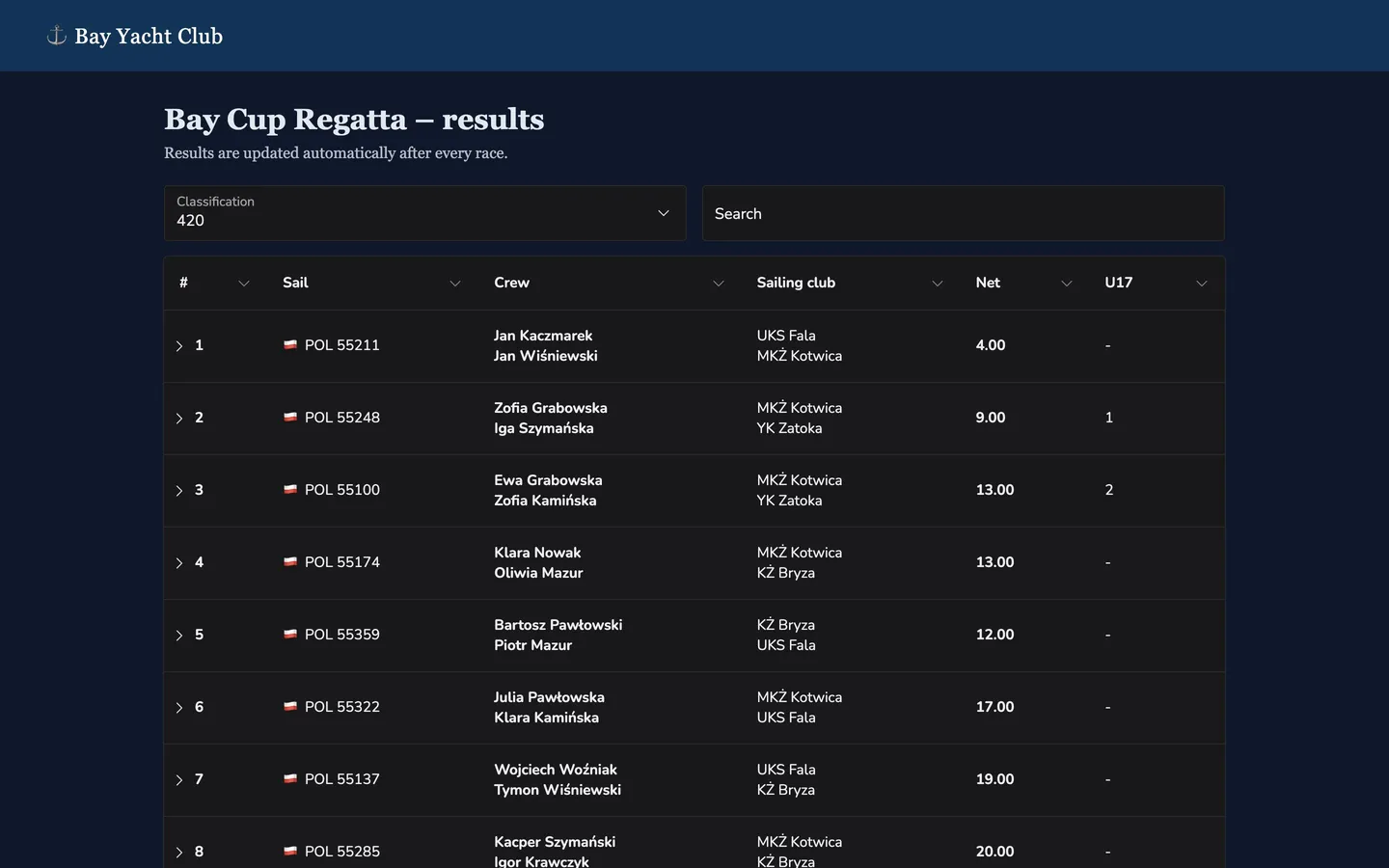
If your website has a dark background, select Dark table theme.
-
Click Generate embed code. The code appears below the form – copy it with the copy icon in its top right corner.
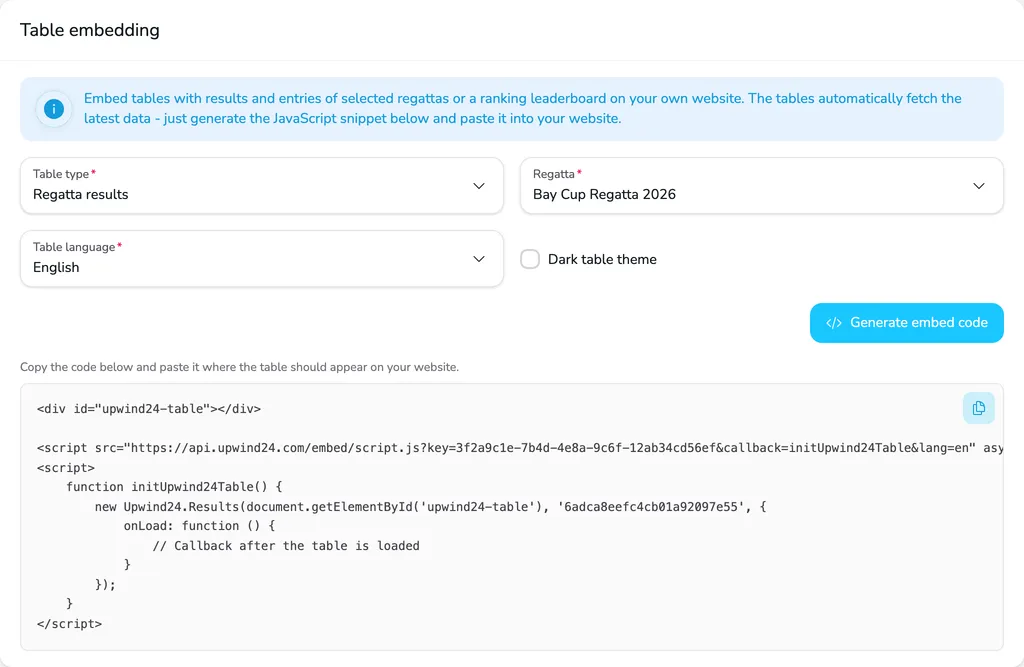
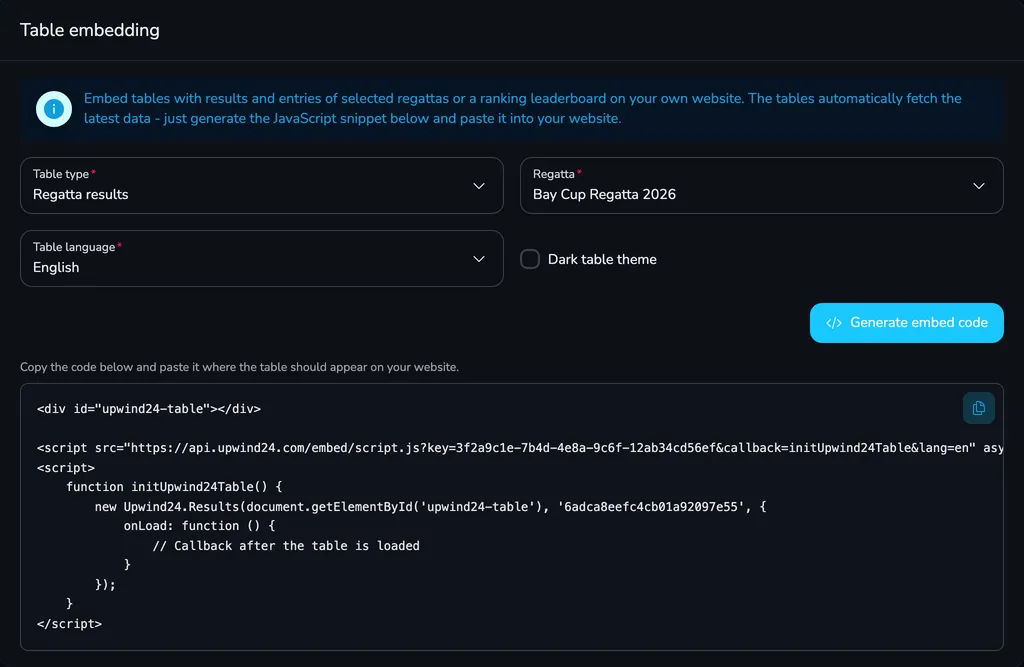
If the list of authorized domains is empty, you will see a warning above the form – you can generate the code, but the table won’t be displayed on any website until you add a domain.
Step 4: Paste the code into your website
Section titled “Step 4: Paste the code into your website”Paste the copied code into the HTML of your page, where the table should appear. The generated code looks like this:
<div id="upwind24-table"></div>
<script src="https://api.upwind24.com/embed/script.js?key=YOUR_TOKEN&callback=initUpwind24Table&lang=en" async defer></script><script>    function initUpwind24Table() {        new Upwind24.Results(document.getElementById('upwind24-table'), 'REGATTA_ID', {            onLoad: function () {                // Callback after the table is loaded            }        });    }</script>
The code consists of three parts:
<div id="upwind24-table">– the container the table is displayed in. The table adapts to its width.<script src="…/embed/script.js?…">– the Upwind24 script with your token (key), the name of the start function (callback), the table language (lang) and optionally the dark theme (dark=1).- the
initUpwind24Table()function – the script calls it once loaded, and it creates the table for the selected regatta or ranking.
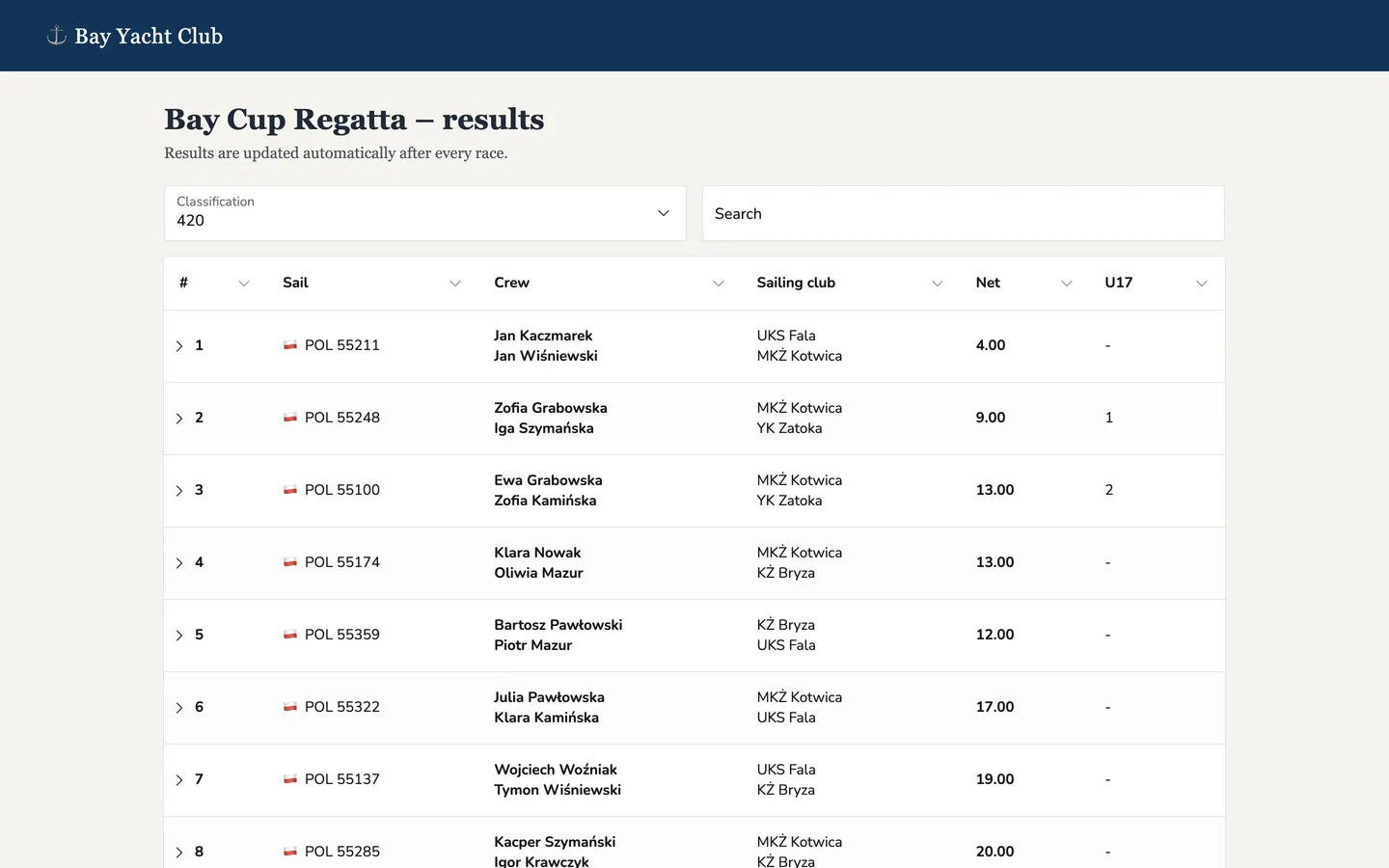
Once you save the page, the table shows up-to-date data right away:
What do your visitors see?
Section titled “What do your visitors see?”- Classification choice – the Classification drop-down (in results and rankings) or Division (in the entry list) switches the table between divisions and fleets.
- Search – the Search field filters the table, e.g. by name, club or sail number.
- Sorting – clicking a column header sorts the table by that column.
- Fitting the width – columns that don’t fit on the screen (e.g. the results of individual races on a phone) are hidden. The arrow at the start of a row expands it and shows the hidden data.
The table columns are the same as on the regatta page in Upwind24: the results table shows the columns selected in the regatta results settings, and the entry list shows the columns from the entry list settings. The results table shows only published results.
Advanced: several tables on one page
Section titled “Advanced: several tables on one page”The generated code creates one table. To show several tables on one page – e.g. results and the entry list – load the script once, add a separate container with a different id for each table and create all tables in one start function:
<div id="upwind24-results"></div><div id="upwind24-entries"></div>
<script src="https://api.upwind24.com/embed/script.js?key=YOUR_TOKEN&callback=initUpwind24Tables&lang=en" async defer></script><script>    function initUpwind24Tables() {        new Upwind24.Results(document.getElementById('upwind24-results'), 'REGATTA_ID');        new Upwind24.Entries(document.getElementById('upwind24-entries'), 'REGATTA_ID', { dark: true });    }</script>
Available table types:
new Upwind24.Results(element, 'REGATTA_ID_OR_SLUG', options);new Upwind24.Entries(element, 'REGATTA_ID_OR_SLUG', options);new Upwind24.Ranking(element, 'RANKING_ID_OR_SLUG', options);Instead of the identifier from the generated code, you can use the slug of the regatta or ranking – the last part of its Upwind24 address (e.g. regaty-o-puchar-zatoki-2026).
Script URL parameters:
| Parameter | Description |
|---|---|
key |
Your access token. Required. |
callback |
The name of a global function called once the script is loaded – this is where you create the tables. |
lang |
The table language: pl or en. Without it, the script uses the page language (the lang attribute of the <html> tag), falling back to English. |
dark |
1 enables the dark theme for all tables on the page. |
Table options (the third, optional argument):
| Option | Description |
|---|---|
onLoad |
A function called once the table is displayed on the page. |
dark |
true or false – the theme of this one table, regardless of the script’s dark parameter. |
Questions and answers
Section titled “Questions and answers”Instead of the table, I see “Could not connect to the Upwind24 server.” What’s wrong?
Most often the page with the code doesn’t belong to any of the authorized domains – the browser then blocks the data requests. Check that the list contains exactly the domain you see in the address bar (with or without www) and that the token in the code hasn’t been regenerated – if it has, generate the code again and replace it on your page.
The table says “There are no results published yet.” Why?
The organizer hasn’t published the results of any division yet. The table shows them automatically once they are published – you don’t need to change the code. The entry list equivalent is There are no entries received yet.
Do I need to update the code after every race?
No. The code points to a regatta or a ranking, not to specific data – the table fetches the latest results and entries every time the page is displayed. You only replace the code after regenerating the token or to show a different regatta.
What’s next?
Section titled “What’s next?”

Manage the regatta yourself with an easy-to-use online platform.
© 2026 Upwind24. All rights reserved.