

Divisions, fleets and categories
Before the race committee makes the first signal, it’s worth setting up the regatta structure properly. Upwind24 uses three concepts for this – divisions, fleets and categories – plus start lists. This article explains how they differ and shows how to manage them on the Divisions and fleets tab.
Divisions, fleets and categories – what’s the difference?
Section titled “Divisions, fleets and categories – what’s the difference?”Division
Section titled “Division”A division is a group of boats that starts separately and has its own races, start lists and leaderboard. Boats from different divisions never mix – they don’t race in the same races and aren’t scored together. Every entry is always assigned to one division – the person entering chooses it in the entry form, and the organizer can change it in the entry editor.
Divisions are created automatically from the chosen classes: when the regatta is created (and when a new class is added), Upwind24 adds a division for each class, e.g. ILCA 6 and 420. You can also create divisions yourself – e.g. a separate start for girls, or one division in which several classes race together.
A fleet is a group of boats within a division. Fleets are used only for large fleets split into separate starts – in the qualifying series (e.g. the Yellow and Blue fleets) and in the final series (e.g. the Gold and Silver fleets). If the whole division starts together, you don’t need fleets.
Category
Section titled “Category”A category is an additional classification within a division that affects neither the starts nor the points. In the results table, each category has a separate column with the boat’s place in that category – making it easy to find the best sailors in a given age group (e.g. U17) or gender (e.g. Women).
| Division | Fleet | Category | |
|---|---|---|---|
| Separate start | ✓ | ✓ | – |
| Separate leaderboard | ✓ | only in the final series | an extra column in the results |
| When to use | always (at least one per class) | large fleets split into starts | prizes for age groups, women, etc. |
| How boats are assigned | the division chosen in the entry | a start list with fleet assignment | automatically by filters or manually |
Start lists
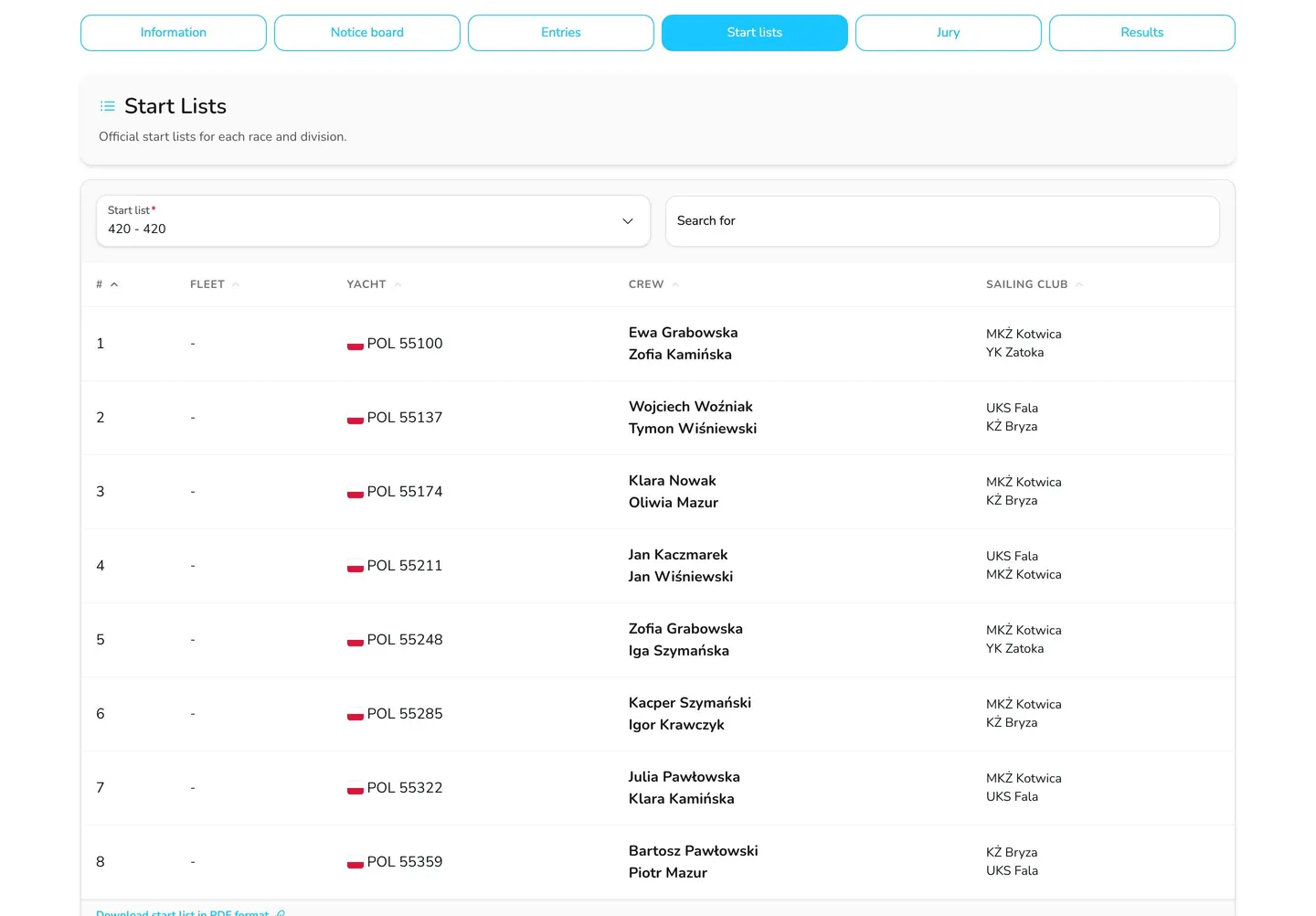
Section titled “Start lists”A start list defines which boats race in a given race and in which fleet. Every race requires a specific start list.
- Each division has a default start list (marked (default)) with all confirmed entries of the division. Without a fleet split, this single list is usually all you need.
- With a fleet split, you create further start lists in which boats are assigned to fleets – e.g. one for the qualifying series and another for the final series.
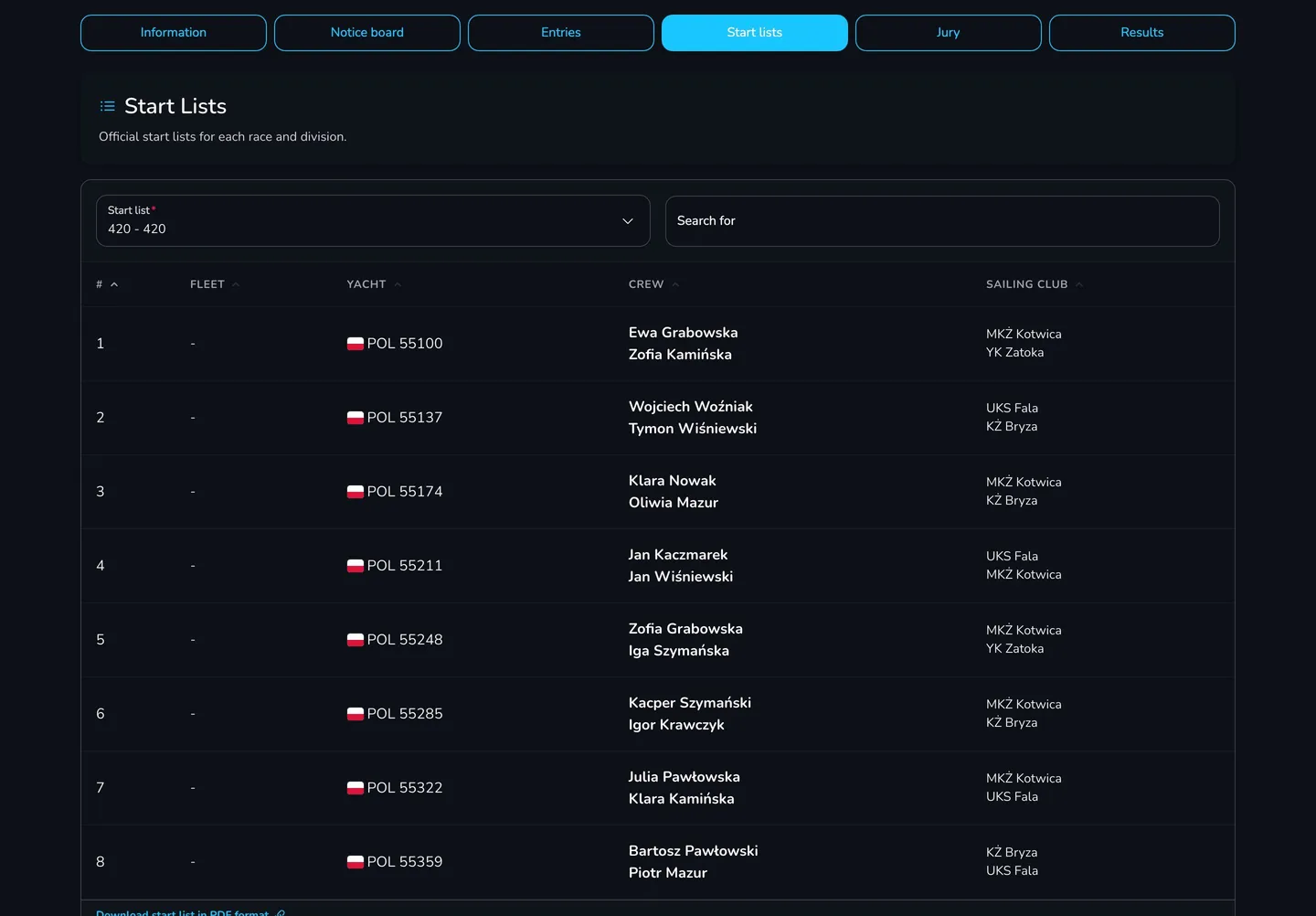
Participants see the start lists on the Start lists tab of the regatta page – once the Show start lists tab field is selected in the start list settings. You can also export any list to PDF, XLSX or CSV with the Export start list button.
The Divisions and fleets tab
Section titled “The Divisions and fleets tab”In the panel menu, in the Regattas section, choose the regatta from the list and click Divisions and fleets. You will see the List of regatta divisions with the name, team count, type, classes and criteria of each division.
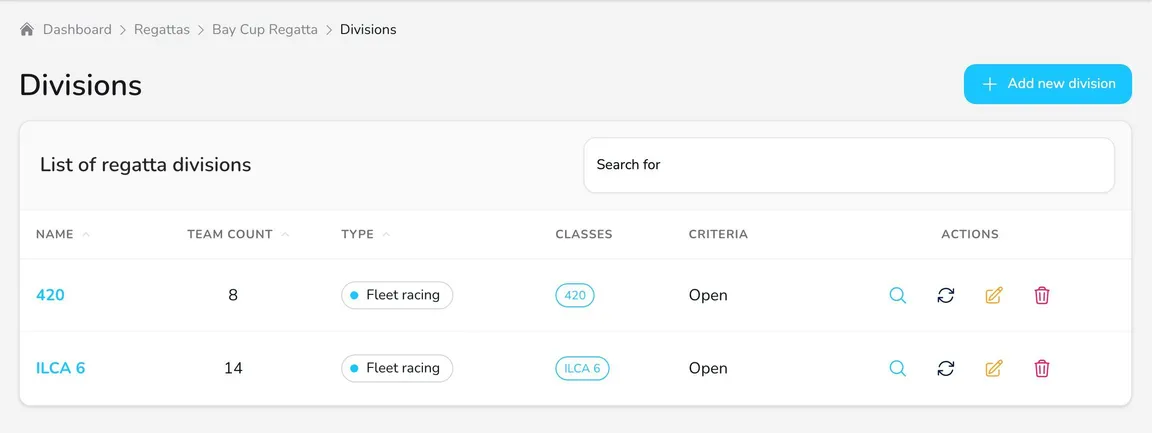
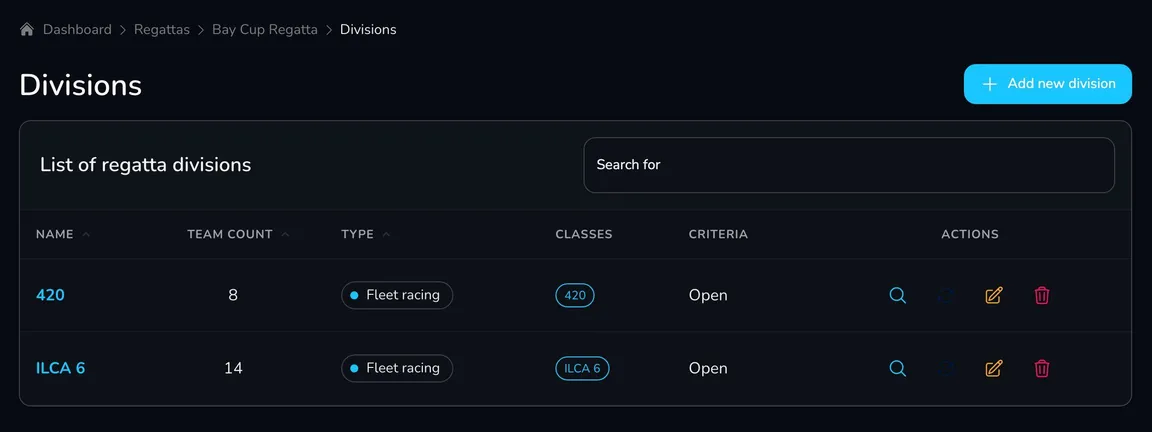
Each division has these actions:
- View – opens the division details with the Categories and Fleets cards,
- Reassign teams – moves teams that meet the division criteria from other divisions into this division,
- Edit – changes the division name, classes and criteria,
- Delete – deletes the division together with its races, results, start lists, fleets, categories and penalties. Entries from a deleted division go to the Unassigned item on the Entries tab.
Add or edit a division
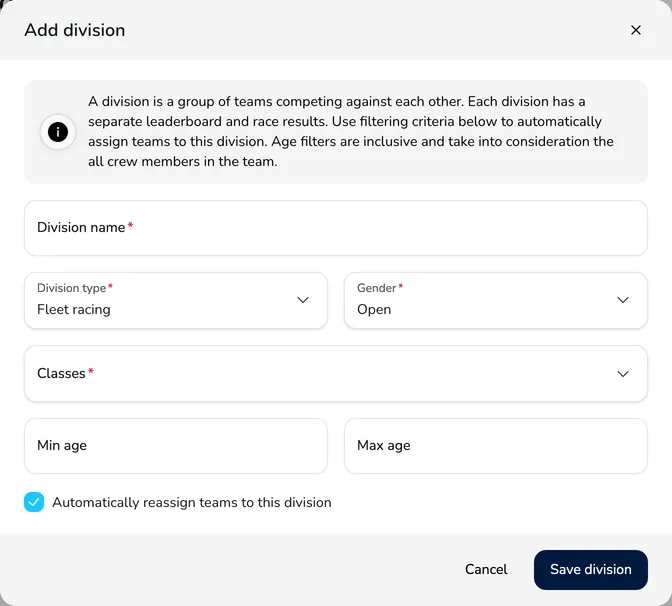
Section titled “Add or edit a division”-
Click Add new division (or Edit next to an existing division).
-
Enter the Division name and leave the Division type set to Fleet racing (the Team racing type is not available yet).
-
Choose the boat Classes of the division and – if the division should include only some sailors – the Gender (Open, Men, Women, Mixed), Min age and Max age.
-
Select Automatically reassign teams to this division to move teams that meet the criteria into it right away.
-
Click Save division.
Categories
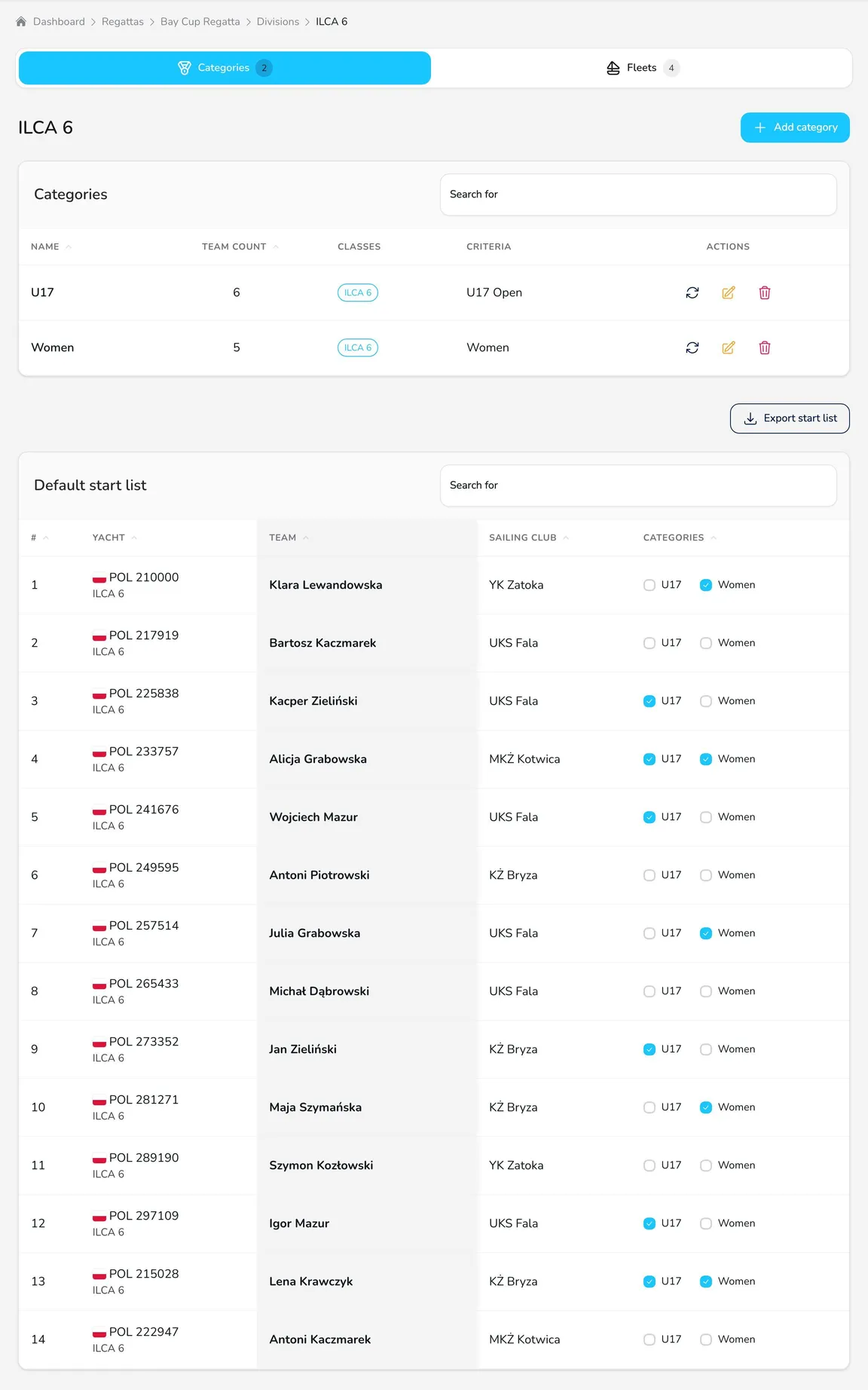
Section titled “Categories”Click View next to a division – the Categories card opens. It contains the division categories table and the Default start list with the Categories column.
-
Click Add category.
-
Enter the Category name, e.g. U17, and choose the Gender.
-
In the Filters section, choose the Classes and set the Min age and Max age – e.g. a maximum of 16 for the U17 category.
-
Select Automatically assign teams to this category based on the above filters and click Save category.
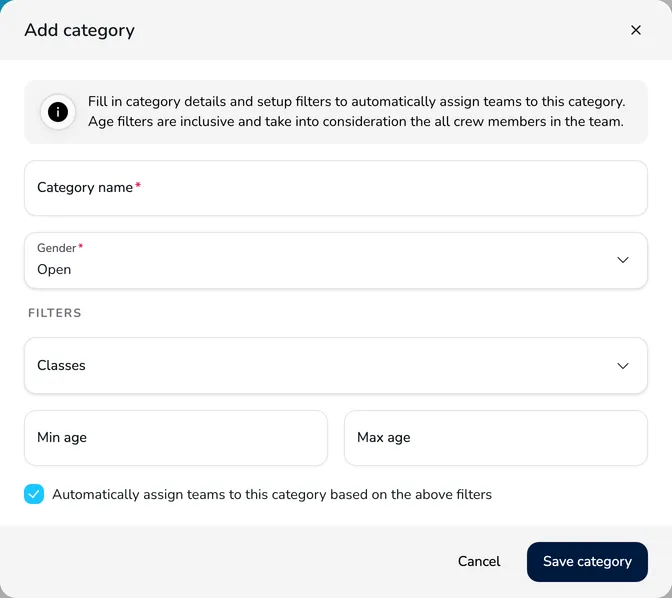
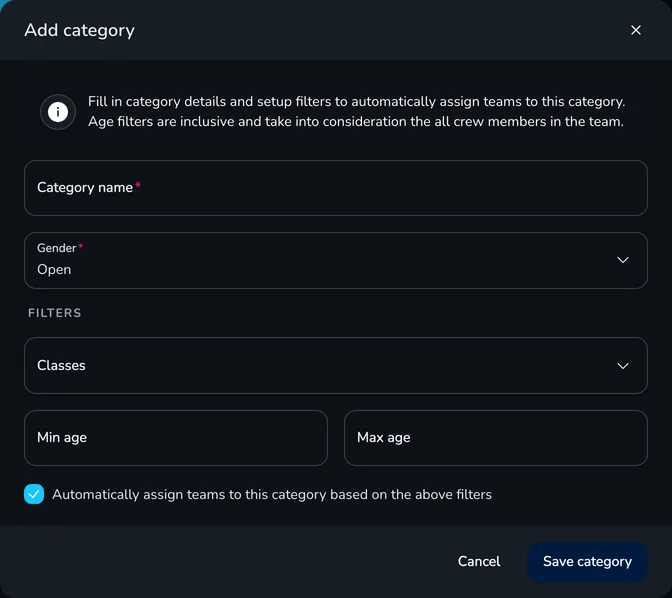
You can correct the category assignment manually – select or clear the category next to a boat in the Categories column of the default start list. The Reassign teams button in the categories table reassigns all matching teams based on the filters – use it, for example, after new entries arrive.
Fleets and start lists
Section titled “Fleets and start lists”The Fleets card contains the Division fleets table and the Start lists section with the start list chosen in the Start list field.
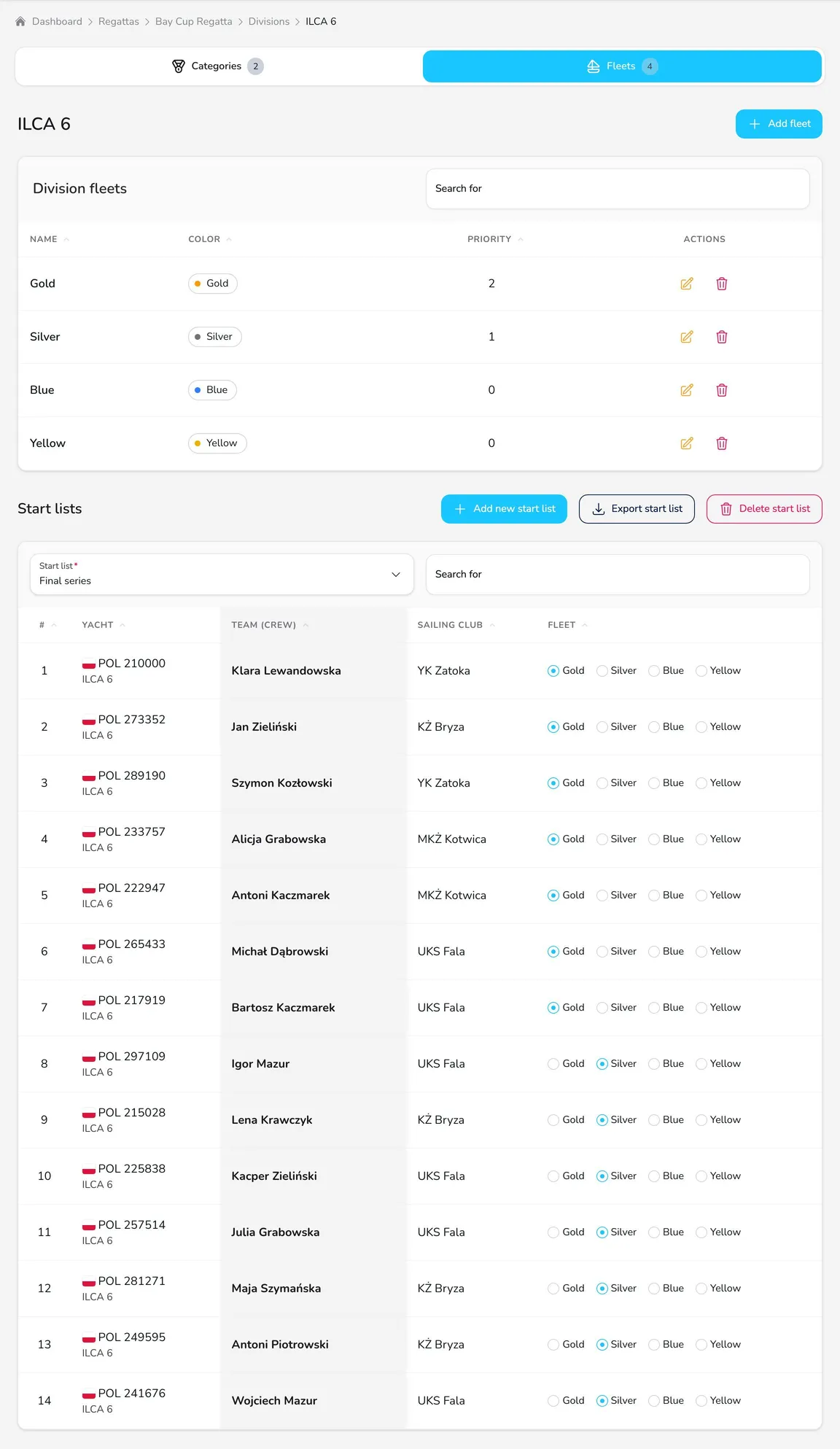
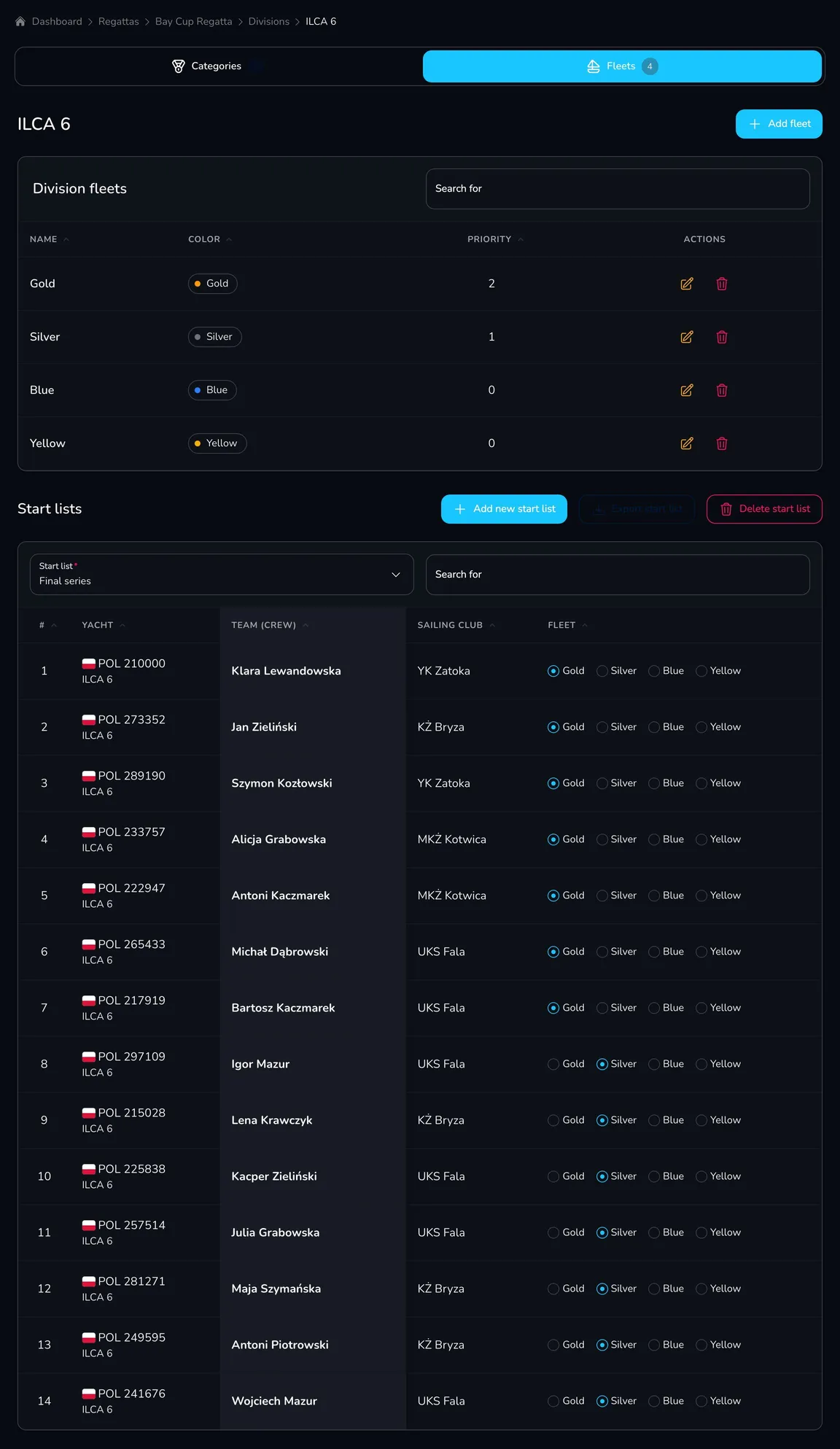
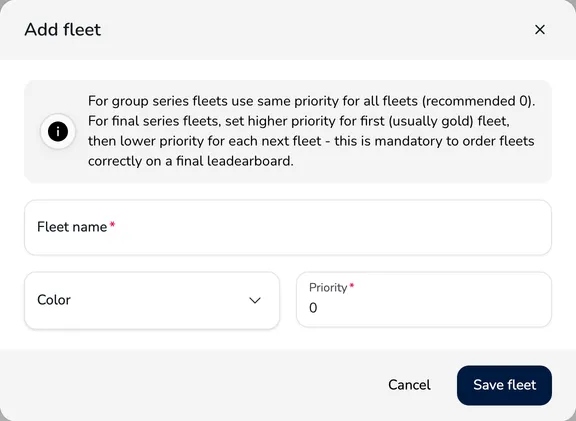
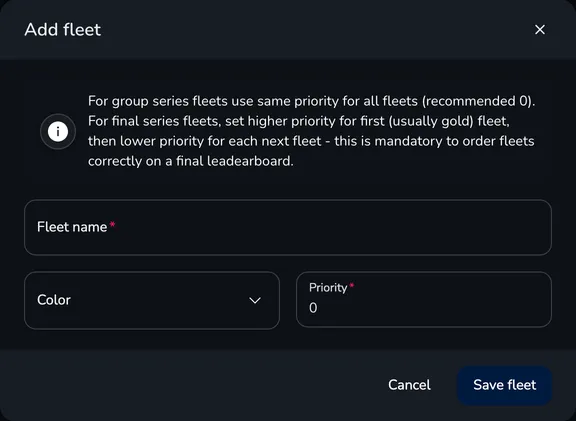
Add fleet – in the window, enter the Fleet name, choose the Color (e.g. Yellow, Blue, Gold) and set the Priority:
- for qualifying (group series) fleets, set the same priority for all fleets (recommended 0),
- for final series fleets, set the highest priority for the first (usually gold) fleet and lower priorities for the next ones – the priority determines the order of fleets in the final leaderboard.
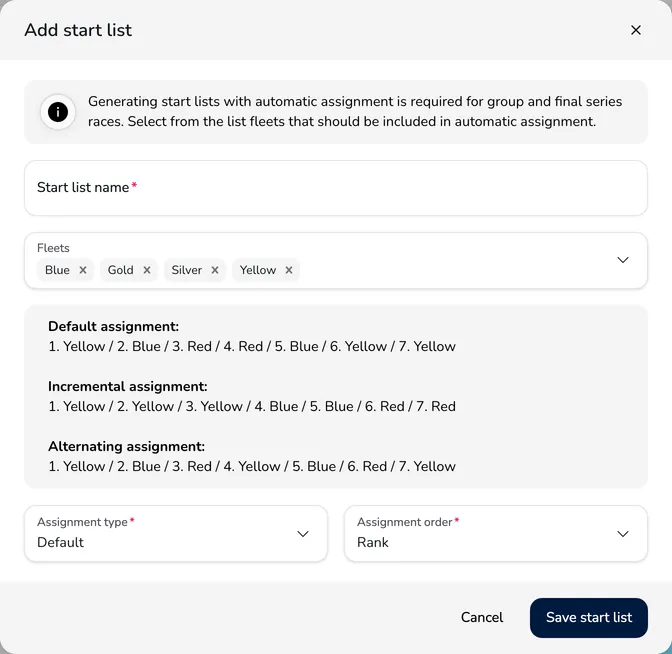
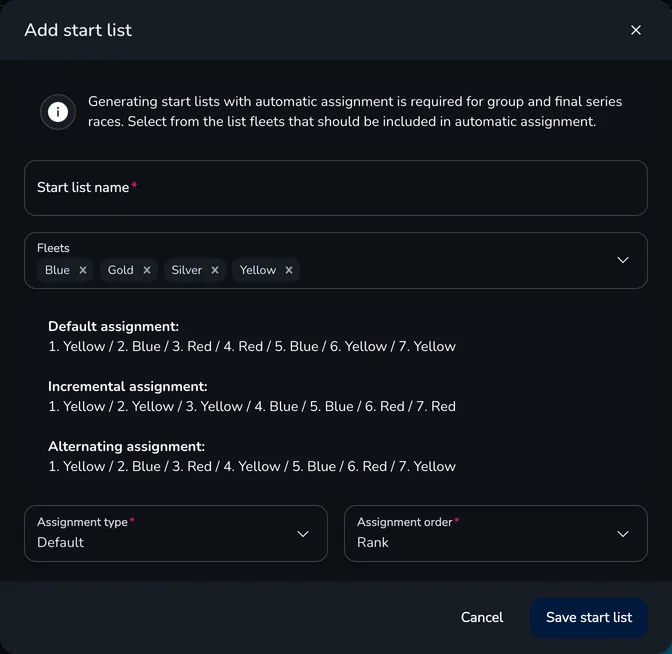
Add new start list – in the window, enter the Start list name, choose the Fleets included in the assignment, the Assignment type and the Assignment order:
- Assignment type:
- Default – “snake” order: 1. Yellow, 2. Blue, 3. Red, 4. Red, 5. Blue, 6. Yellow… – balanced fleets, typical for the qualifying series,
- Incremental – consecutive blocks: first the whole first fleet, then the second – typical for the final series (the best boats go to gold),
- Alternating – in turn: 1. Yellow, 2. Blue, 3. Red, 4. Yellow…
- Assignment order – how boats are ordered before the assignment: Rank (the current division results), Sail number, Nationality or Random.
After you save, Upwind24 assigns the boats to fleets. You can adjust the assignment manually – select a different fleet next to a boat in the start list table. Remove an unnecessary list with Delete start list.
Splitting into fleets for the qualifying and final series
Section titled “Splitting into fleets for the qualifying and final series”Below is an example for a large ILCA 6 fleet that first races in two qualifying fleets and then in a gold and a silver fleet.
-
Create the qualifying fleets. On the division’s Fleets card, add the Yellow and Blue fleets with priority 0.
-
Create the qualifying series start list. Click Add new start list, name it e.g. Qualifying series, choose the Yellow and Blue fleets, the Default assignment type and an order such as Sail number or Random.
-
Create the qualifying races. On the Scoring tab, add Group series races with the Qualifying series start list. If the fleets start separately, each start is a separate race – create e.g. race 1 for the Yellow fleet and race 1 for the Blue fleet.
-
Enter the results of the qualifying races. If you want to reshuffle the fleets during the qualifying series, create another start list ordered by Rank and use it for the following races.
-
Create the final fleets. Add the Gold (priority e.g. 2) and Silver (priority 1) fleets – and with three final fleets also Bronze (priority 0).
-
Create the final series start list once all qualifying results are entered: choose the final fleets, the Incremental assignment type and the Rank order. The best boats after the qualifying series go to the gold fleet, the next ones – to silver.
-
Create the final series races of the Final series type with the final series start list – separately for each final fleet.
In the division leaderboard, boats from the gold fleet always rank above boats from the silver fleet. If you want separate results tables for each final fleet, select Separate final fleets in the results settings.
Questions and answers
Section titled “Questions and answers”I have one class and don’t split the fleet. Do I need to configure anything here?
No. The division for the class is created automatically, and confirmed entries go to its default start list. Just create races with the default start list. Optionally add categories if you award prizes, e.g. for age groups.
A new entry doesn’t appear on the start list. Why?
Only confirmed entries go to the start lists. Confirm the entry on the Entries tab. If the division has start lists split into fleets, check on the Fleets card that the boat has a fleet assigned.
Can I combine two classes in one division?
Yes. Add a division, choose both classes in the Classes field and select Automatically reassign teams to this division. Boats of both classes then race together and are scored in one table.
How does the fleet priority differ between the qualifying and final series?
In the qualifying series all fleets are equal, so they have the same priority – their results form one combined leaderboard. In the final series the priority sets the fleet hierarchy: a boat from a higher-priority fleet (gold) always ranks above a boat from a lower-priority fleet (silver), regardless of its points.
What’s next?
Section titled “What’s next?”

Manage the regatta yourself with an easy-to-use online platform.
© 2026 Upwind24. All rights reserved.