
Entry fee invoices
The Invoices tab lets you issue invoices for entry fees directly in Upwind24 – on behalf of the regatta organizer, with their details, logo and numbering. You can send invoices to participants by e-mail, and with the KSeF integration enabled they are also sent to the Polish National e-Invoice System.
Invoice list
Section titled “Invoice list”In the panel menu, in the Regattas section, choose the regatta from the list and click Invoices. At the top of the page you will find two cards: Invoicing (the invoice list) and Payments (the participants’ payment list).
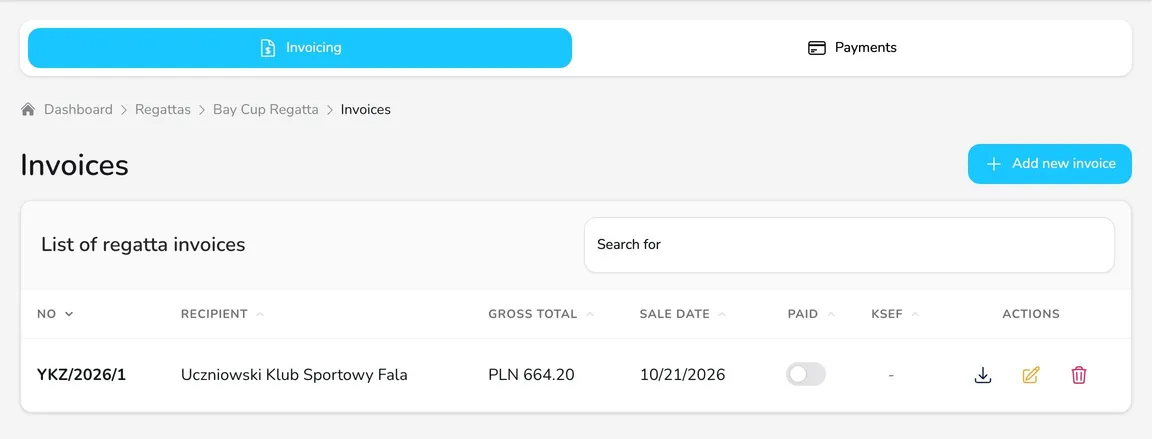
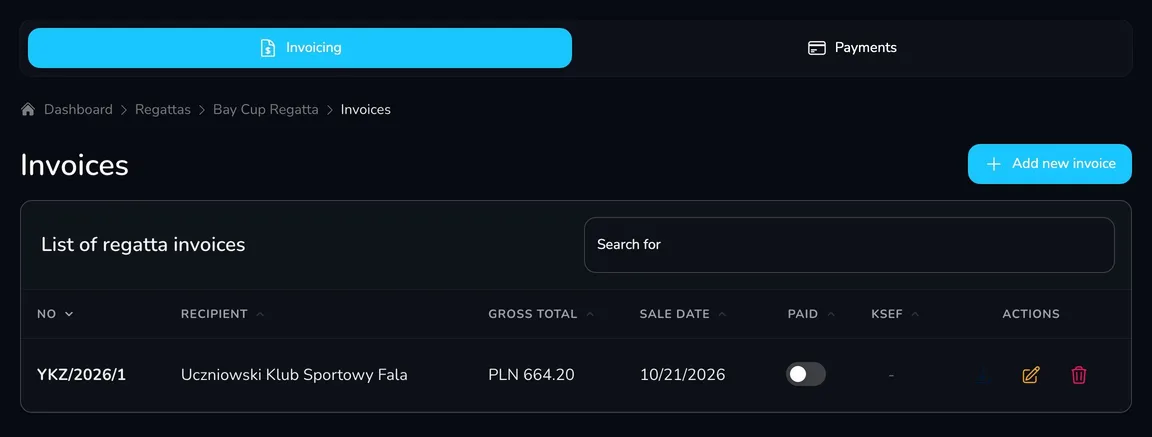
In the List of regatta invoices table you can, for each invoice:
- Download – download the invoice in PDF,
- Edit – change the invoice details (an invoice synchronized with KSeF can no longer be edited),
- Delete – delete the invoice,
- Mark as paid – with the switch in the Paid column. This cannot be undone.
Issue an invoice
Section titled “Issue an invoice”-
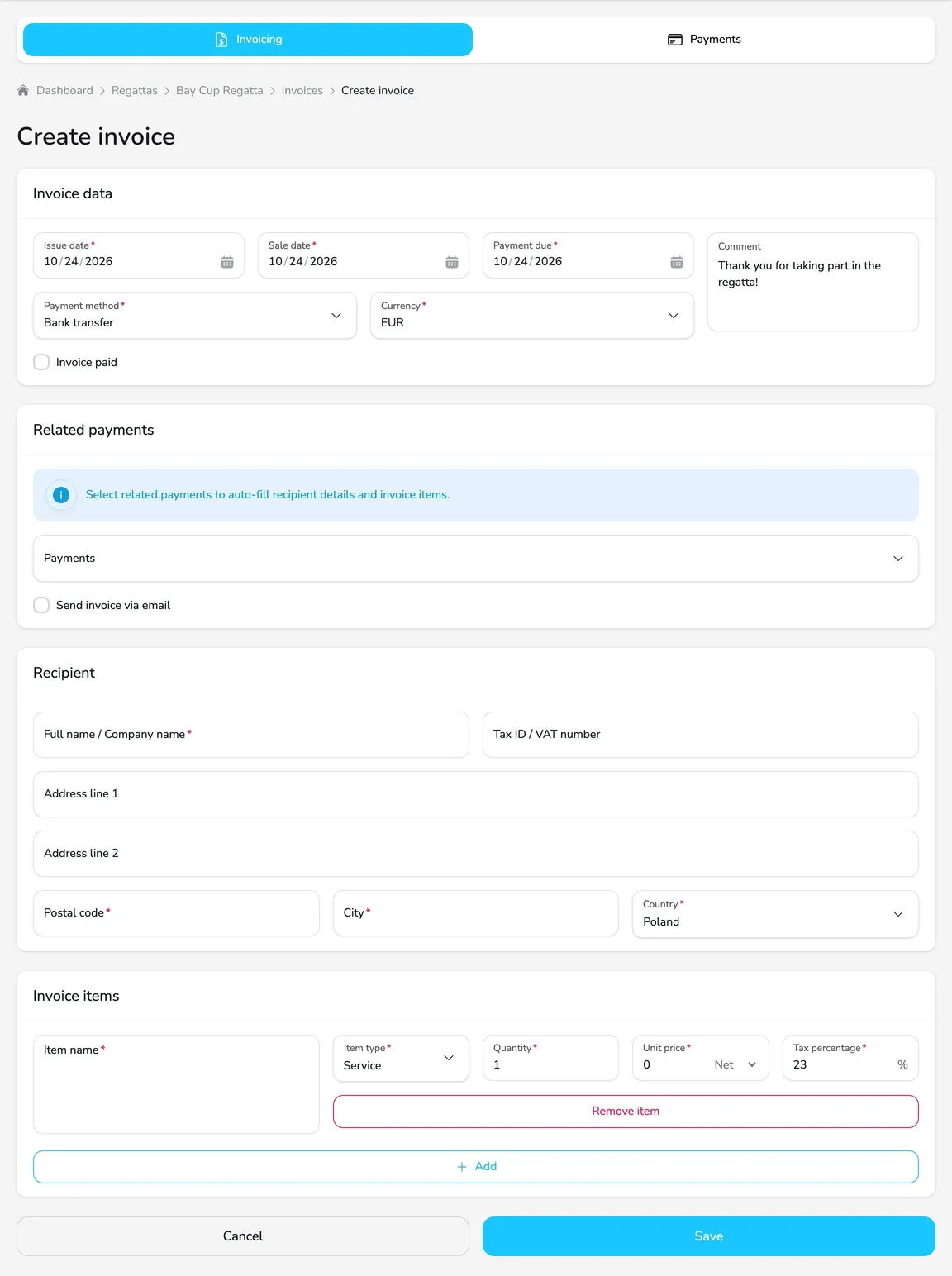
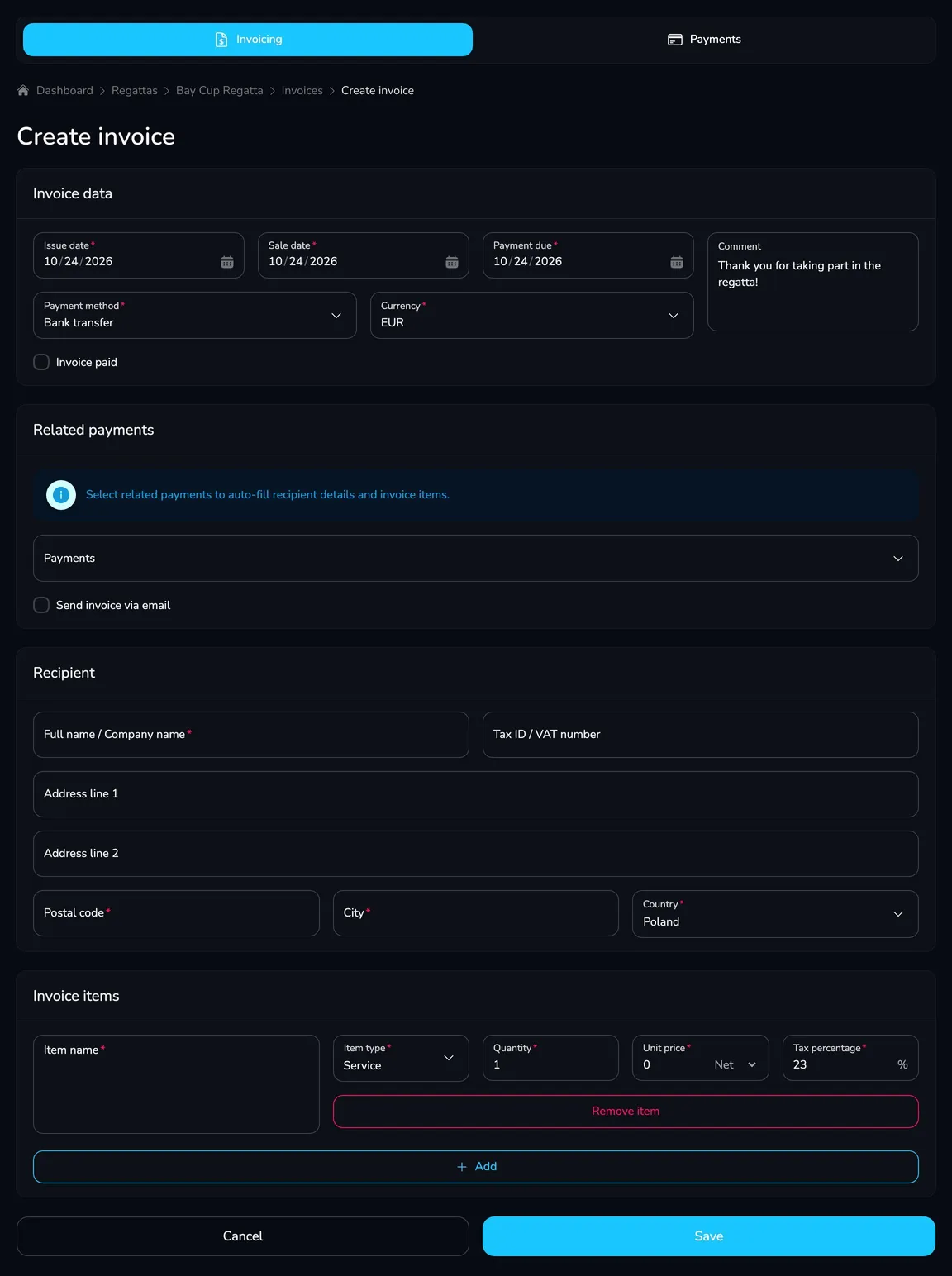
On the Invoicing card, click Add new invoice.
-
On the Invoice data card, set the Issue date, Sale date and Payment due date, and choose the Payment method and Currency. If the entry fee has already been paid, select Invoice paid. The default Comment comes from the invoicing settings.
-
On the Related payments card, choose the participant’s payments in the Payments field – Upwind24 automatically fills in the recipient details and invoice items based on the entry.
-
Check or complete the Recipient card: Full name / Company name, Tax ID / VAT number, address, Postal code, City and Country.
-
On the Invoice items card, check the items – Item name, Item type, Quantity, Unit price (net or gross) and Tax percentage. Add more items with Add and remove unnecessary ones with Remove item.
-
To send the invoice to the participant, select Send invoice via email and enter the Recipient email.
-
Click Save. You will see the message Invoice has been created successfully., and the invoice number is assigned automatically according to the numbering in the settings.
Check who needs an invoice
Section titled “Check who needs an invoice”The Payments card contains all payments related to regatta entries. The filters above the table – Paid, Invoice requested and Invoice issued (All, Yes, No) – help you quickly find payments that still need an invoice.
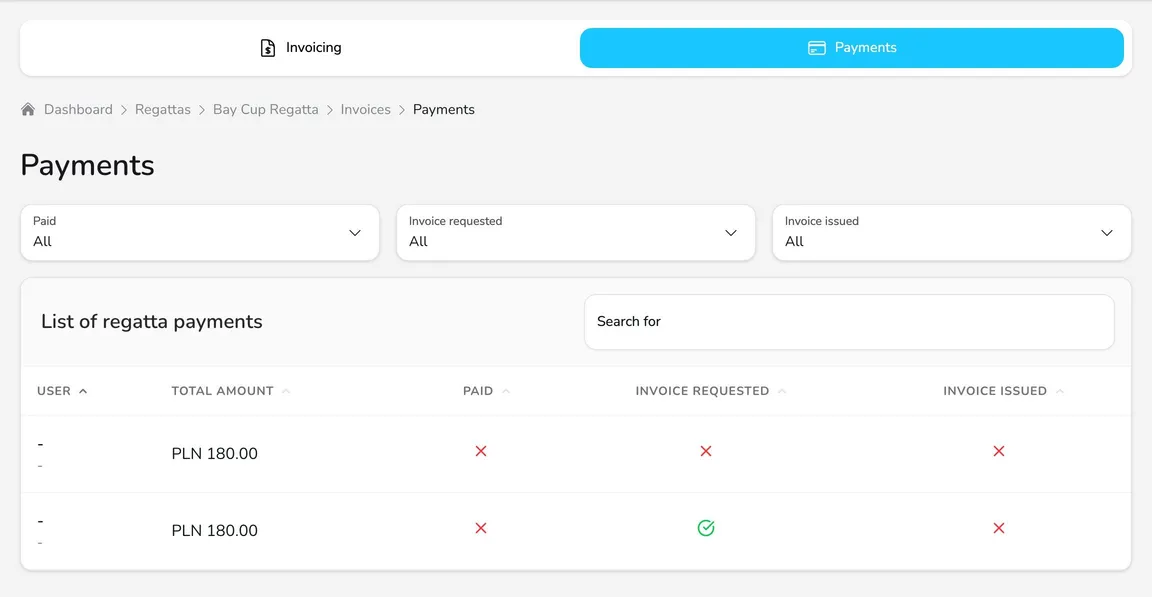
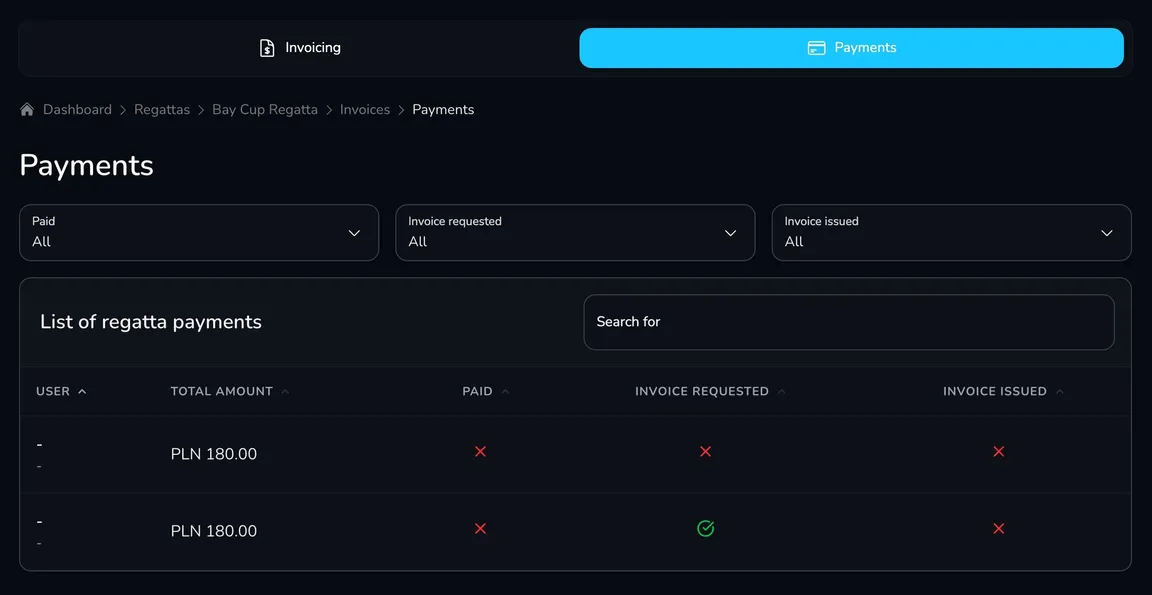
Set the filters Invoice requested: Yes and Invoice issued: No to see the participants who selected I would like to receive an invoice in their entry and are still waiting for it.
Invoices in KSeF
Section titled “Invoices in KSeF”If you enter the KSeF NIP and the KSeF authorization token in the invoicing settings, issued invoices are sent to the Polish National e-Invoice System (KSeF) automatically. How to generate the token in the KSeF Taxpayer Application is described in KSeF authorization token. You will see the status in the KSeF column:
- Waiting for KSeF synchronization – the invoice will be sent automatically at the end of the day; until then you can still correct it,
- Synchronized with KSeF – the invoice has a KSeF number and can no longer be edited,
- KSeF synchronization failed – check the error message (e.g. an invalid recipient tax ID) and correct the invoice or the settings,
- KSeF synchronization skipped – the invoice was not sent to KSeF.
Questions and answers
Section titled “Questions and answers”Does Upwind24 issue invoices automatically after the entry fee is paid?
No. Entry fee invoices are issued by the organizer – manually, on the Invoices tab. Upwind24 suggests the recipient details and items based on related payments, and the Payments card shows who requested an invoice.
How do I issue one invoice for several entries?
Choose several payments in the Payments field – e.g. all payments of a club for its sailors’ entries. The items from all payments are added to one invoice.
I made a mistake in an invoice that is already in KSeF. What should I do?
An invoice synchronized with KSeF cannot be edited in Upwind24. Issue a correction according to your accounting rules or contact your accountant.
What’s next?
Section titled “What’s next?”
Manage the regatta yourself with an easy-to-use online platform.
© 2026 Upwind24. All rights reserved.