
Creating and joining a crew
A crew is a set of details saved in Upwind24: the yacht, the skipper, the crew members and – optionally – the coach. You enter them once and use them again and again:
- Faster entries – you choose the crew and the entry form fills itself in, see Regatta entries.
- Results archive – based on the license and World Sailing Sailor ID, Upwind24 shows the regatta results and ranking position of each sailor, see Results archive.
- Shared access – invited crew members see the same details, entries and results in their own accounts.
Create a crew
Section titled “Create a crew”-
Open Crews → Add new crew.
-
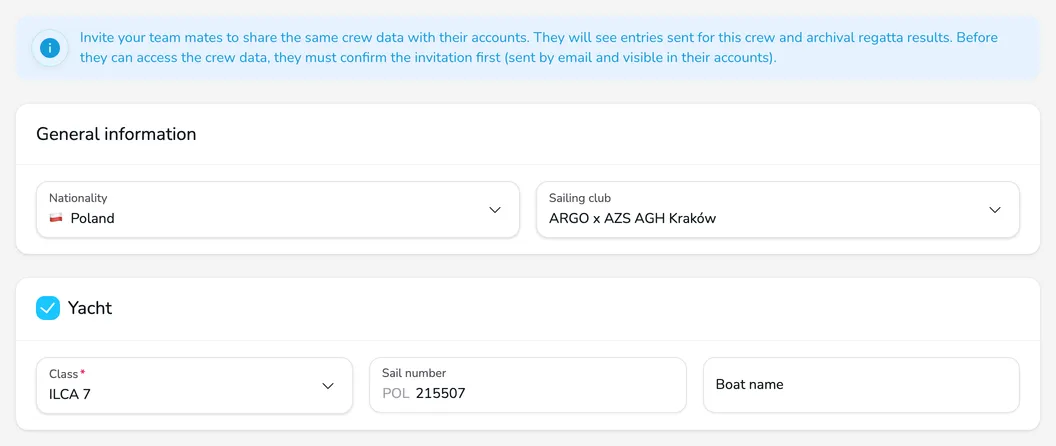
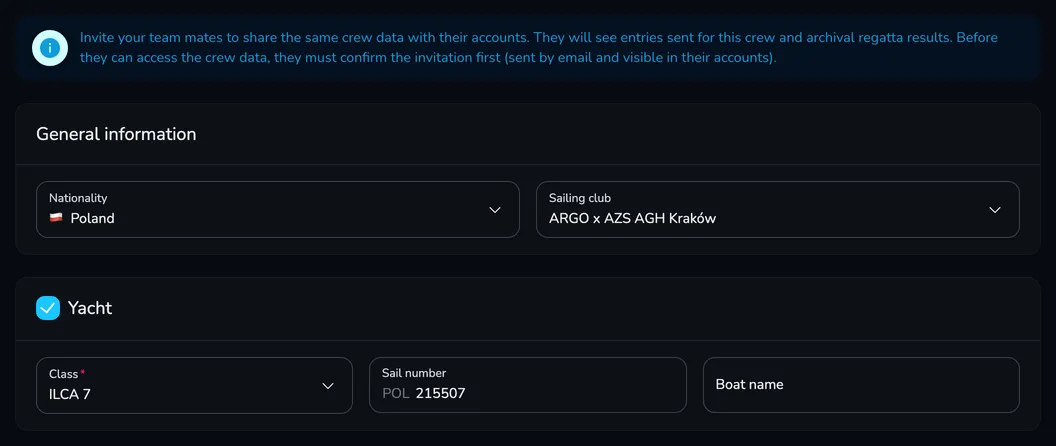
In the General information card, choose the crew’s Nationality and Sailing club. If your club is not on the list, type its name and choose Add “…” to the list.
-
In the Yacht card, choose the Class and enter the Sail number – the country prefix (e.g. POL) is added automatically, so enter the digits only. The Boat name is optional.
-
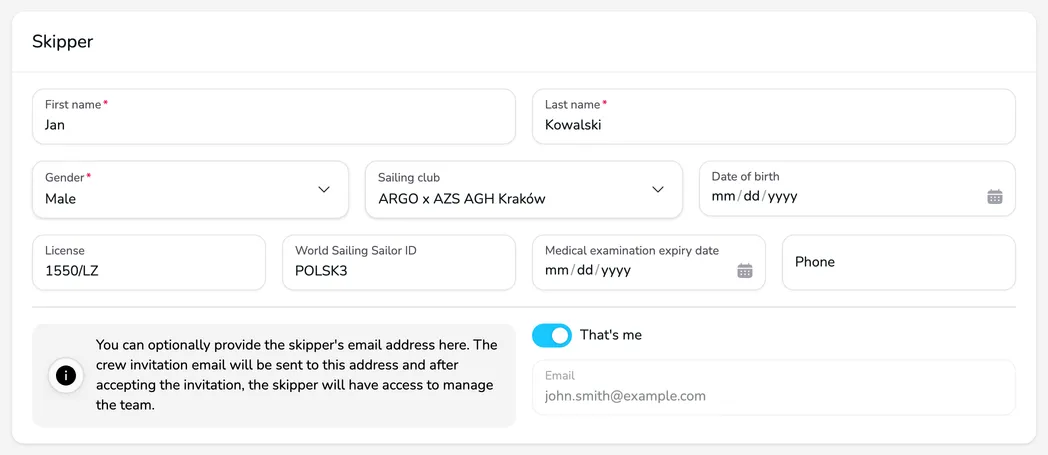
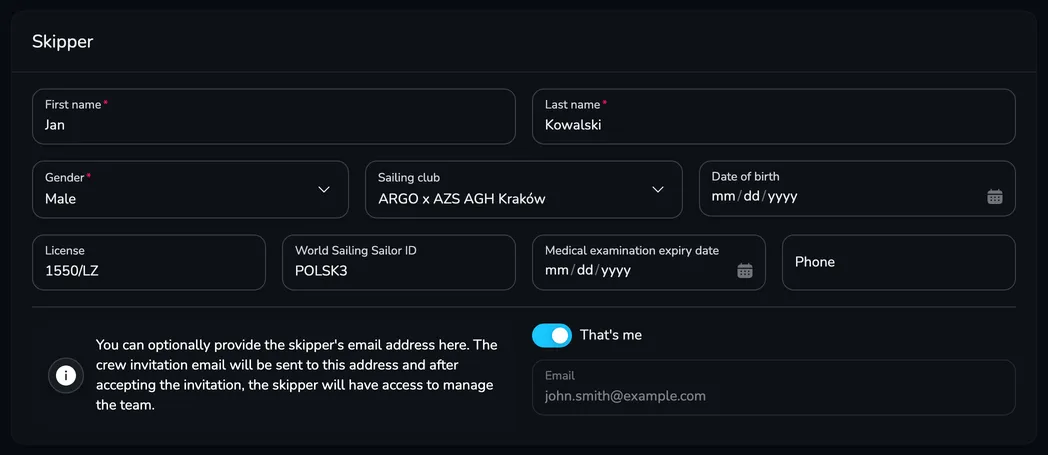
In the Skipper card, fill in the First name, Last name and Gender (required) and – if available – the License, World Sailing Sailor ID, date of birth, medical examination expiry date and phone. If you are the skipper, turn on That’s me – the Email field gets the address of your account.
-
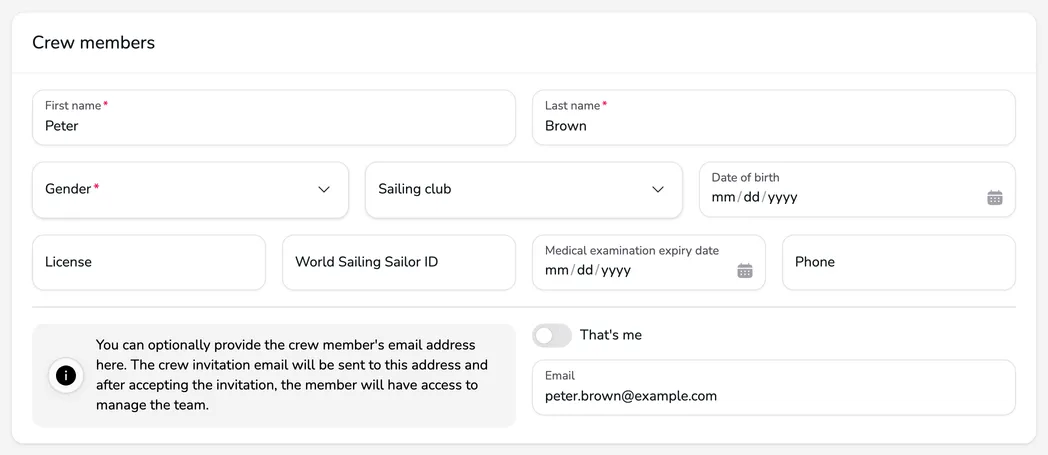
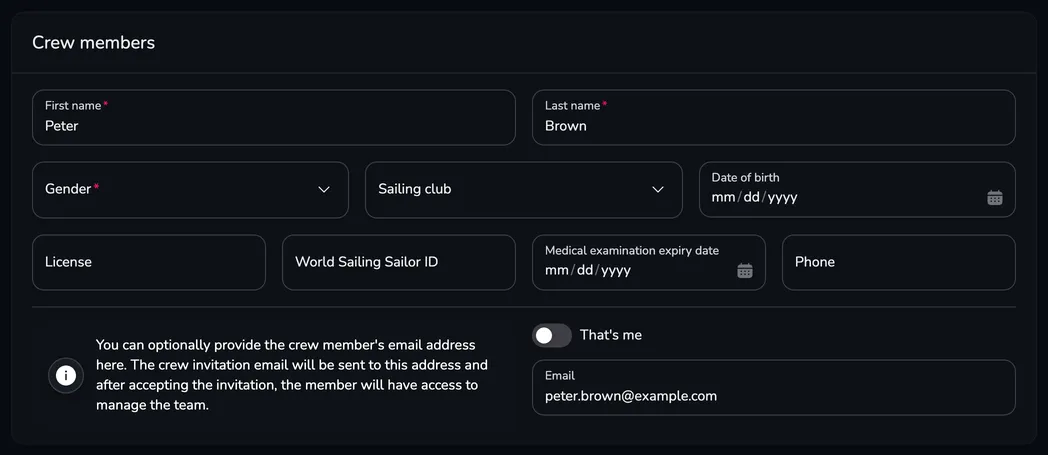
Fill in the crew members in the Crew members card. The number of places depends on the class: single-handed classes have no such card, double-handed classes show one place right away, and in other classes you add people with the Add button (and remove them with Remove).
-
The Coach card is optional – clear it if the crew has no coach. When the crew has more than one person, you can also enter a Team name.
-
Click Save. You see the message Crew has been created successfully. and Upwind24 opens the crew details page.
Manage your crew
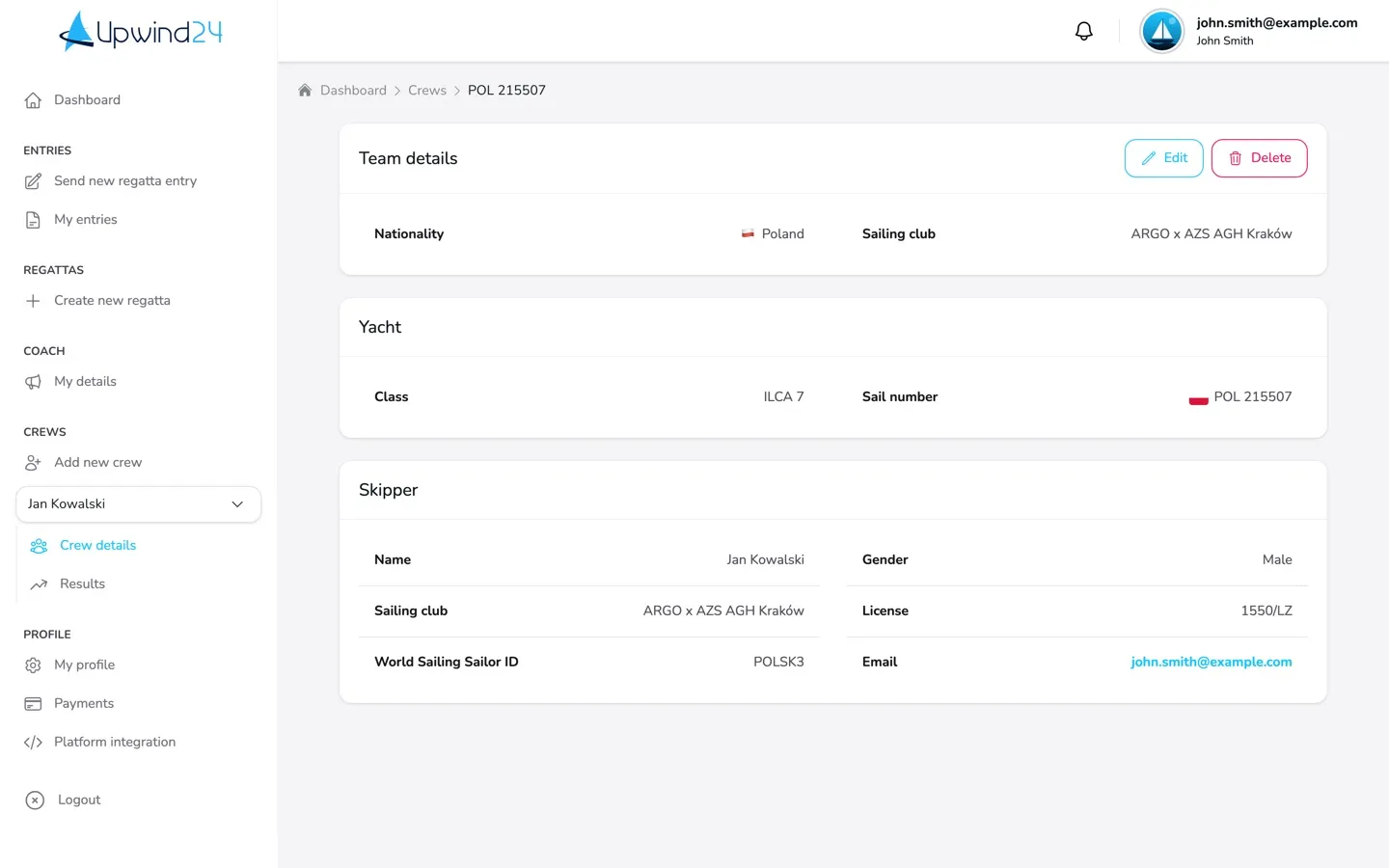
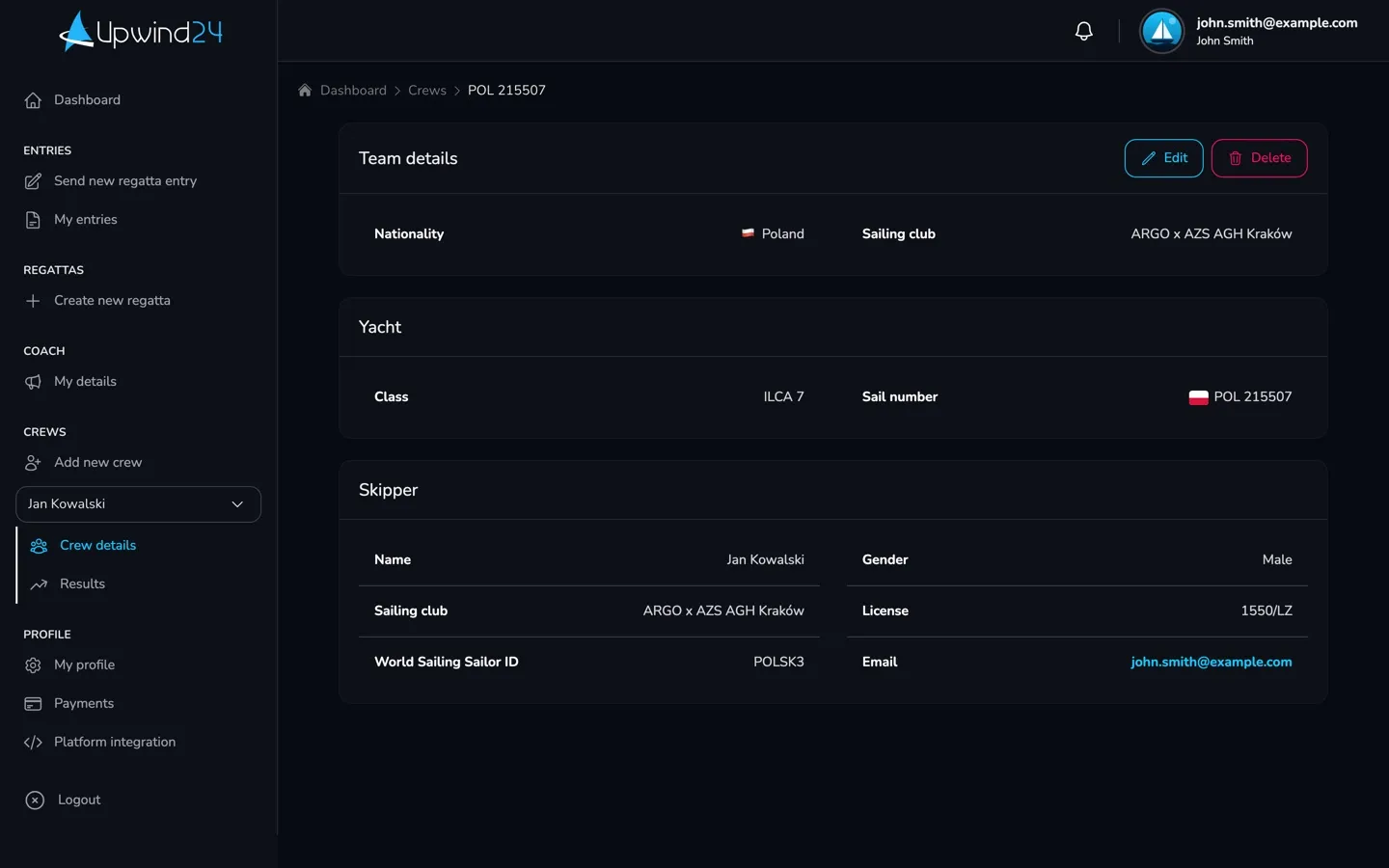
Section titled “Manage your crew”Your crews are in the Crews section of the menu on the left. Choose a crew from the list – the Crew details and Results items appear below it. On the Crew details page you can:
- click Edit to change the details – after saving, you see the message Crew has been updated successfully.,
- click Delete to remove the crew from your account. Upwind24 asks you to confirm, and this can’t be undone. Entries sent earlier and regatta results stay on the platform.
Invite crew members
Section titled “Invite crew members”To let the other crew members manage the crew from their own accounts, enter their e-mail addresses in the Email field of the skipper, crew member or coach and save the crew.
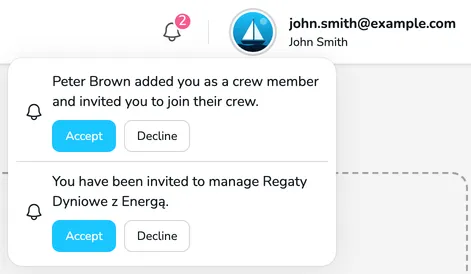
- Upwind24 sends an invitation e-mail to that address. If the person already has an account, they also see the invitation in the notifications of the panel.
- A person without an account can create one with the address the invitation was sent to – the invitation then shows up in their panel.
- You can also invite people later: edit the crew, add the e-mail address and save the changes. Removing the address from the form cancels an invitation that hasn’t been accepted yet.
- No invitation is sent to your own address (e.g. after turning on That’s me).
Join a crew
Section titled “Join a crew”-
Sign in to the account created with the e-mail address the invitation was sent to. Don’t have an account? Create one with the same address.
-
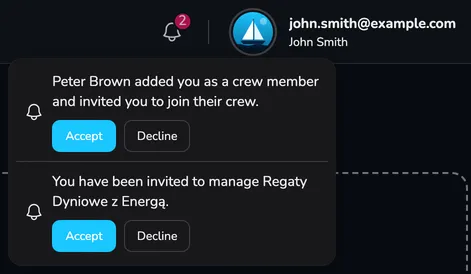
Click the bell icon in the top bar of the user panel. Next to the crew invitation, click Accept (or Decline if you don’t want to join).
-
The crew appears in the Crews section of your panel. You can edit it, enter it into regattas and browse its entries and results.
Questions and answers
Section titled “Questions and answers”Does every crew member need an Upwind24 account?
No. One person – e.g. the skipper or a sailor’s parent – can run the crew and send the entries. An account is only needed for those who want to manage the crew themselves and see its entries and results in their own account.
I race in two classes. Do I need two crews?
Yes – the boat class is part of the crew details, so create a separate crew for each class (or each line-up). A parent of several sailors simply creates a separate crew for each child.
Next steps
Section titled “Next steps”
Manage the regatta yourself with an easy-to-use online platform.
© 2026 Upwind24. All rights reserved.