

Regatta settings
On the Settings tab you decide how the regatta page looks, which tabs participants see, how the entry form works, what the entry terms and fees are and how results are calculated. The settings are split into cards – each one covers one regatta module.
Open the settings: in the panel menu, in the Regattas section, choose the regatta from the list and click Settings. At the top of the page you will see the cards General, Entries, Notices, Invoicing, Jury, Start lists and Scoring. The Invoicing and Jury cards are visible only in plans that include these modules.


General
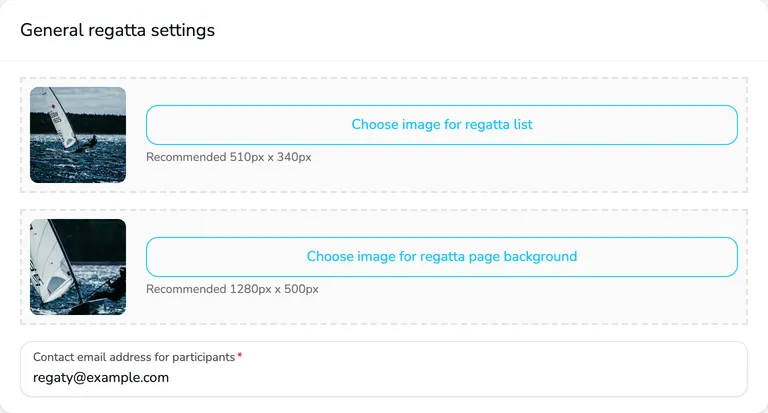
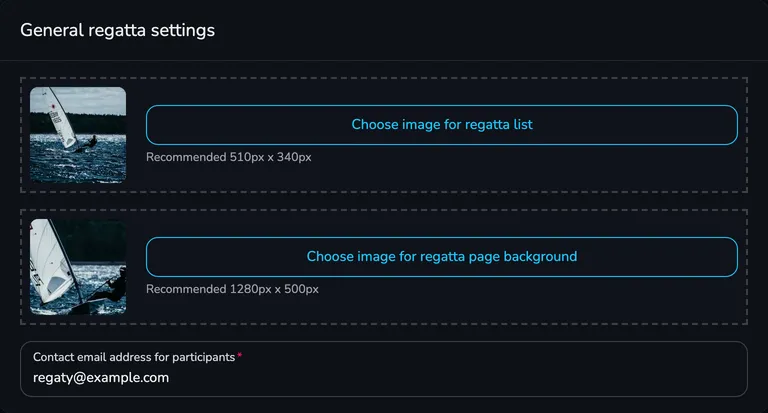
Section titled “General”The General regatta settings card contains the regatta images and the contact address.
Regatta images
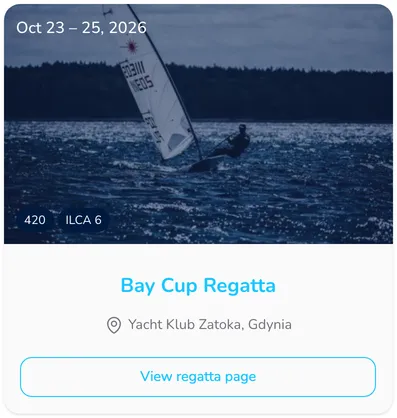
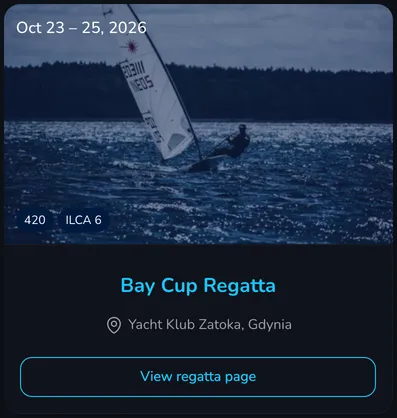
Section titled “Regatta images”- Choose image for regatta list (recommended 510 × 340 px) – the regatta thumbnail on regatta tiles: on the Regattas page, on the home page, in the regatta search and on the list of regattas open for entries in the participants’ panel.
- Choose image for regatta page background (recommended 1280 × 500 px) – the photo in the regatta page header. It is also used as a fallback image for news articles without a main image.
If you don’t add images, Upwind24 uses a default photo. JPG, GIF and PNG files up to 3 MB are supported.
Contact email address for participants
Section titled “Contact email address for participants”This is the address participants can use to contact the organizer. After the regatta is created, it is the e-mail address of the person who created it – change it, for example, to the race office address. The address is used in several places:
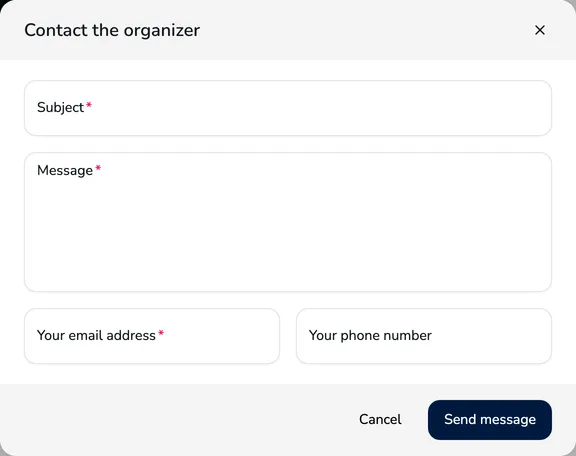
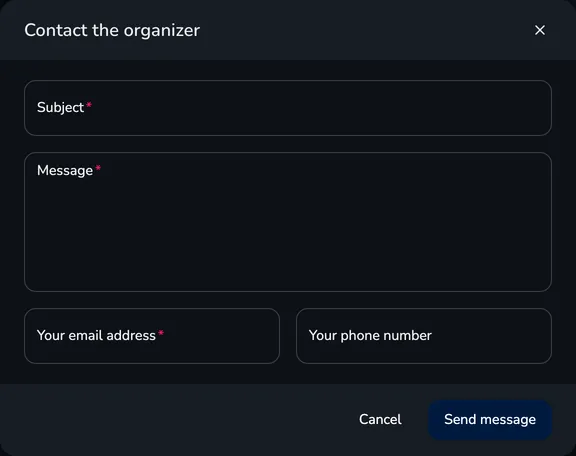
- The Contact the organizer button on the regatta page opens the Contact the organizer form. Messages from the form are delivered to this address, and you can reply directly to the sender.
- Replies to Upwind24 e-mails – entry confirmations, invoices, jury request confirmations and manager invitations are sent from an Upwind24 address, but when a participant clicks Reply, the message goes to the regatta contact address.
Entries
Section titled “Entries”The Entries card has several sections: the entry list shown on the regatta page, the entry form settings, entry terms with fees, online payments and custom fields.
Entry list
Section titled “Entry list”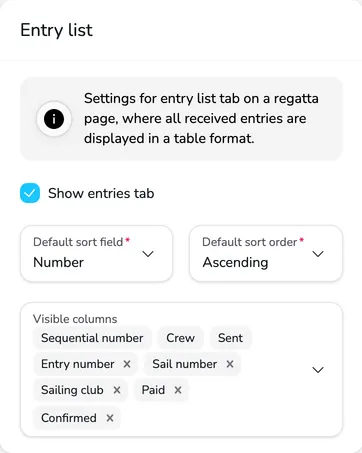
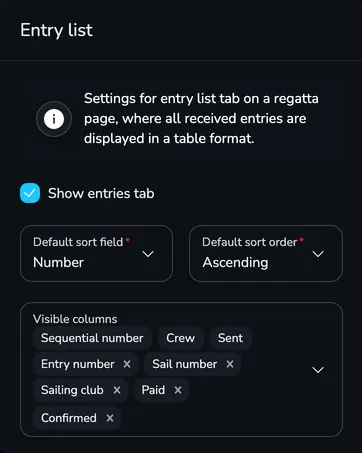
- Show entries tab – publishes the list of received entries on the Entries tab of the regatta page.
- Default sort field and Default sort order – the order of the list, e.g. by entry number, sent date, club or sail number.
- Visible columns – the columns of the public entry list. The Sequential number, Crew and Sent columns are always visible. Remember that the list is public – show only data that participants may see.
Entry forms
Section titled “Entry forms”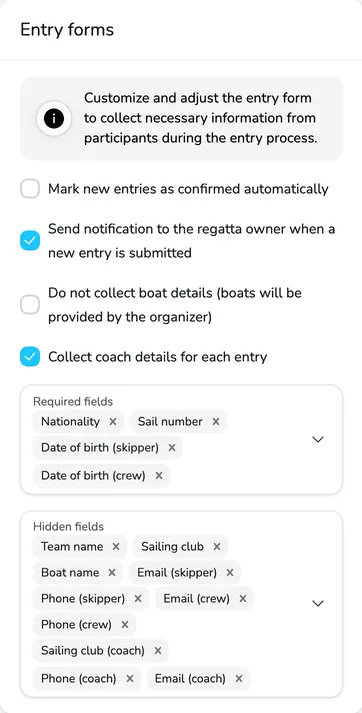
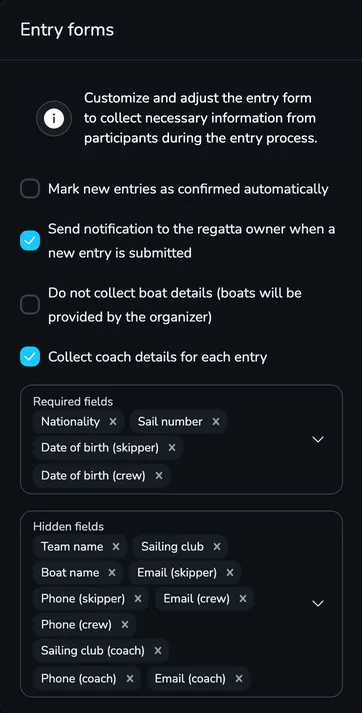
- Mark new entries as confirmed automatically – new entries go straight to the start lists. When the field is cleared, you confirm every entry manually on the Entries tab.
- Send notification to the regatta owner when a new entry is submitted – after each new entry, the regatta owner receives an e-mail with the entry form in PDF.
- Do not collect boat details (boats will be provided by the organizer) – the form has no Boat section; useful for regattas on boats provided by the organizer.
- Collect coach details for each entry – adds the Coach section to the form.
- Required fields – form fields the person entering must fill in (e.g. the skipper’s license or date of birth).
- Hidden fields – fields the form doesn’t show at all (e.g. a crew member’s phone).
Entry terms
Section titled “Entry terms”An entry term defines when and for how much participants can enter given divisions. Without an entry term, participants cannot send an entry through the regatta page.
-
In the Entry terms section, click Add entry term.
-
Set the Entry open from and Entry open until dates.
-
Choose the Divisions the term applies to.
-
Enter the Price per boat and Price per crew member and choose the Currency. The price per crew member is charged for every person in the entry – including the skipper.
-
Choose the Payment methods: Bank transfer, Online payment (in plans with online payments, see below), On-site cash payment or None.
-
In the Additional details field, add information for the people entering, e.g. the bank account number and the transfer title.
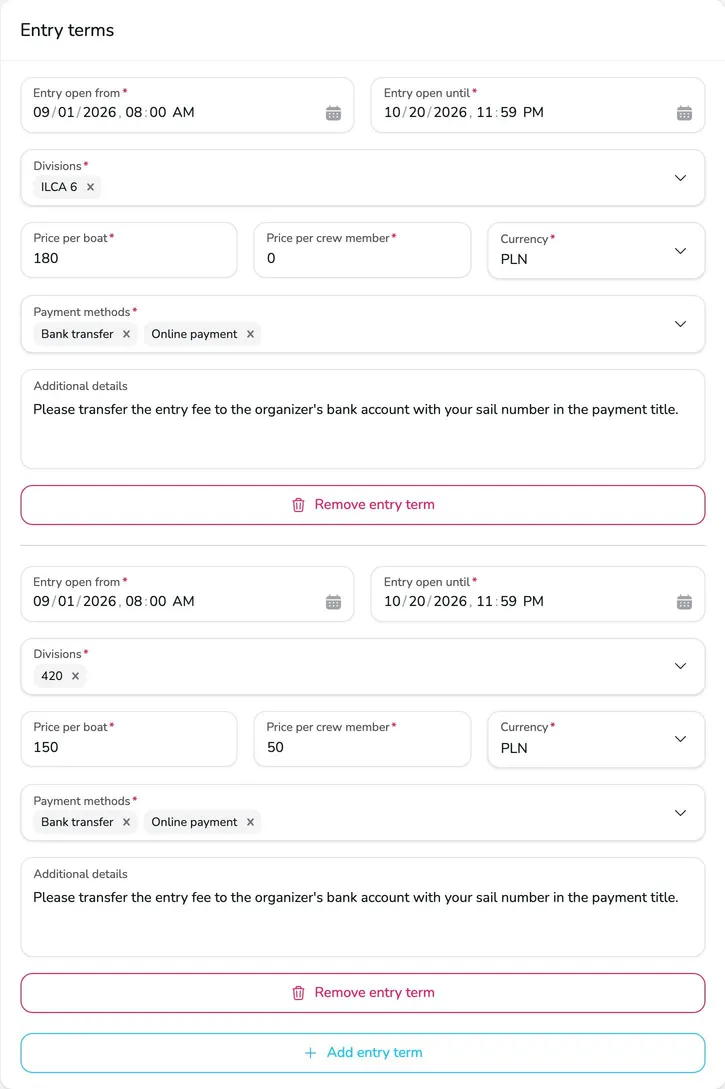
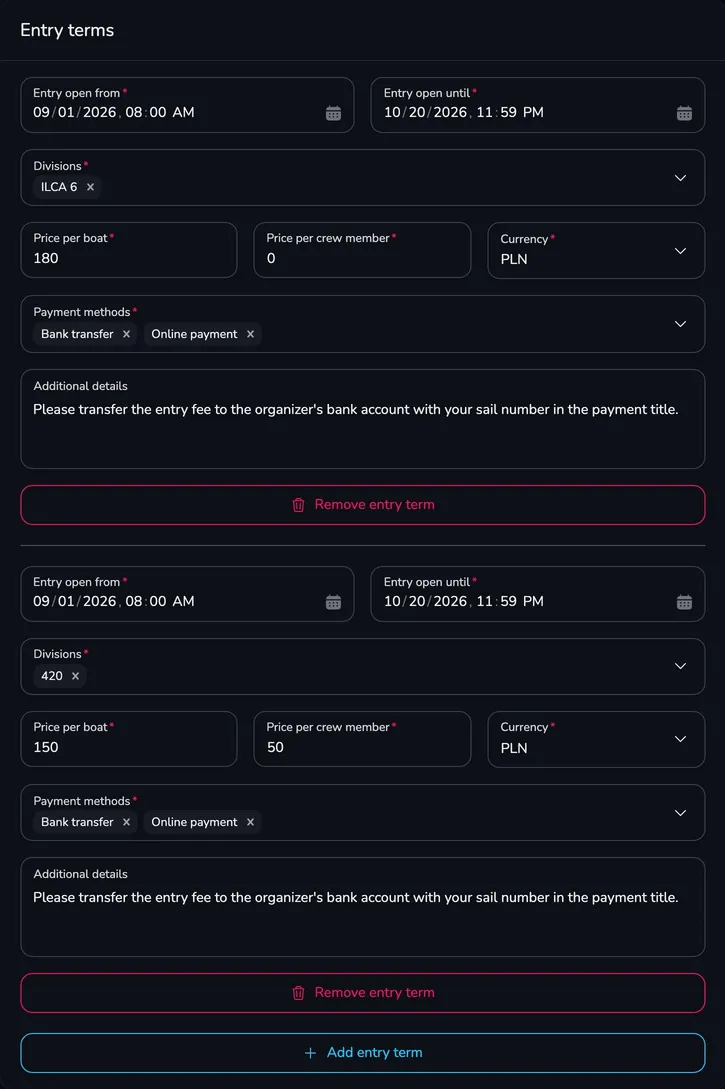
Entry terms are shown on the regatta page, in the Entry deadline box next to the regatta information.
Online payments for entries
Section titled “Online payments for entries”Online payments are handled by a payment provider with which the regatta organizer (e.g. your club) has an agreement. Upwind24 connects to your account with the provider, so payments go directly to your account with the provider, not to Upwind24. Once the provider confirms a payment, the entry is automatically marked as paid.
-
Create a business (merchant) account with the chosen provider – PayPal, Przelewy24 or PayU – and complete its verification. Registration requires your organization’s details (e.g. tax ID, company registration, bank account) and may take a few days, so start early.
-
Find the integration keys in the provider’s panel (details below) and paste them into the Online payments section of the Entries card. You can connect several providers – the participant then chooses which one to pay with.
-
Add the Online payment method to the entry terms.
-
Click Save.
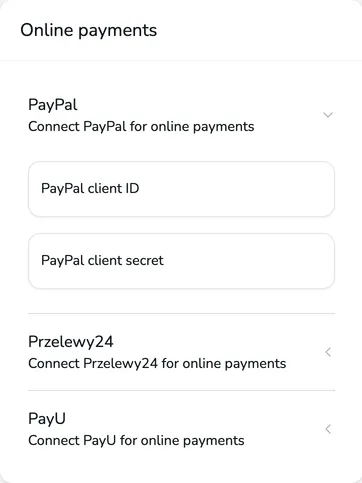
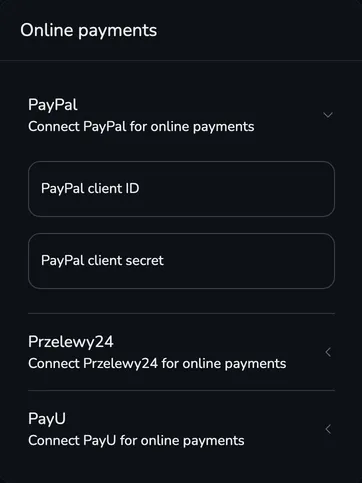
PayPal
Section titled “PayPal”You need a PayPal Business account.
-
Log in with your business account to the PayPal Developer Dashboard.
-
Open Apps & Credentials and switch the environment to Live (not Sandbox).
-
Click Create App, name the app (e.g. Upwind24) and create it.
-
On the app page, copy the Client ID into the PayPal client ID field and the Secret into the PayPal client secret field.
Przelewy24
Section titled “Przelewy24”You need a business account with Przelewy24.
-
Your account ID number is in the “Important information” e-mail sent after registration – it is also your login to the Przelewy24 panel. Enter it in the Przelewy24 seller ID field.
-
Log in to the Przelewy24 panel and open My data → Settings → API data and configuration.
-
Copy the CRC key into the Przelewy24 CRC field.
-
Copy the report key (API key) into the Przelewy24 report key field.
You need a business account with PayU.
-
Log in to the PayU panel and open Online payments → My shops.
-
Choose the shop and go to its points of sale (POS). Choose an existing REST API (Checkout) point of sale or add a new one.
-
The configuration keys of the point of sale contain four values – paste them into the form:
- POS ID (pos_id) → PayU POS ID,
- Second key (MD5) → PayU signature key,
- OAuth protocol – client_id → PayU client ID,
- OAuth protocol – client_secret → PayU client secret.
Custom fields
Section titled “Custom fields”Custom fields let you collect information that is not part of the standard entry form – e.g. a T-shirt size, an insurance number or a dietary requirement for the regatta dinner.
-
In the Custom fields section, click Add custom field.
-
Enter the Field label and choose the Field type: Text, Email, Number, Select or Date. For the Select type, add the options with Add option.
-
Choose the Form section where the field appears: Entry form, Team form, Boat form or Sailor form (the field then appears for every sailor).
-
Select Required if the field is mandatory and save the settings.
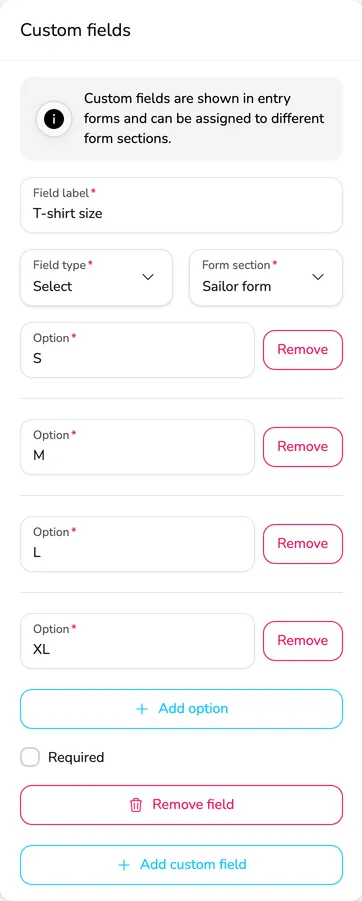
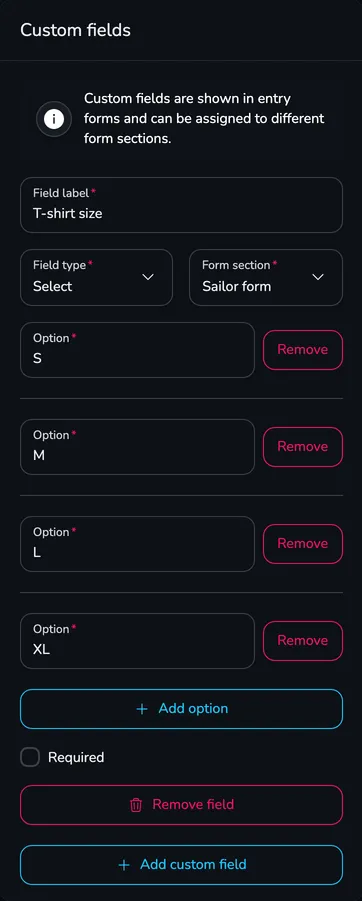
Answers to custom fields are available in the entry details and in the full XLSX entry export – see Entries.
Notices
Section titled “Notices”

The Show notice board tab field enables the Notice board tab, where participants see the notices. While the field is cleared, published notices are not visible on the regatta page.
Invoicing
Section titled “Invoicing”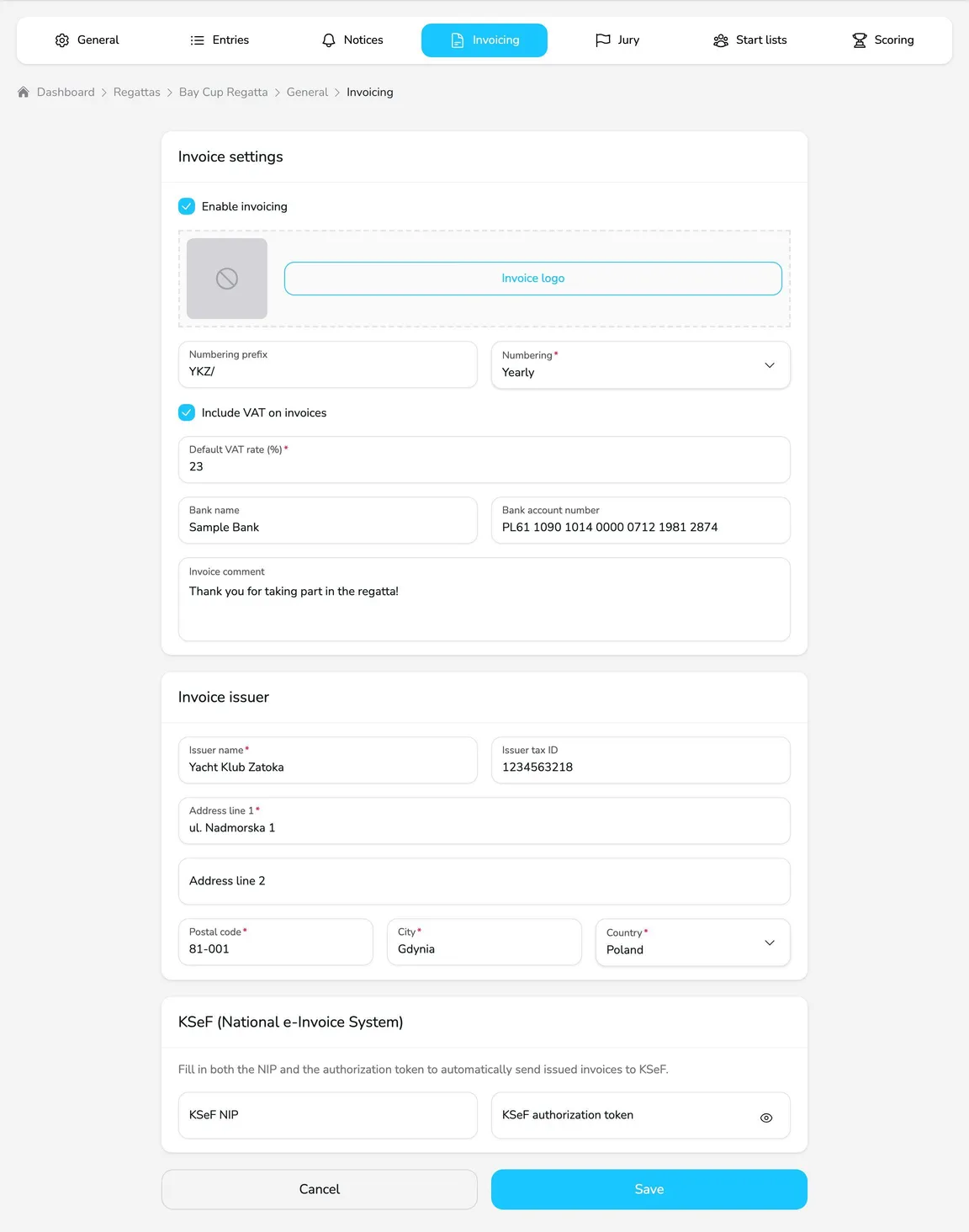
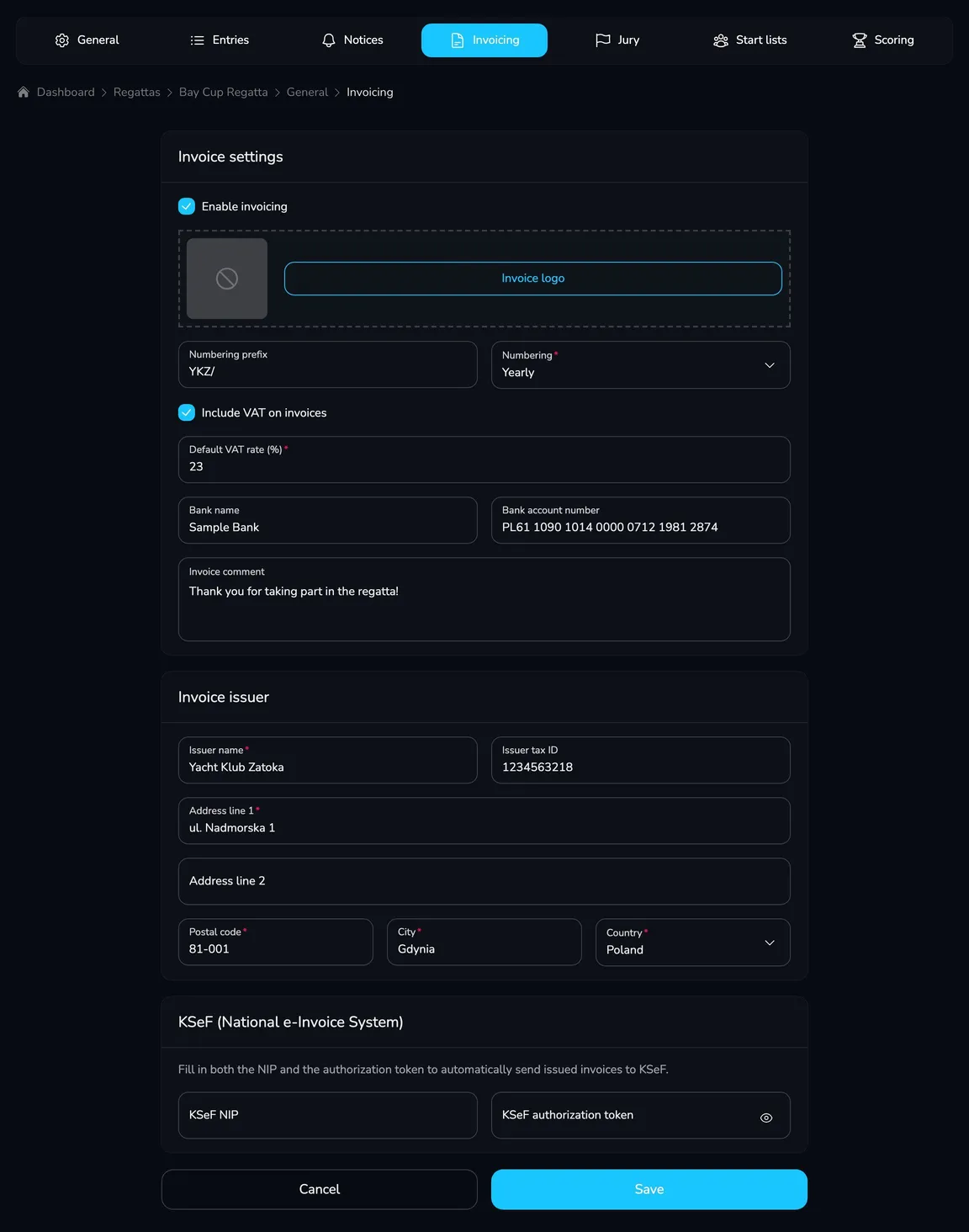
- Enable invoicing – adds the I would like to receive an invoice option with invoice details to the entry forms.
- Invoice logo – the logo in the invoice header.
- Numbering prefix and Numbering – the invoice number format. With the YKZ/ prefix, Yearly numbering gives numbers like YKZ/2026/1, Monthly – YKZ/2026/10/1 and Daily – YKZ/2026/10/24/1. The (reverse) variants write the number in reverse order, e.g. YKZ/1/2026.
- Include VAT on invoices and Default VAT rate (%) – when the field is cleared, invoices are issued without VAT.
- Bank name, Bank account number and Invoice comment – details printed on every invoice.
- Invoice issuer – the name, tax ID and address of the organizer issuing the invoices.
- KSeF (National e-Invoice System) – after you fill in the KSeF NIP and the KSeF authorization token, issued invoices are sent to the Polish KSeF system automatically. How to get the token is described in KSeF authorization token.
Issuing invoices is described in Entry fee invoices.
KSeF authorization token
Section titled “KSeF authorization token”Upwind24 sends invoices to KSeF on behalf of the organizer by signing in with a token – a string of characters you generate in the free KSeF 2.0 Taxpayer Application (Aplikacja Podatnika KSeF) of the Polish Ministry of Finance. The token must be generated in the context of the invoice issuer’s NIP – the same NIP you enter in the KSeF NIP field – and include the permission to issue invoices.
-
Open the KSeF 2.0 Taxpayer Application and sign in in the context of the organizer’s NIP. A natural person can authenticate with login.gov.pl (the National Node) or a qualified electronic signature, a club or company – with a qualified electronic seal. A KSeF certificate works for everyone.
-
In the menu, choose Tokeny → Generuj token (Tokens → Generate token).
-
Enter the token name, e.g. Upwind24 – entry fee invoices, and select the permission to issue invoices. Upwind24 does not need any other permissions.
-
Click Generuj token and copy the generated token right away – for security reasons the application shows it only once.
-
In Upwind24, open the regatta Settings → Invoicing, paste the token into the KSeF authorization token field, enter the NIP in whose context the token was generated in the KSeF NIP field and click Save.
From now on, issued invoices are sent to KSeF automatically – you will see the status in the KSeF column of the invoice list (see Entry fee invoices).
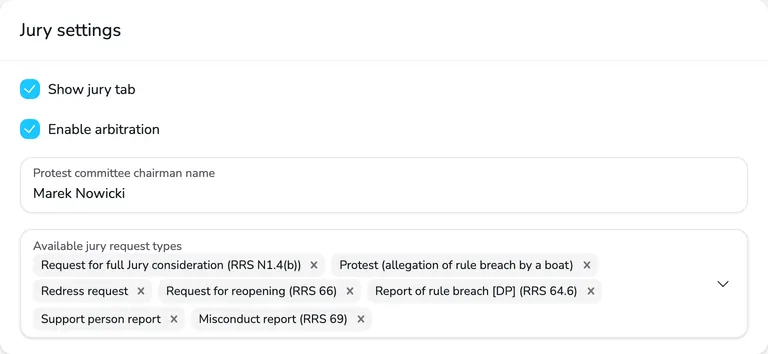
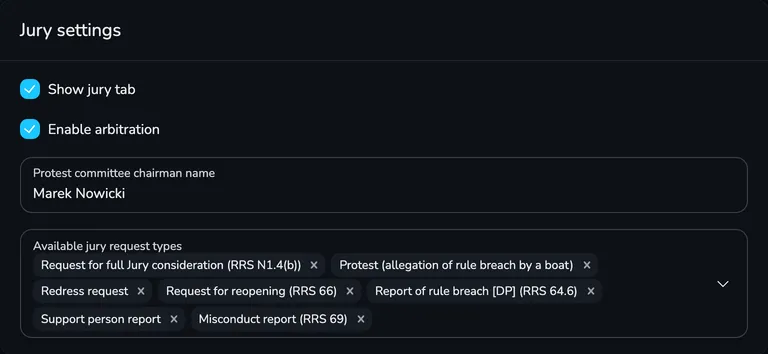
- Show jury tab – enables the Jury tab, where participants submit requests for consideration and see the protests summary, protest time limits and RRS 42 penalties.
- Enable arbitration – adds the Arbitration date field and the Arbitration scheduled status to requests.
- Protest committee chairman name – shown in the signature of the protests summary and penalty list PDFs and suggested in the Protest committee field of the decision form.
- Available jury request types – the request types participants can choose in the form on the regatta page (e.g. protest, redress request, request for reopening).
Read more about working with requests in Jury panel.
Start lists
Section titled “Start lists”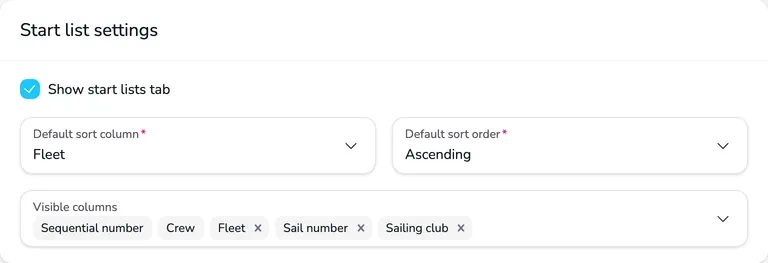
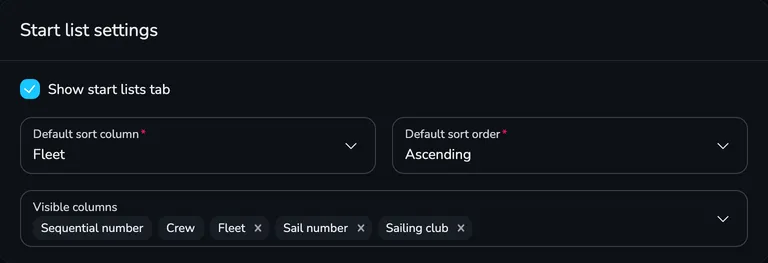
- Show start lists tab – publishes the division start lists on the Start lists tab.
- Default sort column and Default sort order – e.g. sorting by fleet, so participants immediately see which fleet they race in.
- Visible columns – the columns of the public start list. The No. and Crew columns are always visible.
Scoring
Section titled “Scoring”The Scoring card has three sections.
Regatta results
Section titled “Regatta results”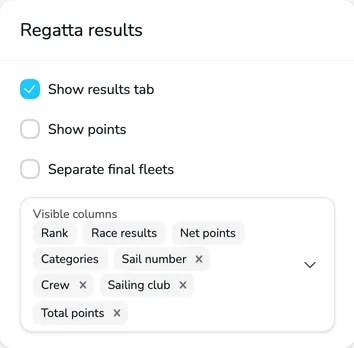
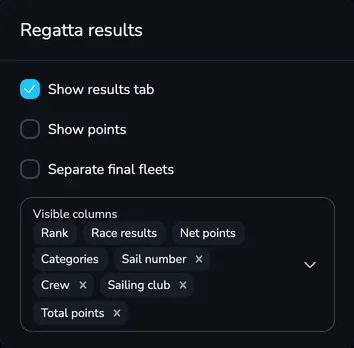
- Show results tab – publishes the Results tab with the division leaderboards.
- Show points – shows the points below the place in every race (e.g. 5 (5.00)) – on the regatta page and in results files.
- Separate final fleets – in the final series, shows a separate leaderboard for each final fleet (e.g. gold and silver). When the field is cleared, final fleets are shown in one leaderboard ordered by fleet priority.
- Visible columns – the results table columns. The Rank, Race results, Net points and Categories columns are always visible.
Scoring settings
Section titled “Scoring settings”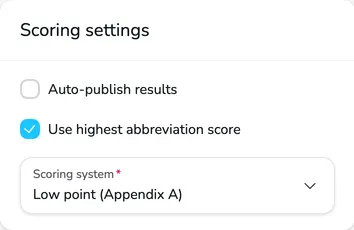
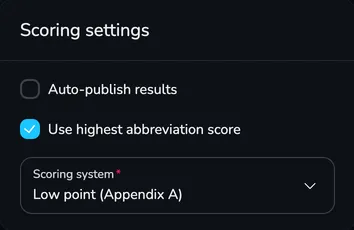
- Auto-publish results – every change of the results appears on the regatta page immediately. When the field is cleared, you publish results manually with Publish results – see Automatic or manual publication of results.
- Use highest abbreviation score – applies to races sailed in several fleets. By default, points for abbreviations (e.g. DNF, DNC, DSQ) are calculated from the size of the fleet the boat raced in (the number of boats in the fleet plus one). With the field selected, the size of the largest fleet in the race with the same number is used, so the penalty is the same in all fleets.
- Scoring system – Low point (Appendix A) or Low point (Appendix B) of the Racing Rules of Sailing.
Discard configuration
Section titled “Discard configuration”A discard is a boat’s worst result that is not counted in its net points. In the results table, a discarded result is struck through.
-
In the Discard settings section, click Add discard.
-
In the Race types field, choose the races from which a result can be discarded, e.g. Group series and Final series.
-
In the Discard after race count field, enter after how many completed races (of the chosen types) the discard applies, e.g. 4.
-
For another discard, click Add discard again – e.g. a second discard after 8 races. Save the settings.
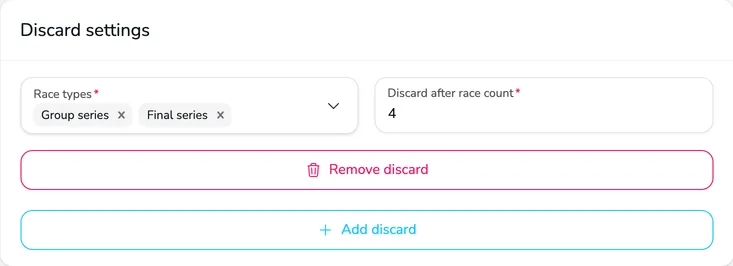
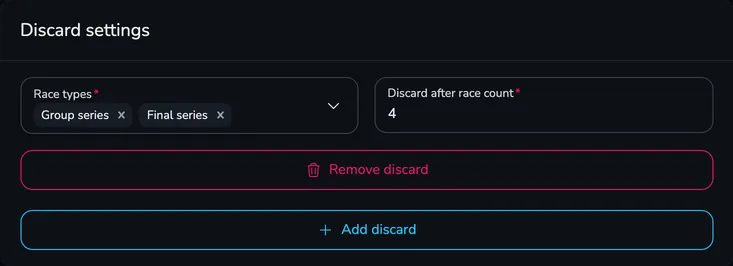
Each entry is one discard. With the settings from the example, nobody has a discard after 3 races, from the 4th race every boat discards its worst result, and from the 8th race – its two worst results. DNE results and results marked as Result cannot be discarded cannot be discarded.
Questions and answers
Section titled “Questions and answers”I saved the settings, but the tab is still not visible on the regatta page. What should I check?
Make sure that:
- the Show … tab field is selected on the right settings card and the settings have been saved,
- the regatta page is published (the Publish regatta website on the platform field in Edit regatta),
- you have refreshed the regatta page in your browser.
Participants can’t send an entry. Why?
Most often there is no entry term for the division, or the term has already ended or hasn’t started yet. Check the Entry terms section on the Entries card – every division open for entries must be chosen in at least one current term. Also check the entry limit of your plan.
Can I accept entry fees online without my own payment provider agreement?
No. Entry fee payments go to the organizer’s account with the payment provider, so you need an agreement with PayPal, Przelewy24 or PayU. Without one, you can accept bank transfers or on-site payments and mark entries as paid manually.
A participant paid online, but the entry is not marked as paid.
The entry is marked as paid when the provider confirms the payment – usually within a few minutes. If the payment wasn’t completed or was declined, ask the participant to retry it – they will find it in their panel under Profile → Payments (the Pay button). If needed, you can also mark the entry as paid manually on the Entries tab.
What is the difference between required and hidden fields?
A required field must be filled in to send the entry. A hidden field is not shown in the form at all. All other fields are visible but optional.
I changed the discards, but the results didn’t change.
After you save the settings, the results are recalculated in the background – refresh View current results after a few seconds. With manual publication, the changes reach the regatta page only after you publish the results. If the results still look outdated, click Recalculate results.
Why set a contact address if participants can write to Upwind24?
Questions about the regatta – terms, fees, results – should go to the organizer. The contact address makes sure that messages from the contact form on the regatta page and replies to Upwind24 e-mails (e.g. entry confirmations) reach you directly.
What’s next?
Section titled “What’s next?”

Manage the regatta yourself with an easy-to-use online platform.
© 2026 Upwind24. All rights reserved.