
Basic regatta configuration
The Edit regatta tab holds all the basic information about the event: the name, grade, classes, dates, description and venue, as well as documents (e.g. the notice of race) and partner logos. This is also where you publish the regatta page on the platform.
Open the regatta editor
Section titled “Open the regatta editor”In the panel menu, in the Regattas section, choose the regatta from the drop-down list – all regatta tabs appear below it. Click Edit regatta. Pages of a selected regatta in the panel have no permanent address, so always start by choosing the regatta in the menu.
Change the event details
Section titled “Change the event details”The Event card contains the same fields as the regatta creation form – Regatta name, Regatta grade, Classes, Start date, End date and Description – plus the publication field. On the Venue card you can change the regatta venue.
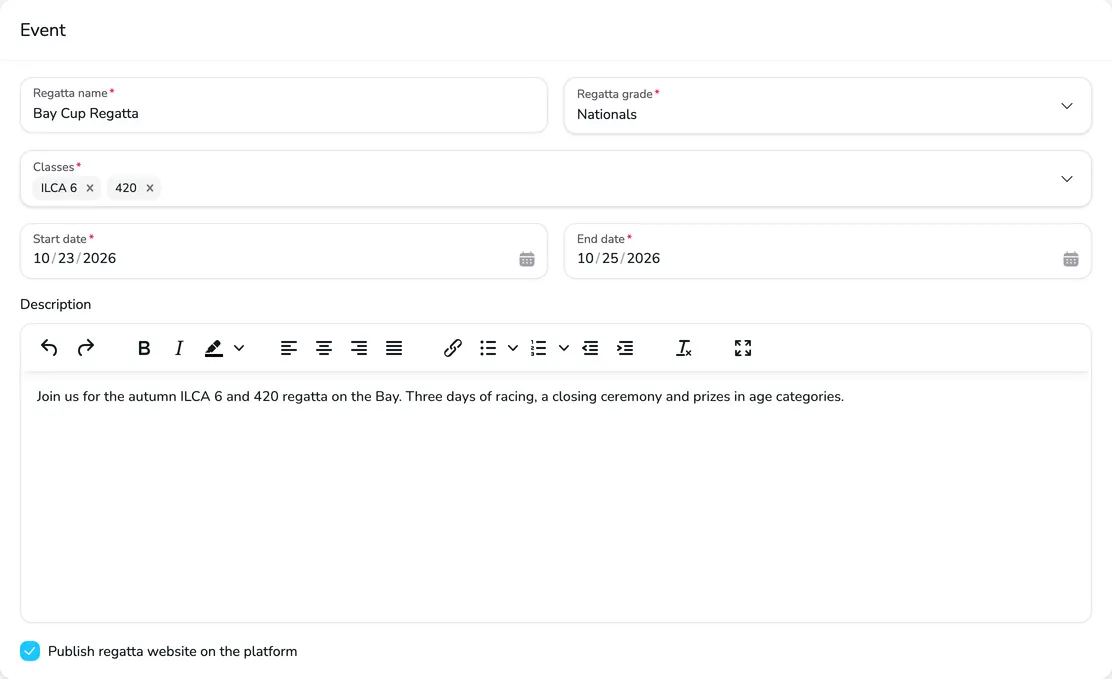
- Classes – adding a new class creates a separate division for it (within the division limit of the plan). Removing a class does not remove existing divisions or entries.
- Subdomain – if your plan includes it, you can give the regatta its own address in the
https://name.upwind24.comformat with a separate regatta microsite. - Publish regatta website on the platform – while the field is cleared, the regatta page is visible only to the people managing the regatta (with a note that it is a preview). For a paid plan, the field becomes active only after the plan is paid – see How to create a new regatta?.
Attach documents
Section titled “Attach documents”Participants download documents – the notice of race, sailing instructions, forms or a race area map – from the regatta page.
-
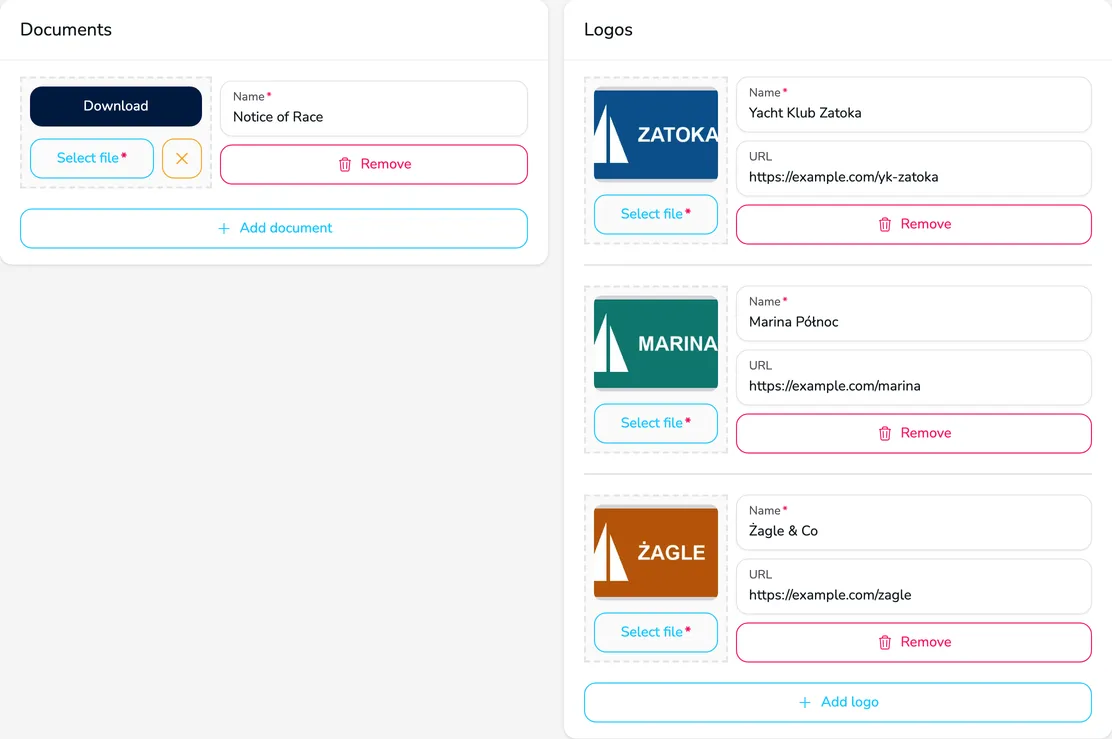
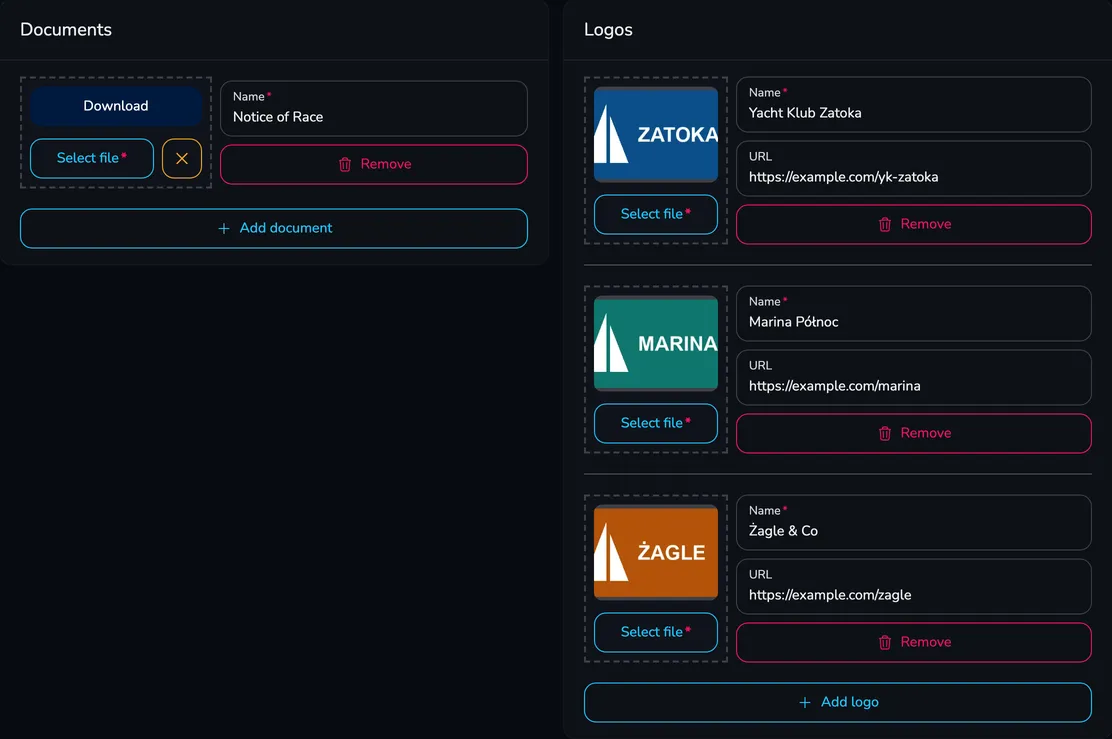
On the Documents card, click Add document.
-
Click Select file and choose a PDF, Word or Excel file (max 3 MB).
-
Enter the document Name – this is what participants see on the regatta page.
-
Repeat the steps for further documents and click Save at the bottom of the page. You will see the message Regatta has been updated successfully.
You can replace the file of an existing document with the Select file button and remove the whole document with the Remove button. Always confirm the changes with Save.
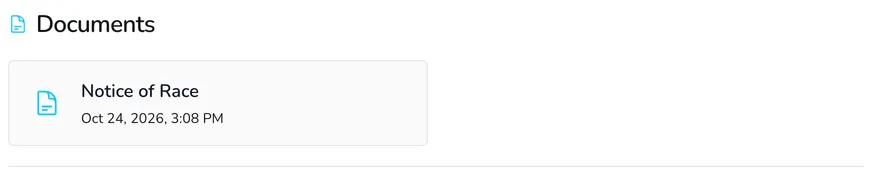
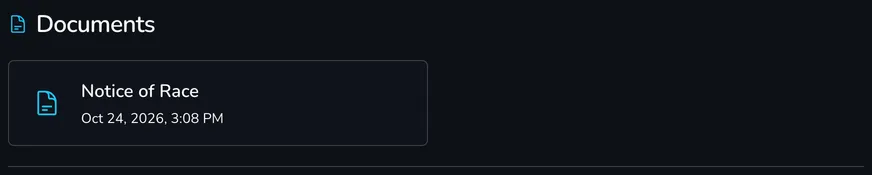
Documents appear on the regatta page, on the Information tab, in the Documents section – together with the date they were added.
Add partner logos
Section titled “Add partner logos”-
On the Logos card, click Add logo.
-
Click Select file and choose a JPG, GIF or PNG image (max 3 MB).
-
Enter the partner Name and optionally the URL of their website. A logo with a URL is clickable on the regatta page.
-
Add further logos and click Save.
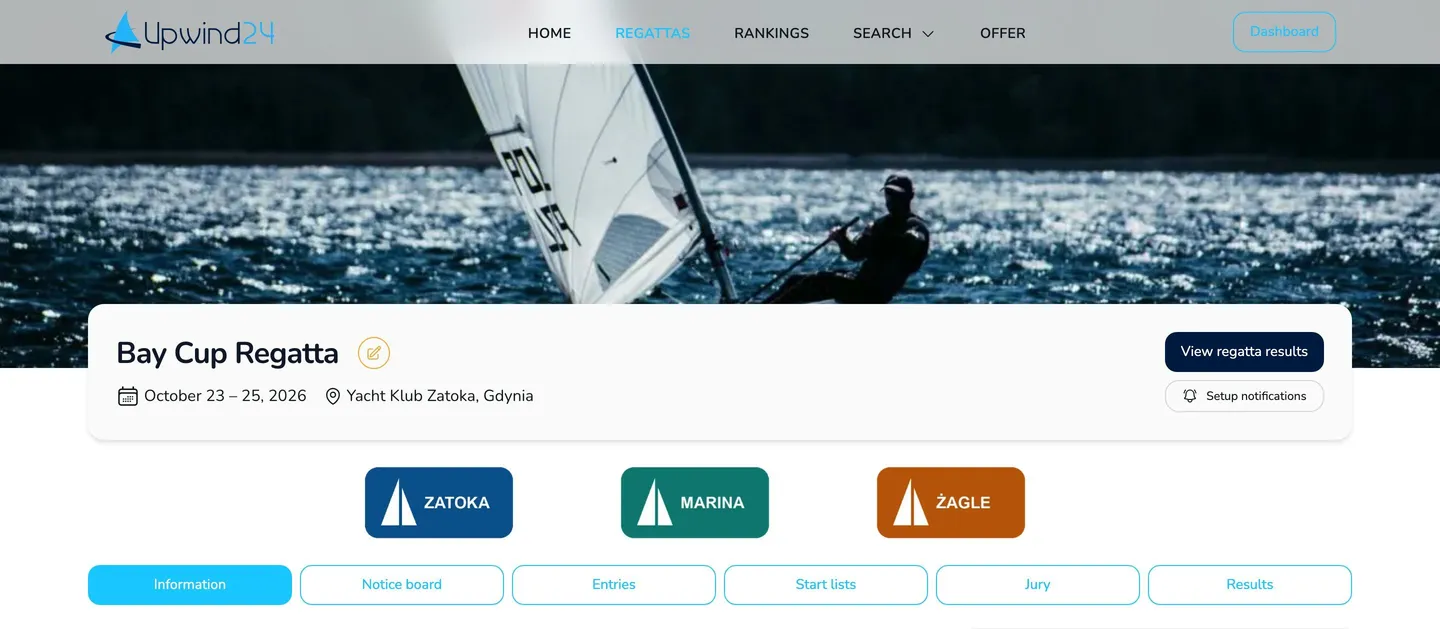
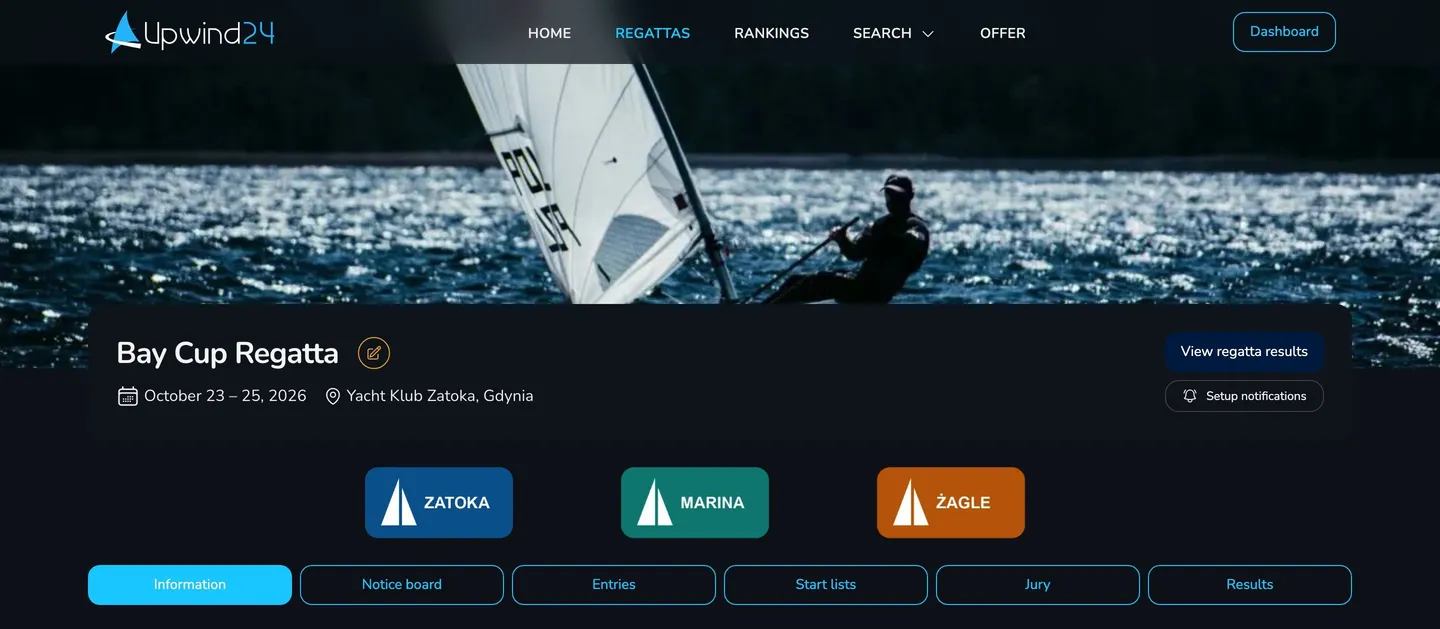
Logos are shown in two places:
- on the regatta page – below the header with the regatta name, dates and venue, above the page tabs,
- in PDF documents generated by Upwind24 – in the header of entry lists, start lists, finish tables, results, the protests summary and the penalty list.
Questions and answers
Section titled “Questions and answers”I published the regatta, but participants can’t see the Entries or Results tab. Why?
Publishing makes the regatta page with the Information tab available. The other tabs – Notice board, Entries, Start lists, Jury and Results – are enabled separately in the regatta settings, each on its own settings card.
Can I change the order of the logos?
Logos are shown in the order in which they appear in the form. To change the order, remove a logo with Remove, add it again at the end of the list and save the changes.
What’s next?
Section titled “What’s next?”
Manage the regatta yourself with an easy-to-use online platform.
© 2026 Upwind24. All rights reserved.