

Jury panel
The jury panel replaces paper protest forms and the jury office notice board. Participants submit requests for consideration through the regatta page, the jury schedules hearings and enters decisions, and participants can follow the protests summary, protest time limits and penalties imposed under rule 42 at any time.
Requests for consideration
Section titled “Requests for consideration”In the panel menu, in the Regattas section, choose the regatta from the list and click Jury. At the top of the page you will find two cards: Requests for consideration and RRS 42 penalties.
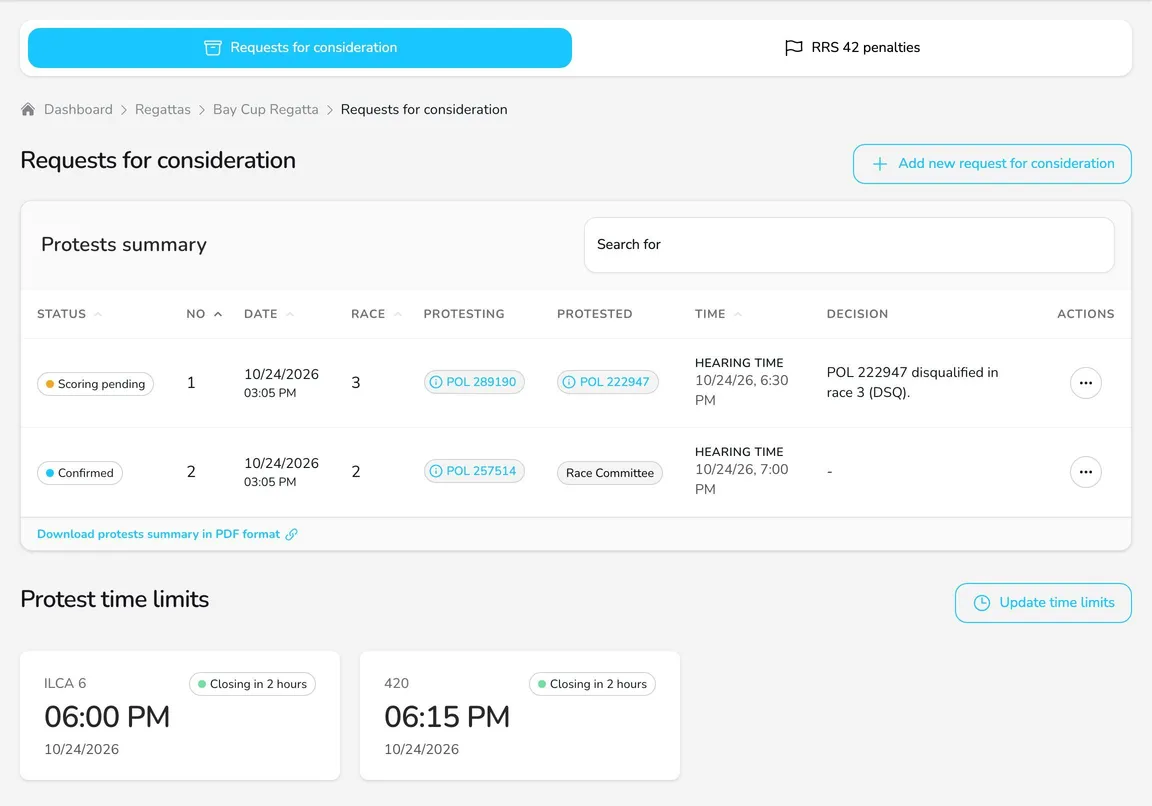
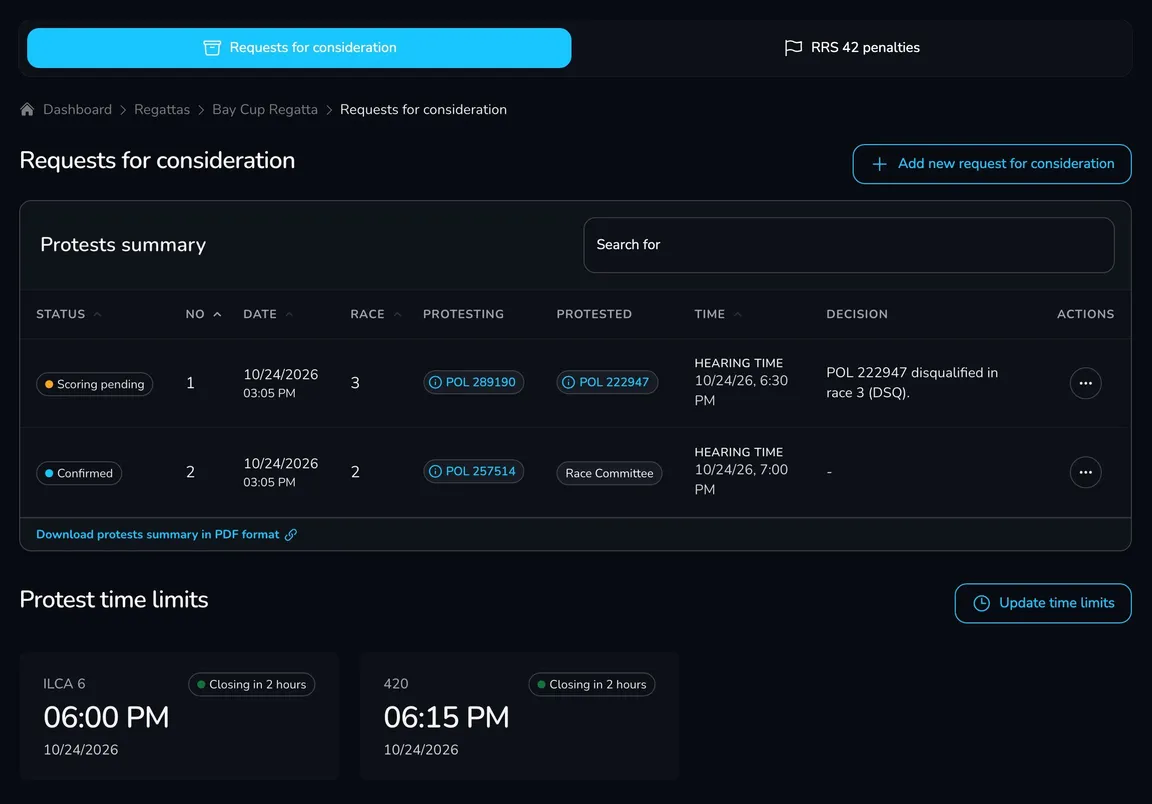
A request can reach the panel in two ways:
- A participant submits it on the regatta page – on the Jury tab, with the Submit hearing request button. The form is available during the regatta – from the beginning of the first to the end of the last regatta day (in the time zone of the regatta venue). The participant receives a confirmation e-mail with the request form in PDF.
- The jury adds it in the panel – with the Add new request for consideration button, e.g. when a request was submitted on paper in the race office.
Every new request has the Unconfirmed status and is not publicly visible until the jury changes its status.
Process a request
Section titled “Process a request”-
In the Protests summary table, open the request’s action menu and choose Edit request form.
-
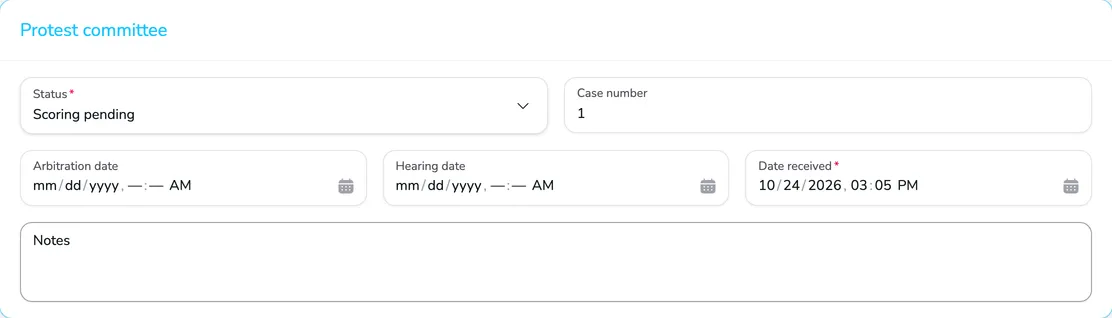
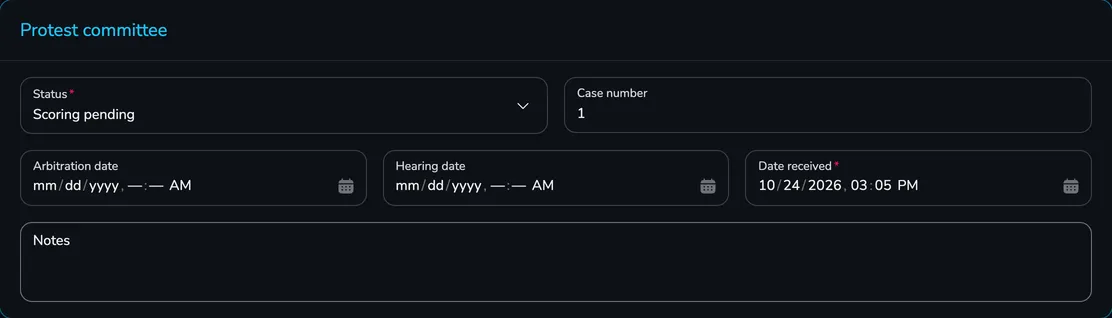
On the Protest committee card, set the Status, assign the Case number and enter the Hearing date (and the Arbitration date, if arbitration is enabled). Use the Notes for information visible to the jury only.
-
If needed, correct the other request details – the parties, incident description, race number and rules – and click Save.
The request statuses follow the stages of the jury’s work:
| Status | Meaning |
|---|---|
| Unconfirmed | A new request, not yet publicly visible |
| Confirmed | Accepted by the jury, visible in the protests summary |
| Arbitration scheduled | An arbitration time has been set (when arbitration is enabled) |
| Hearing scheduled | A hearing time has been set |
| Scoring pending | The jury has made a decision that waits to be applied to the results |
| Completed | The decision has been applied to the results |
Enter the protest committee decision
Section titled “Enter the protest committee decision”-
In the request’s action menu, choose Edit decision form.
-
Check the Case number, the Race number and – if cases are heard together – the Related case(s) number.
-
In the Parties section, check the parties to the case, and in the Witnesses section add witnesses with Add witness.
-
Choose the Validity of the request and fill in the Formal matters, Established facts and Conclusions and applicable rules.
-
Enter the Decision (visible publicly in summary) – a short decision text, e.g. POL 222947 disqualified in race 3 (DSQ) – and optionally the Decision (full description).
-
Select Withdrawal request and Withdrawal granted if the request was withdrawn, complete the Protest committee members (suggested from the jury settings) and select International jury if applicable.
-
Click Save.
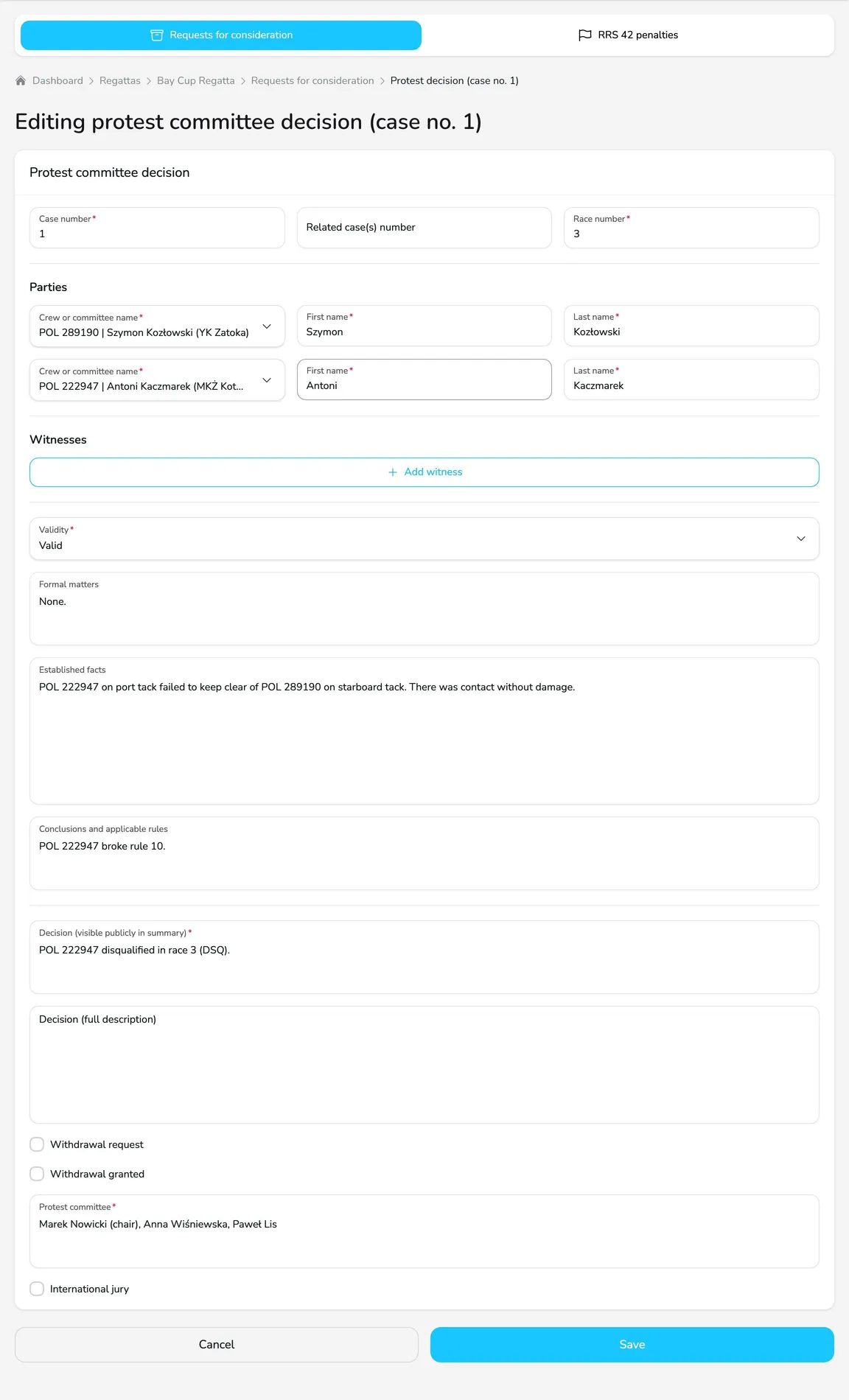
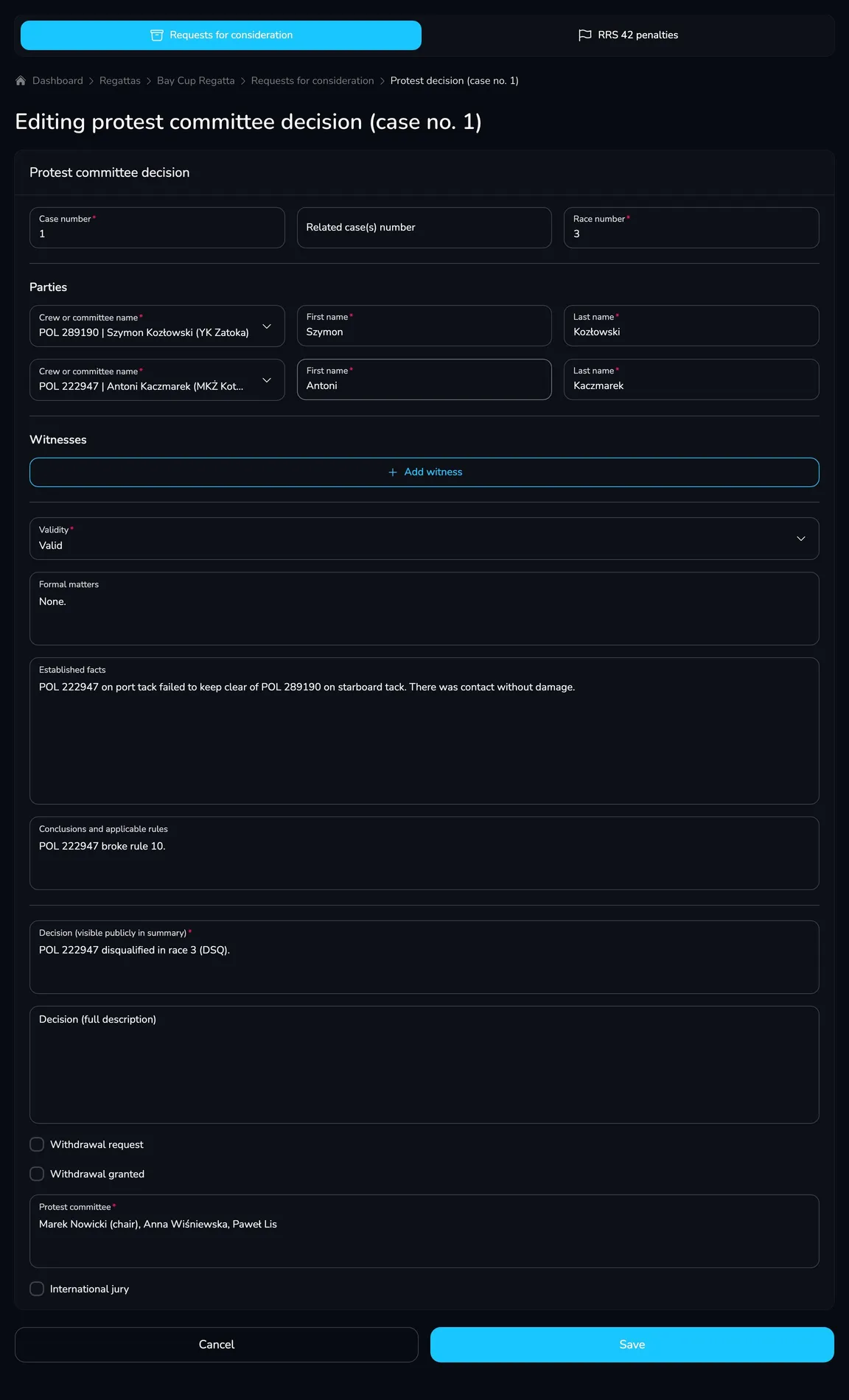
You can download the request form and the decision form in PDF from the action menu (Download request form, Download decision form), and the whole protests summary with the Download protests summary in PDF format link below the table.
Decisions go to scoring
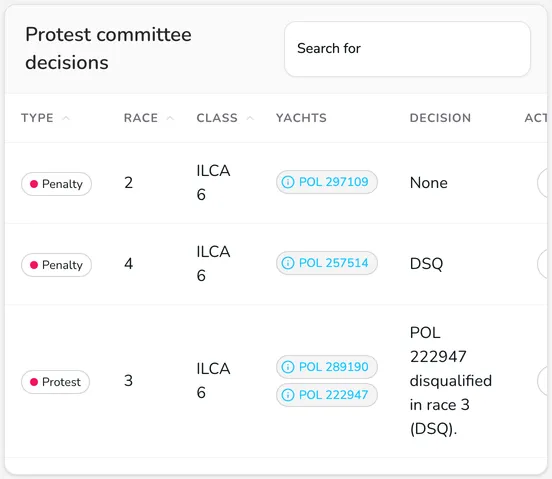
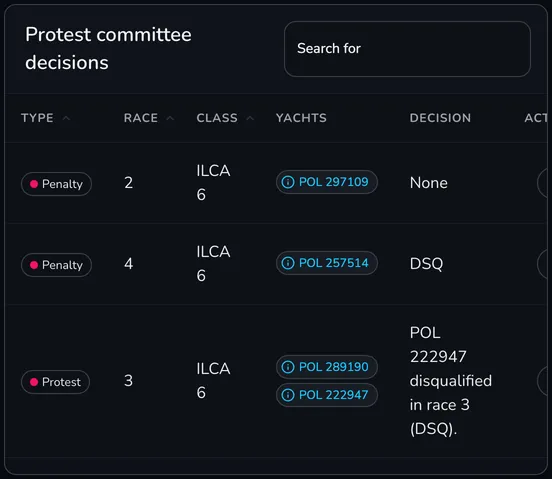
Section titled “Decisions go to scoring”After a decision is saved (or its text changes), the request gets the Scoring pending status and automatically appears on the Scoring tab, in the Protest committee decisions table. The number of pending decisions is shown next to the Scoring item in the menu.
Protest time limits
Section titled “Protest time limits”The protest time limit is the time by which participants can submit requests after the day’s racing.
-
On the Requests for consideration card, click Update time limits.
-
In the Update protest time limits window, choose the Divisions and set the Time limit (date and time).
-
Click Save time limits. Repeat the steps for divisions with a different time limit.
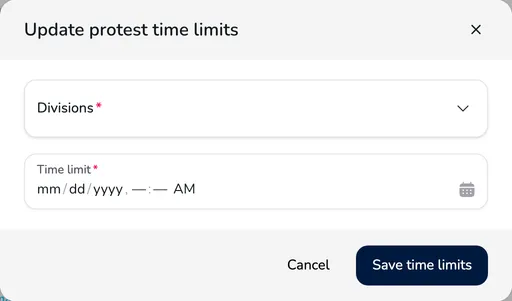
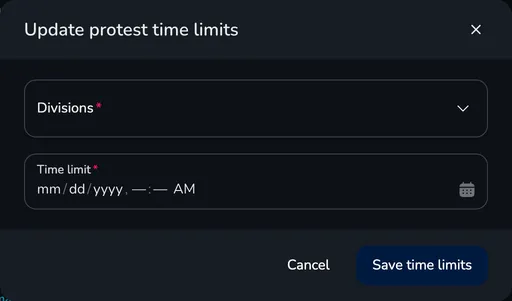
You will see the current time limits in the Protest time limits section of the panel, and participants on the Jury tab of the regatta page. Update them every regatta day, once the race committee has finished racing.
RRS 42 penalties
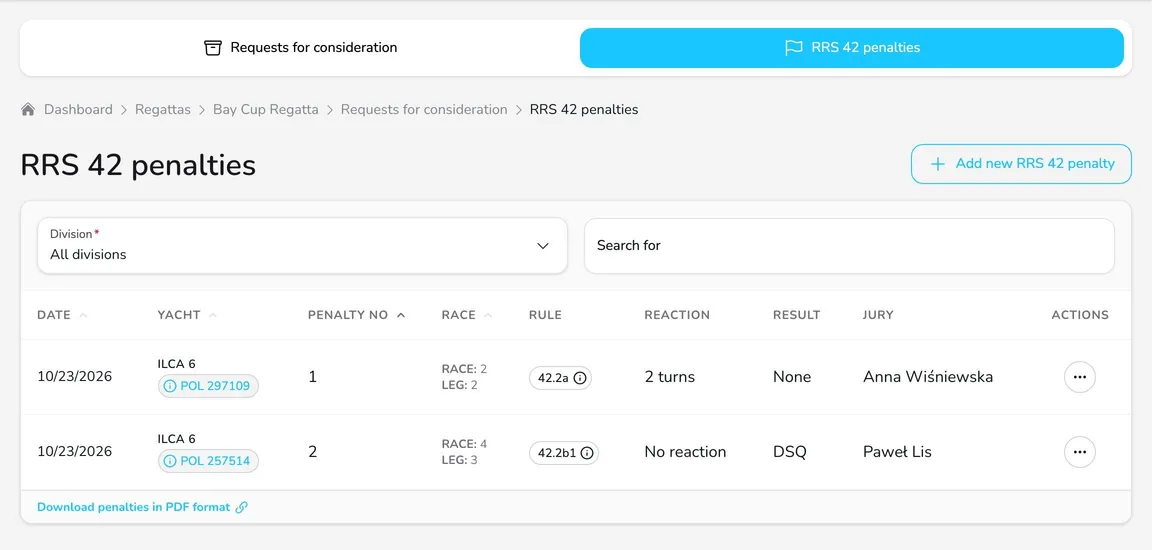
Section titled “RRS 42 penalties”On the RRS 42 penalties card, the jury records penalties imposed on the water for breaking rule 42 (propulsion).
-
Click Add new RRS 42 penalty.
-
Fill in the Date, choose the Yacht and enter the Penalty number and Race number.
-
Choose the course Leg (Start, the leg number or Finish), the Rule (e.g. 42.2a), the boat’s Reaction (e.g. 2 turns, RET, No reaction) and the penalty Result (None, DSQ, DNE, DNE (all races) or RET).
-
Add a Description, check the Jury field (the judge who imposed the penalty) and optionally fill in the Notes.
-
Click Save.
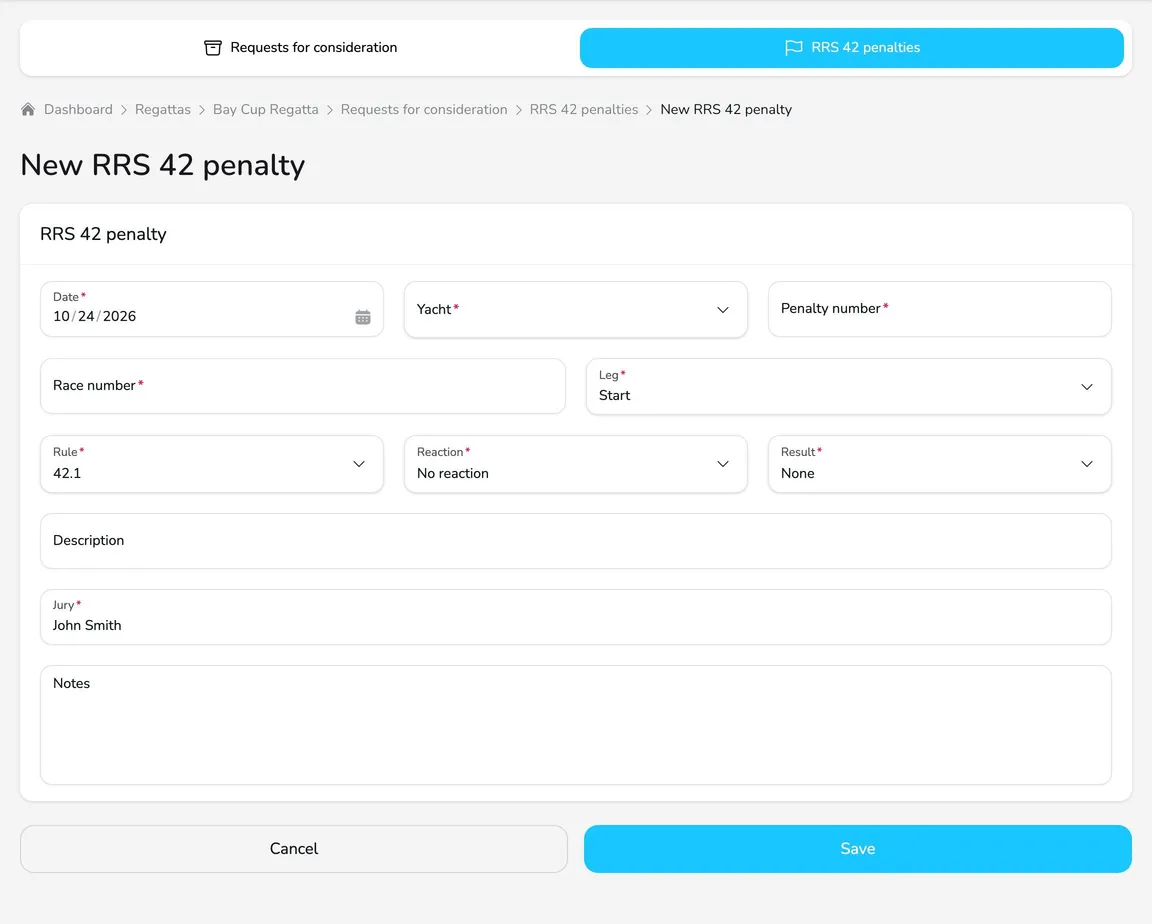
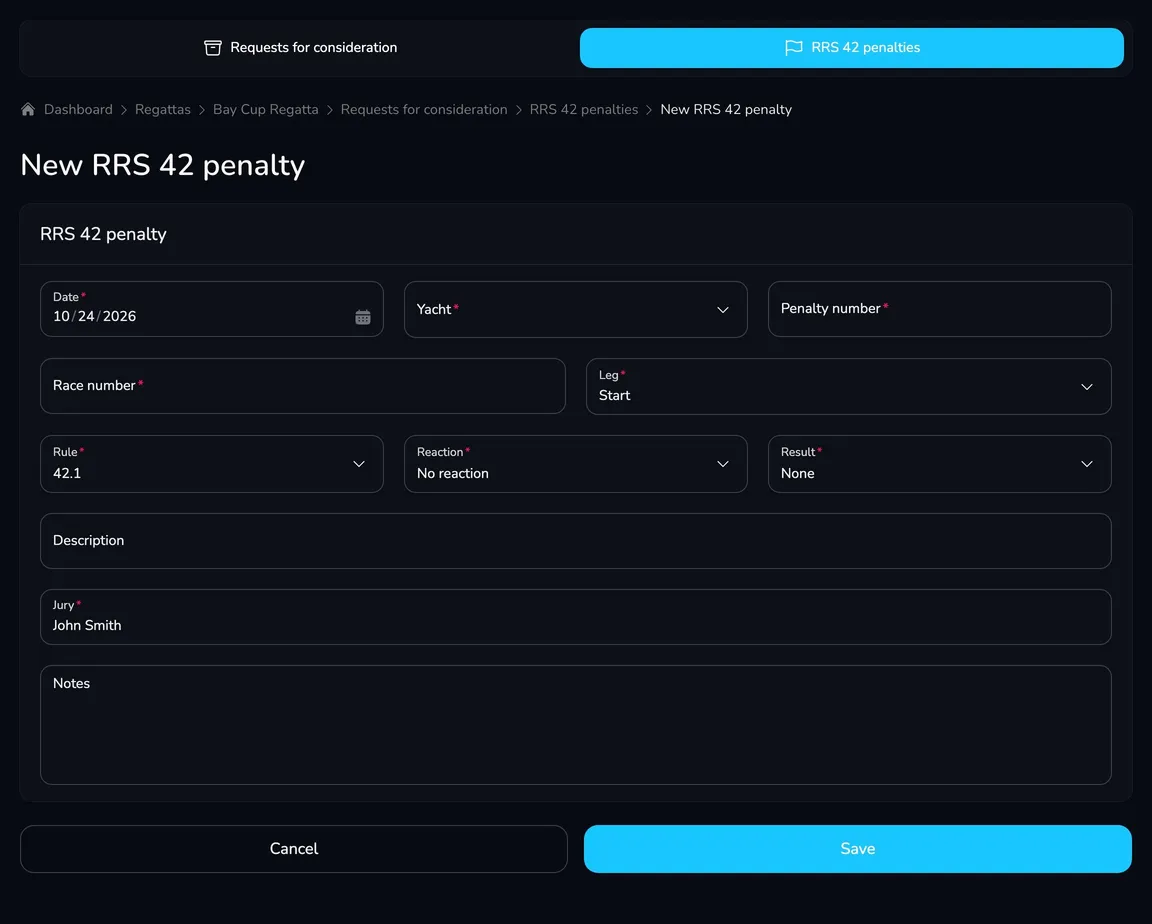
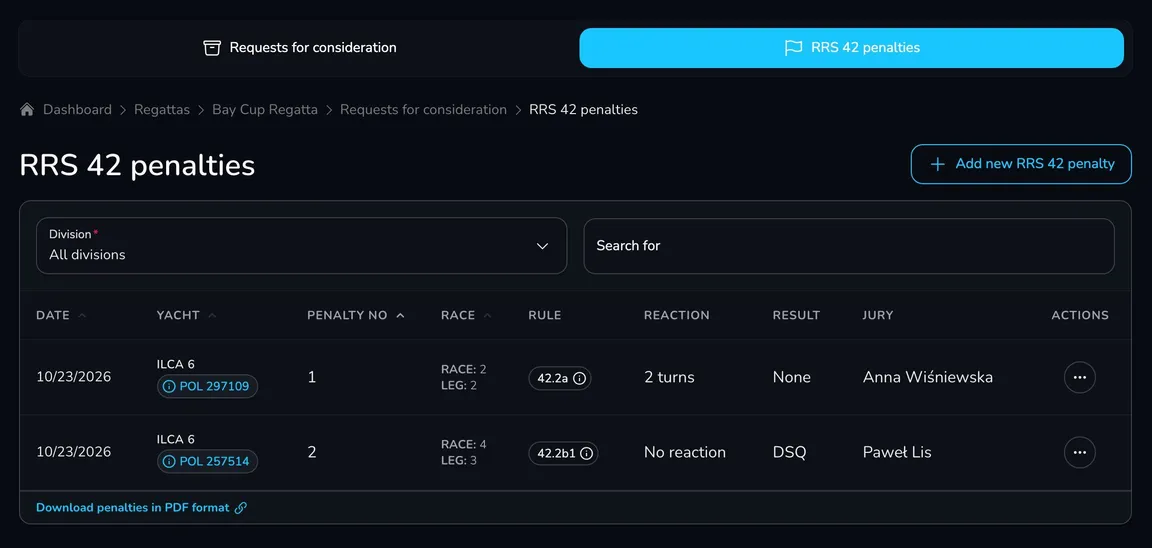
The penalty list is available on the RRS 42 penalties card – with the Division filter and the Download penalties in PDF format link. Every added or changed penalty goes – just like protest decisions – to the Protest committee decisions table on the Scoring tab, where it must be applied to the results and confirmed.
What do participants see?
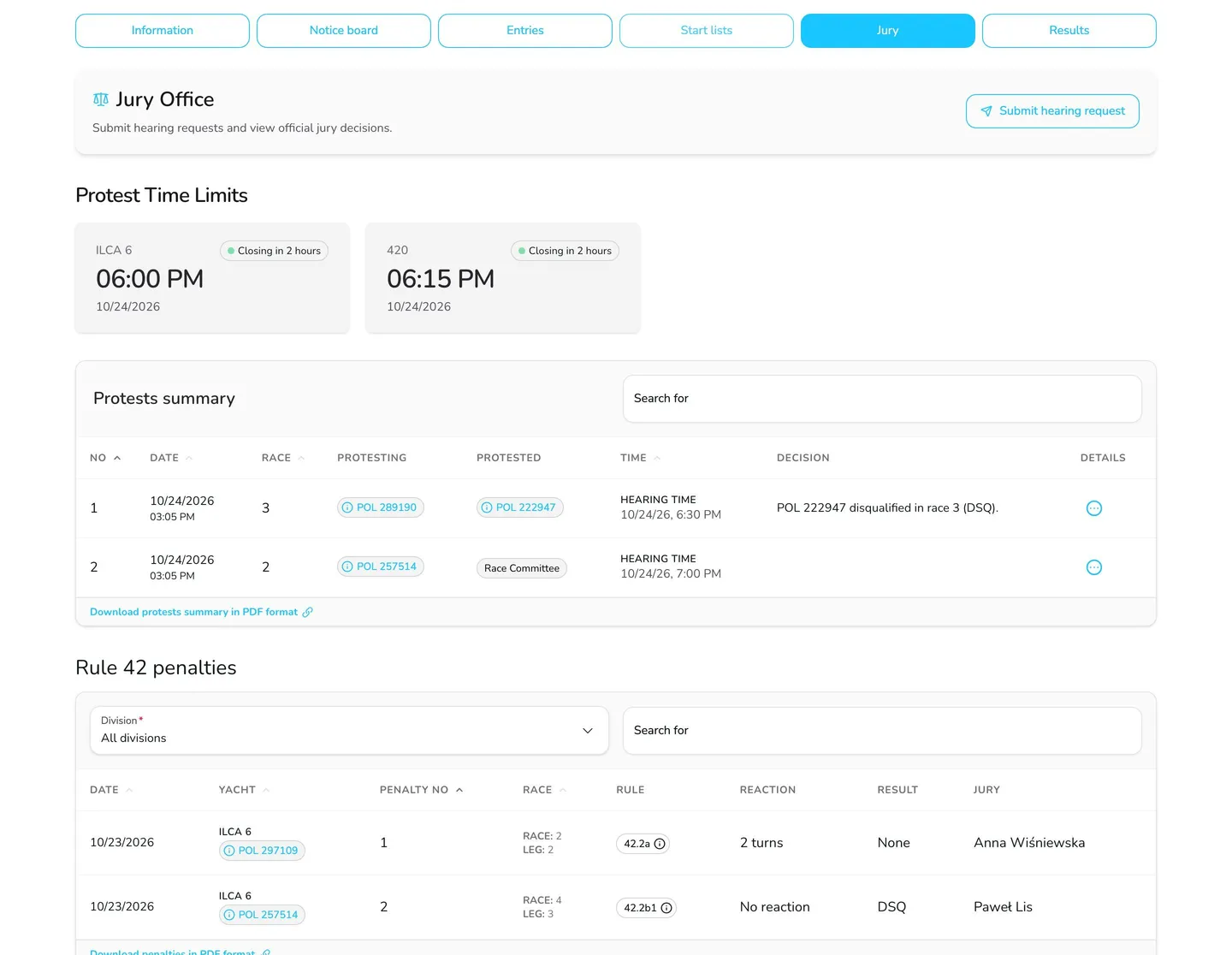
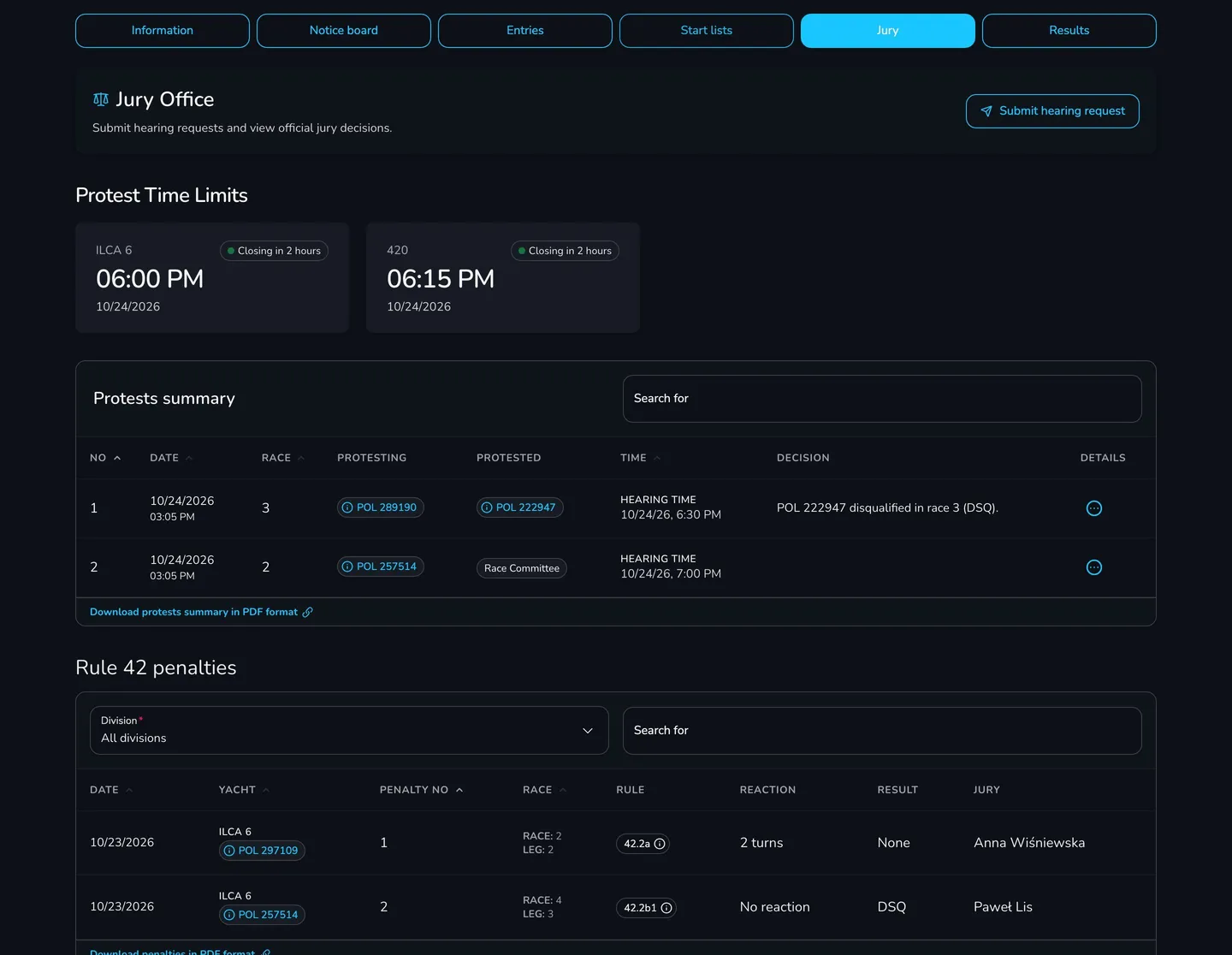
Section titled “What do participants see?”On the Jury tab of the regatta page, participants find the Jury Office with the Submit hearing request button, the Protests summary with hearing times and short decisions, the Protest Time Limits and the list of Rule 42 penalties.
Questions and answers
Section titled “Questions and answers”A participant submitted a request but doesn’t see it in the protests summary. Why?
New requests have the Unconfirmed status and are visible to the jury only. Change the status to Confirmed (or a later one) to show the request in the protests summary on the regatta page.
Can the jury accept a request after the time limit?
Yes. The protest time limit is information for participants – Upwind24 doesn’t block requests submitted after it (the form is available throughout the regatta). The jury decides whether to accept a late request; record it in the Formal matters field of the decision form. Requests submitted after the regatta can be added manually with Add new request for consideration.
How do I mark a request as rejected?
In the decision form, set the Validity to Invalid and enter a short decision, e.g. Protest invalid. If the decision doesn’t require changes to the results, simply confirm it in the Protest committee decisions table on the Scoring tab.
Who can add RRS 42 penalties?
Anyone with access to the Jury module – usually the on-the-water judges. Give them access on the Permissions tab and ask them to enter penalties from their phone right after coming ashore.
What’s next?
Section titled “What’s next?”

Manage the regatta yourself with an easy-to-use online platform.
© 2026 Upwind24. All rights reserved.