

Results and scoring
The Scoring tab is the results keeper’s workplace. Here you create races, enter the finishing order, apply penalties and jury decisions, while Upwind24 continuously calculates the points, discards and leaderboard of each division.
In the panel menu, in the Regattas section, choose the regatta from the list and click Scoring.
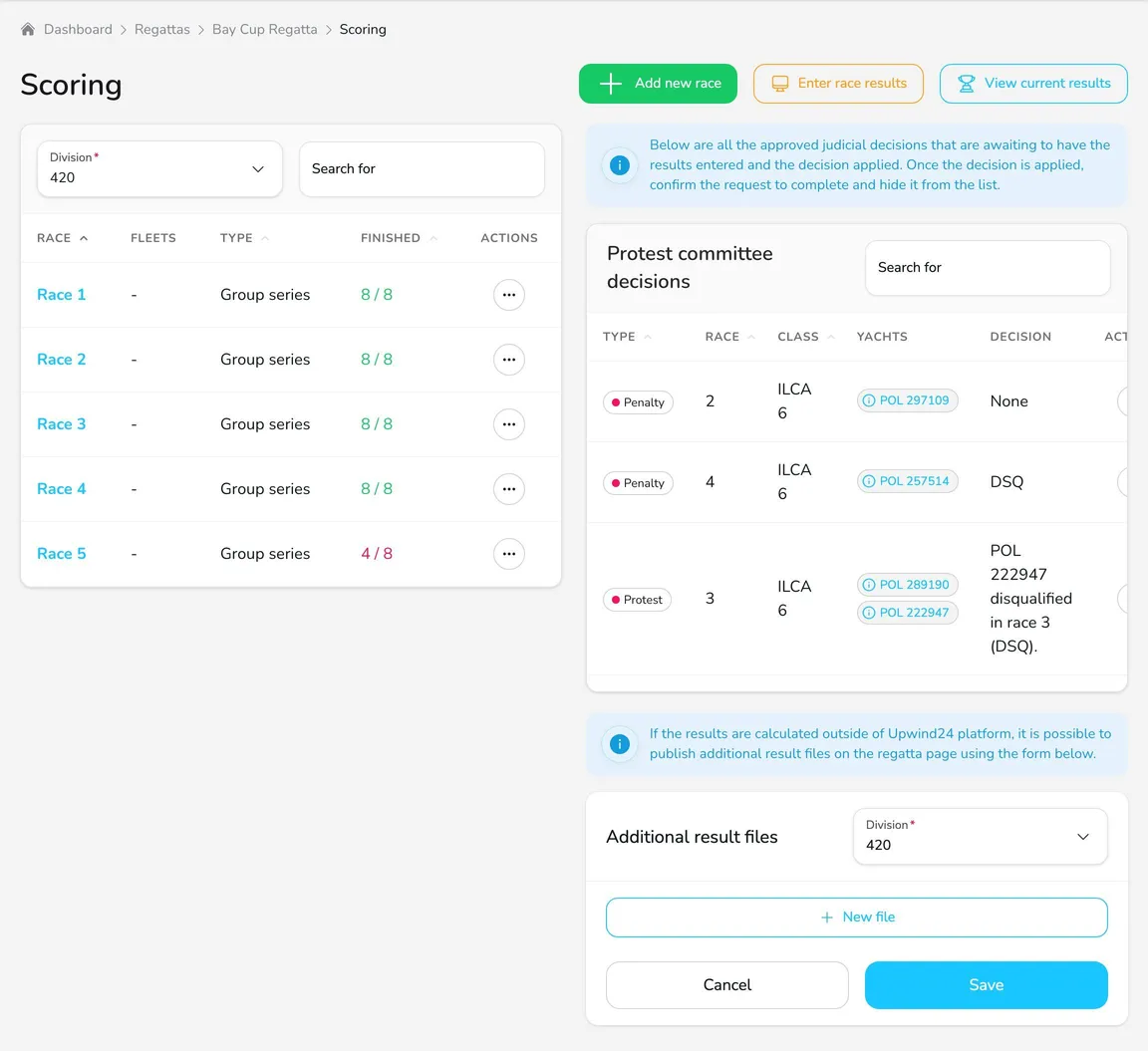
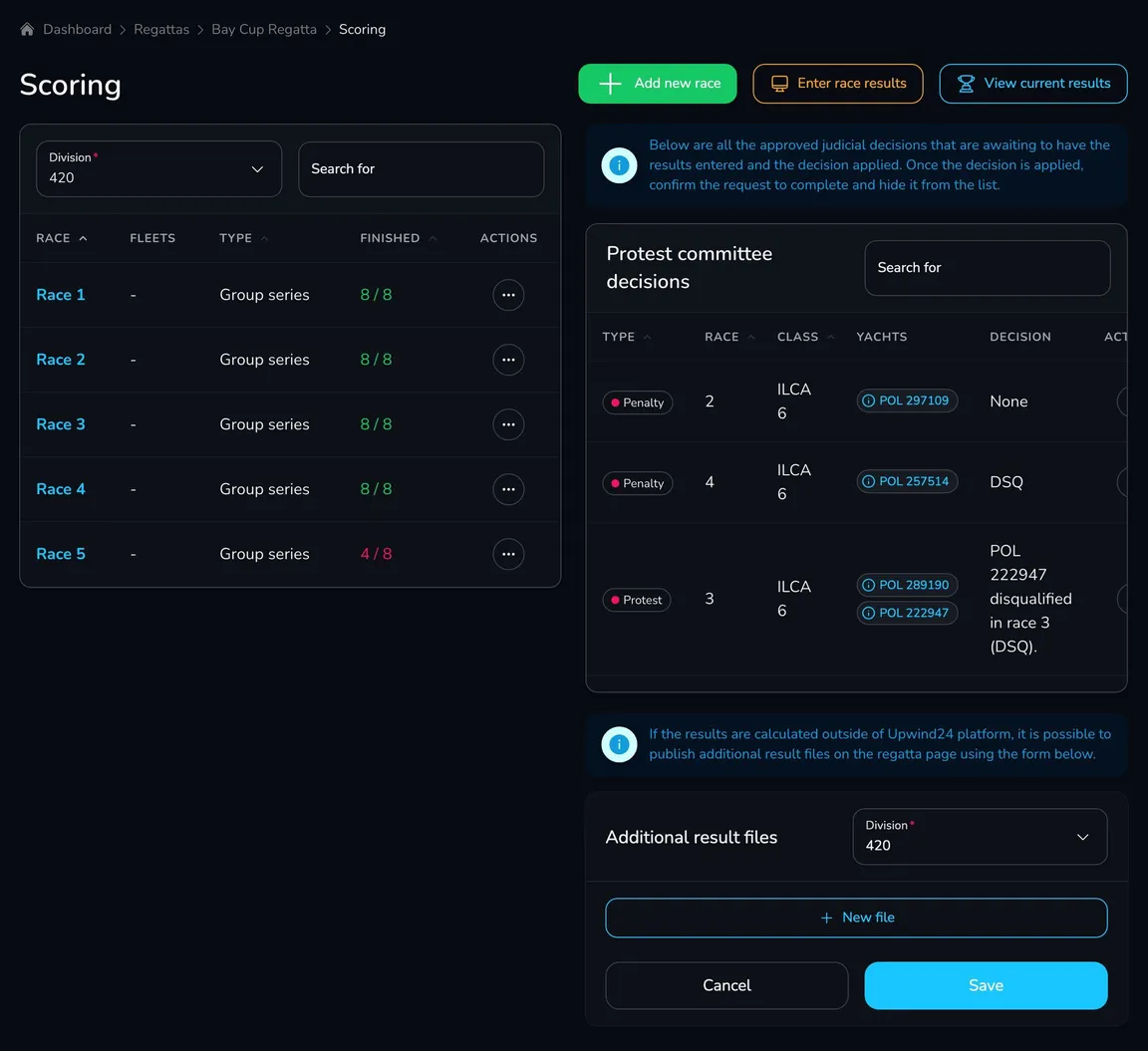
The page contains:
- the Add new race, Enter race results and View current results buttons (a red number next to the last button shows divisions with unpublished results),
- the Races table of the selected division – with the race type, fleets and the number of boats that finished; the race name leads to the single race view,
- the Protest committee decisions table with penalties and jury decisions to be applied to the results (in plans with the jury panel),
- the Additional result files section – if you calculate results outside Upwind24, you can publish result files for each division with New file.
Create a race
Section titled “Create a race”When? The easiest is to create a race when the race committee starts it – before entering the results. You can also prepare all races planned for the day in advance.
-
Click Add new race.
-
Choose the Division and its Start list. Without a fleet split, choose the default start list, marked (default).
-
Choose the race Type:
- Group series – regular regatta races or qualifying races (shown in the results as R1, R2…),
- Final series – final races in fleets (F1, F2…),
- Medal race – a medal race (M1…),
- Special – a race not included in the overall scoring (instead of a number you enter the Race name).
-
Enter the Race number.
-
If the division has fleets, choose the fleet (or fleets) starting in this race in the Fleets field.
-
Click Create race.
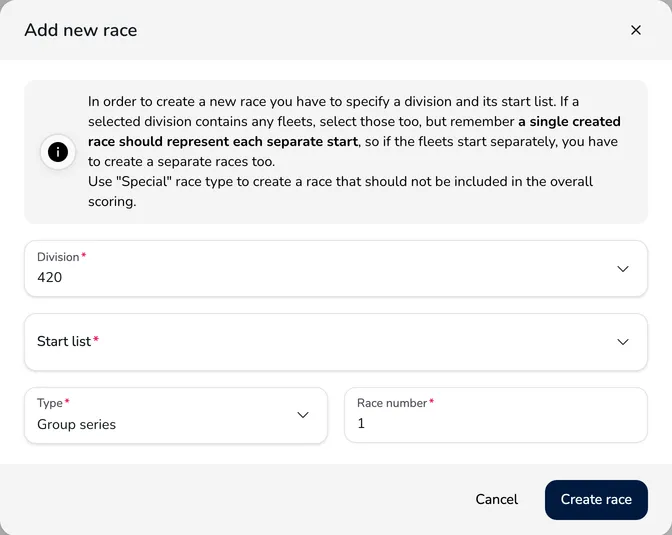
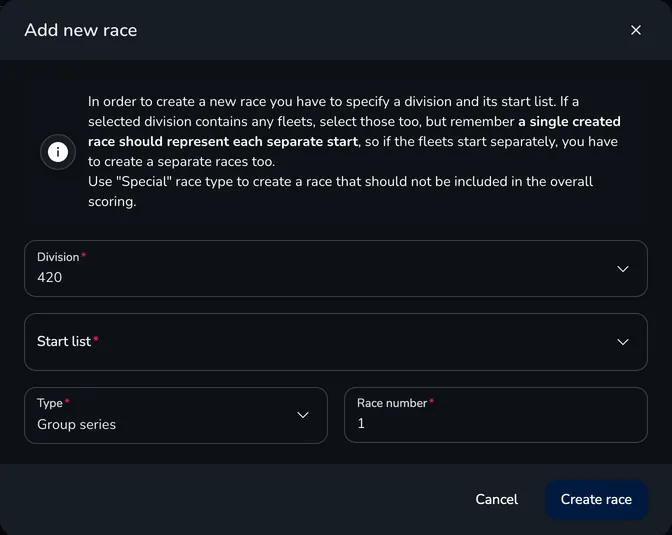
Delete a race from the action menu in the Races table (Delete race) – together with its results.
Quick results entry
Section titled “Quick results entry”The Enter race results screen is for typing the finish table in the order the boats finished – boat after boat, without entering places.
-
Click Enter race results.
-
In the Race field, choose the race, e.g. R5. If several divisions have a race with this number, the results of all of them go to one list – you can narrow it with the Division field above the results list.
-
In the Input field, type the sail number of the boat that finished and press Enter (or click Add). Instead of the number you can type the team name, the boat name or the skipper’s full name. The country prefix (e.g. POL) is optional.
-
Type the next boats in the order they finished. Each added boat gets the next place, and the Race results list immediately shows the places and points.
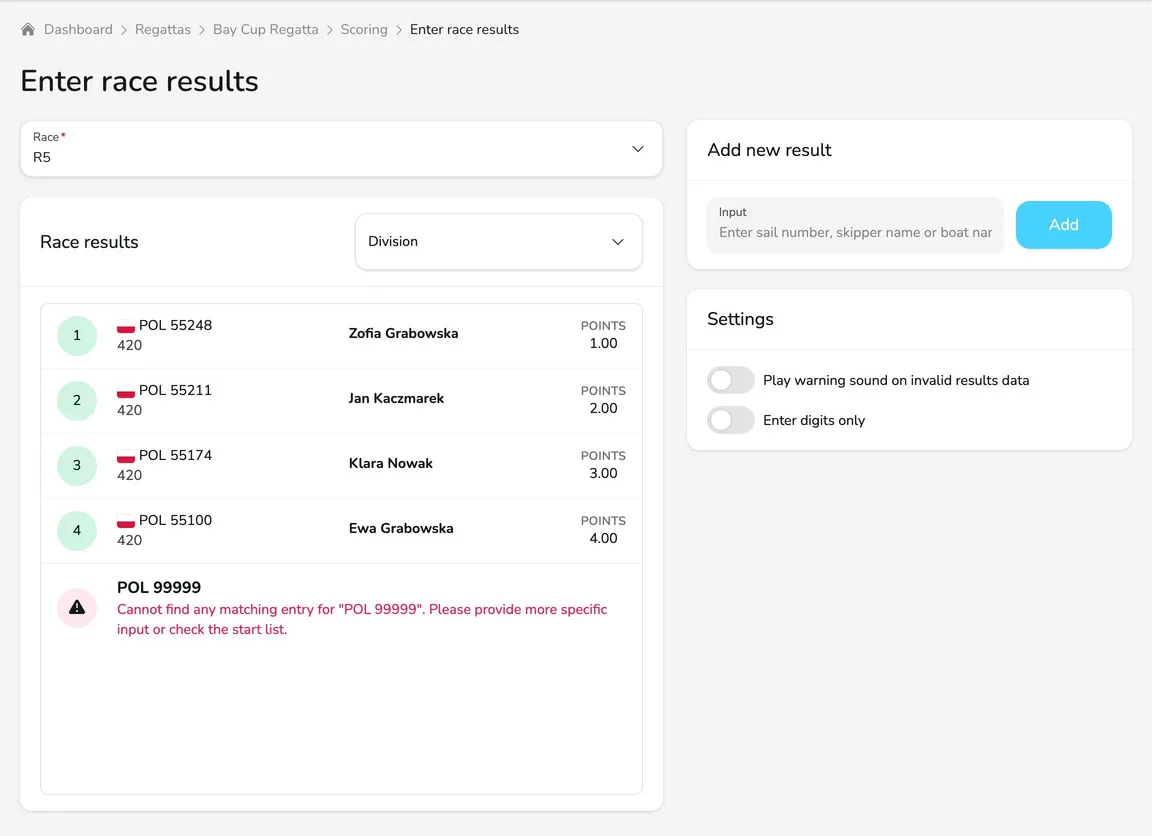
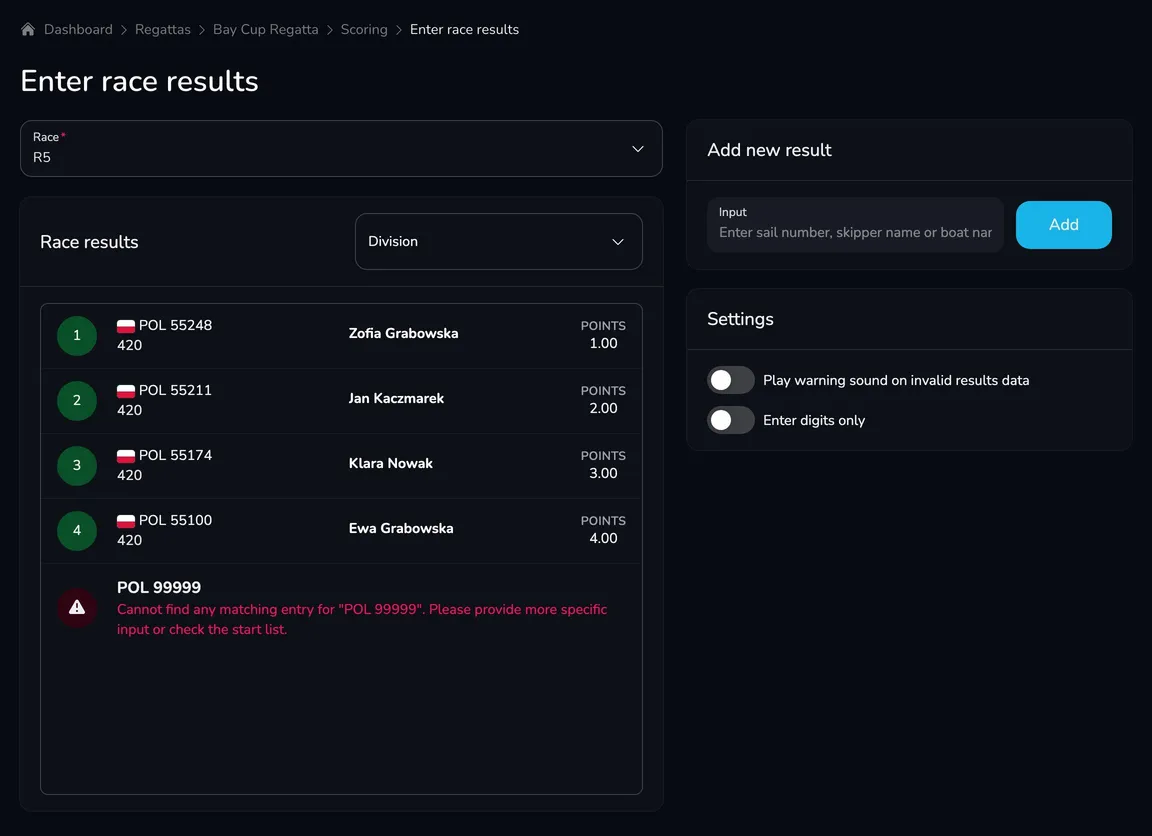
- Entries are sent one by one in the background – you can keep typing without waiting for the previous one to be saved. If the internet connection drops for a moment, Upwind24 retries automatically. Don’t close the page while entries still show spinning icons.
- If the value can’t be matched to any boat on the start list or the boat already has a result in this race, the entry is marked red with an error description. Type the correct value again.
- If the value matches several boats (e.g. the same number in different classes), you will see the Multiple teams matched window with the boats to choose from.
- On the Settings card, you can enable Play warning sound on invalid results data (a sound on every error – you don’t have to watch the screen) and Enter digits only (a numeric keypad opens on phones).
- If fleets start separately, Upwind24 assigns each boat to the race of its fleet automatically. When you enter the results of one fleet, also choose it in the Constraint fleet field on the Validation card – boats from other fleets are then rejected as errors, so you catch a mistyped number right away.
Single race view
Section titled “Single race view”Click a race name in the Races table. You will see:
- Finished results – boats with a result in this race, with the place, points and the Edit and Delete actions,
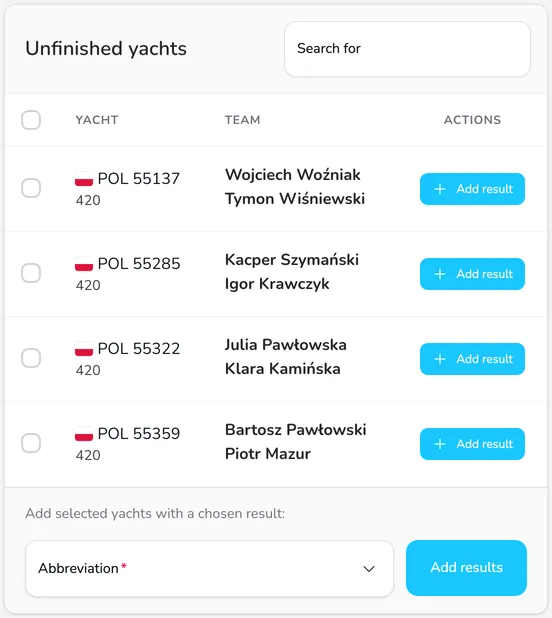
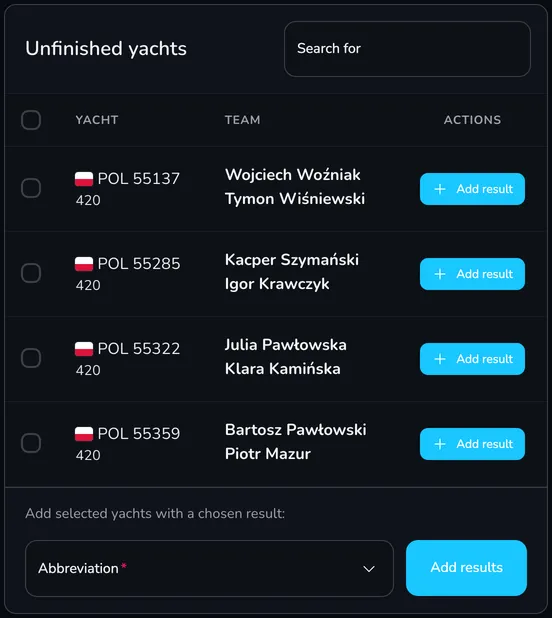
- Unfinished yachts – boats from the start list without a result, with the Add result button,
- the Protest committee decisions concerning this race (in plans with the jury panel).
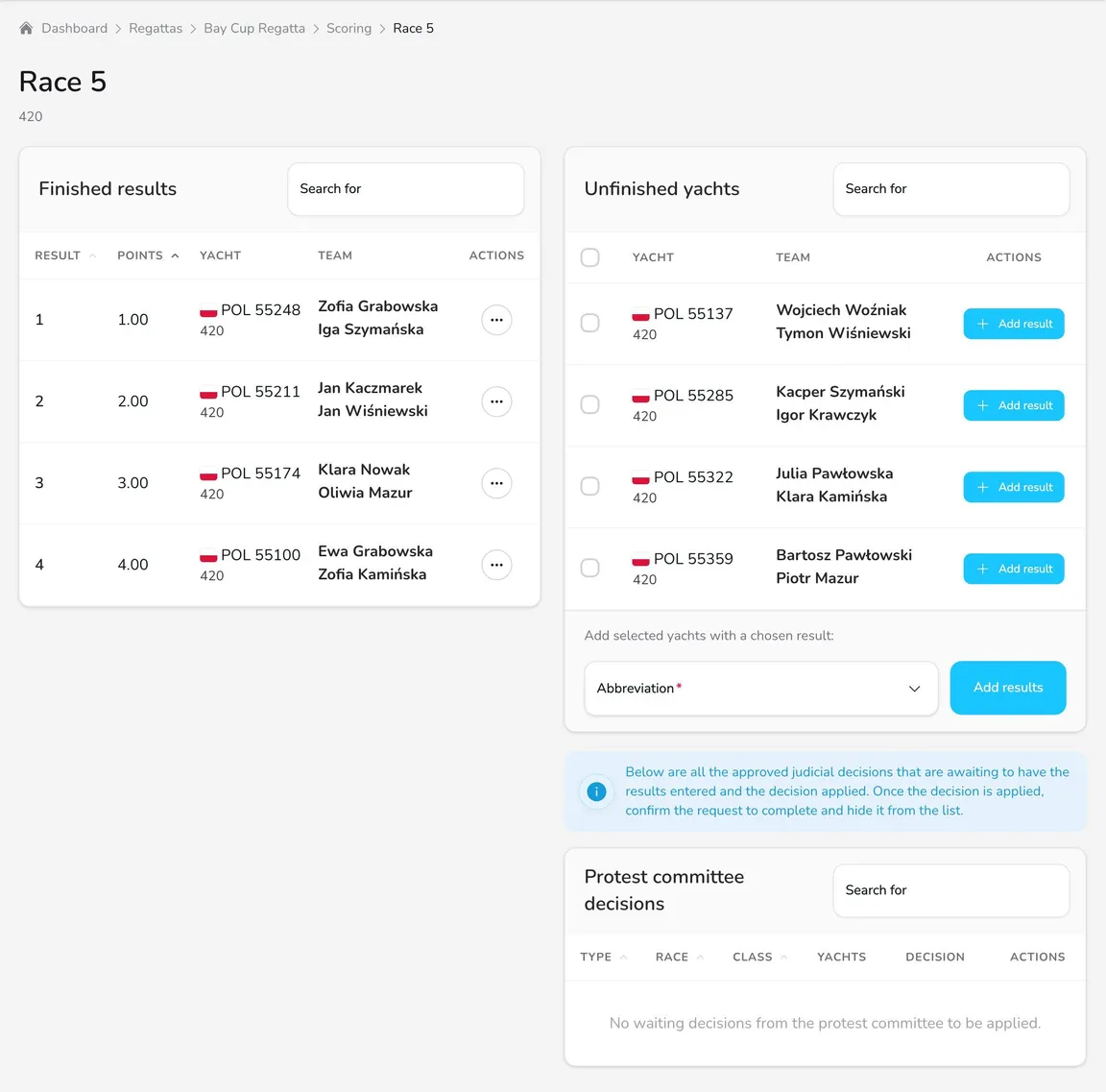
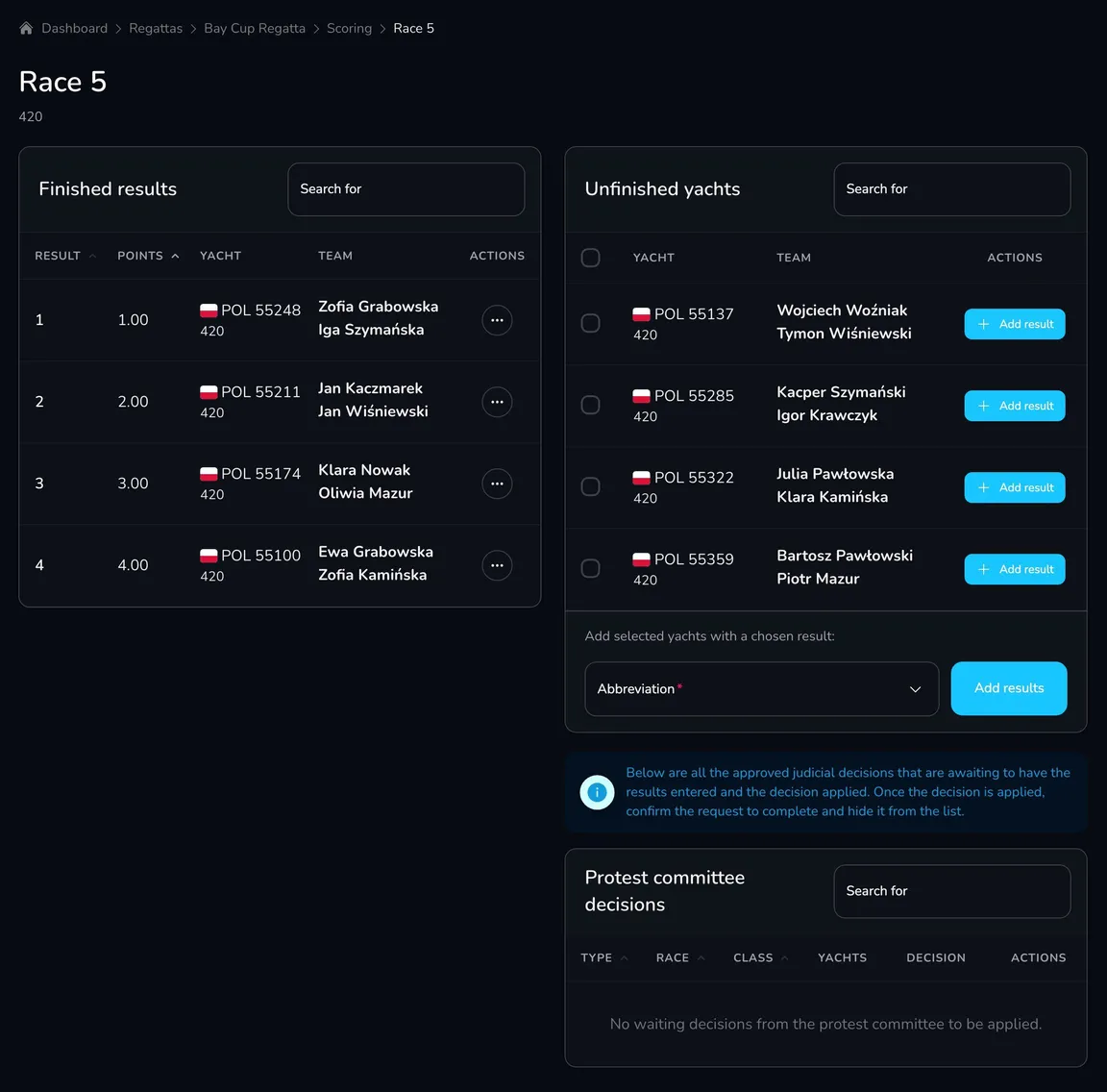
Once all boats that finished have results, you can give the remaining boats an abbreviation in one go: select them in the Unfinished yachts table, choose the Abbreviation (e.g. DNF, DNS or DNC) in the field below the table and click Add results.
Apply penalties to the results
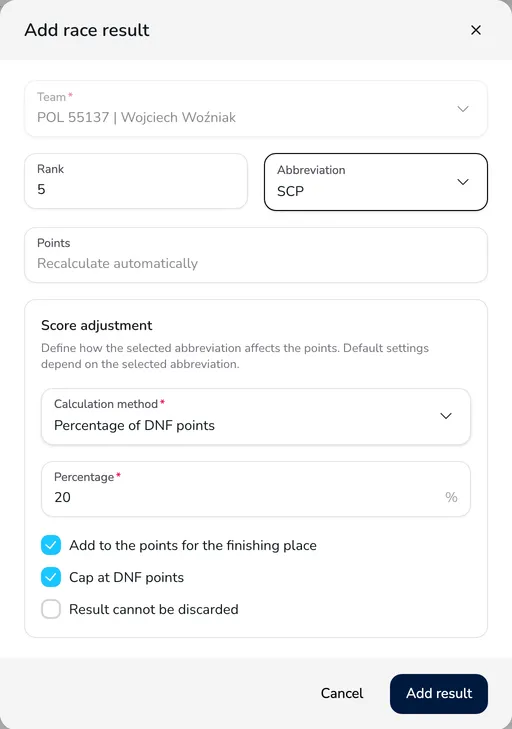
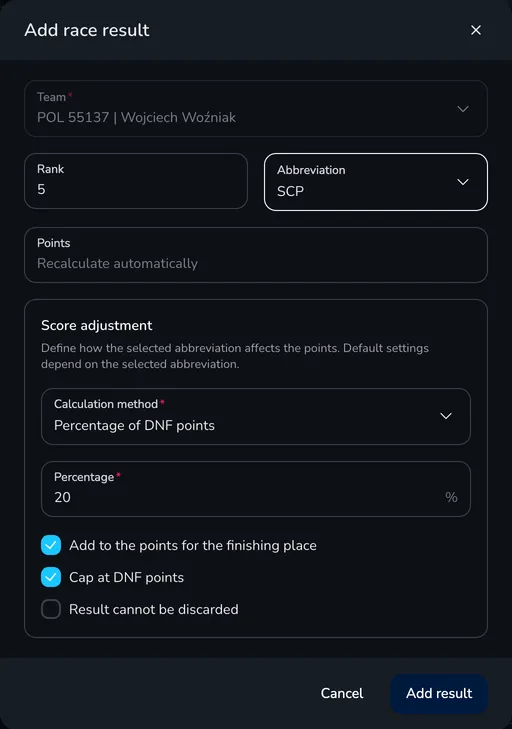
Section titled “Apply penalties to the results”You apply a penalty, an abbreviation or redress in the race result window – with the Edit button next to a boat’s result (or Add result next to a boat without a result).
-
In the Abbreviation field, choose an abbreviation, e.g. DSQ, OCS, SCP or RDG.
-
For abbreviations that keep the place (SCP, ZFP, RDG, DPI, ARB), check the Rank field. With the other abbreviations (e.g. DNF, DSQ), the boat gets the abbreviation points instead of the points for its place.
-
Check the Score adjustment – the defaults depend on the chosen abbreviation:
- Calculation method – Fixed points, Percentage of DNF points, Percentage of race rank, Average of previous races or Average of all other races,
- Points or Percentage – the penalty value,
- Add to the points for the finishing place – the penalty is added to the points for the place (e.g. the SCP scoring penalty),
- Cap at DNF points – the penalized score won’t exceed the DNF points,
- Result cannot be discarded – the result can’t be discarded.
-
Leave the Points field empty to let Upwind24 calculate the points automatically, or enter the points manually.
-
Click Save changes (or Add result).
Examples:
- 20% scoring penalty (SCP) – the SCP abbreviation, the finishing place unchanged, Percentage of DNF points = 20, Add to the points for the finishing place selected.
- Disqualification after a protest (DSQ) – the DSQ abbreviation; the boat gets the same points as for DNF.
- Redress with an average (RDG) – the RDG abbreviation and the Average of all other races or Average of previous races calculation method.
- Non-discardable disqualification (DNE) – the DNE abbreviation; such a result cannot be discarded.
Apply jury decisions and penalties
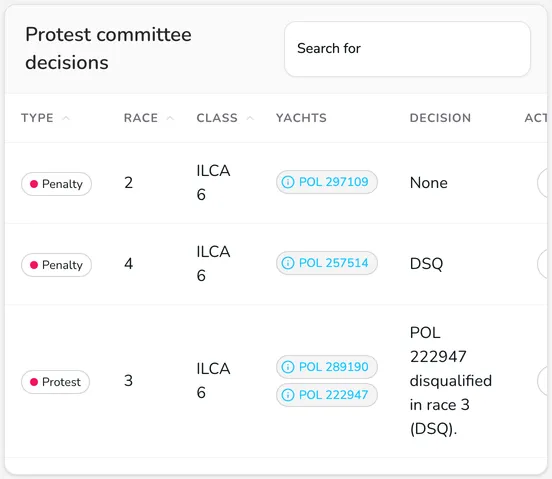
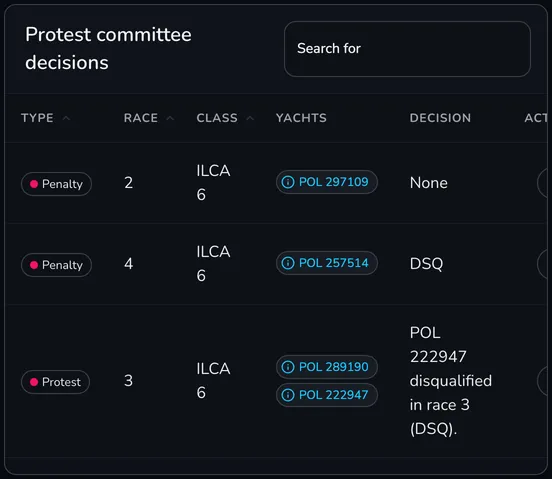
Section titled “Apply jury decisions and penalties”Protest committee decisions and RRS 42 penalties entered in the jury panel automatically go to the Protest committee decisions table, but they don’t change the results on their own – they must be applied manually.
-
In the Protest committee decisions table, check the type (Penalty or Protest), the race number, the boats and the decision. You will find the details in the Preview action.
-
Open the race of the decision and apply it to the boat’s result – e.g. change the result to DSQ or grant RDG.
-
Go back to the table and choose the Confirm action. The decision disappears from the pending list, and the request gets the Completed status in the jury panel.
View current results
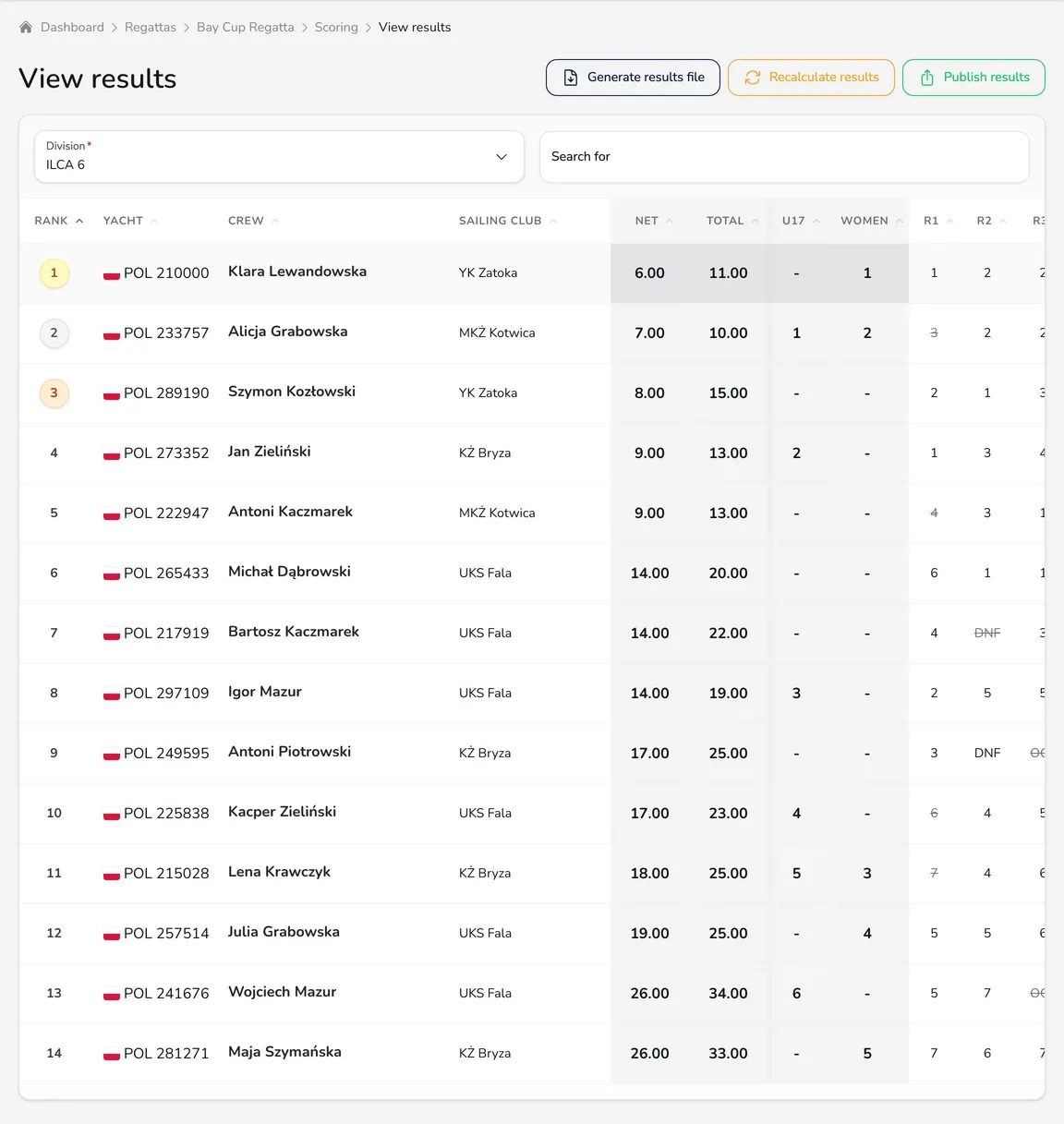
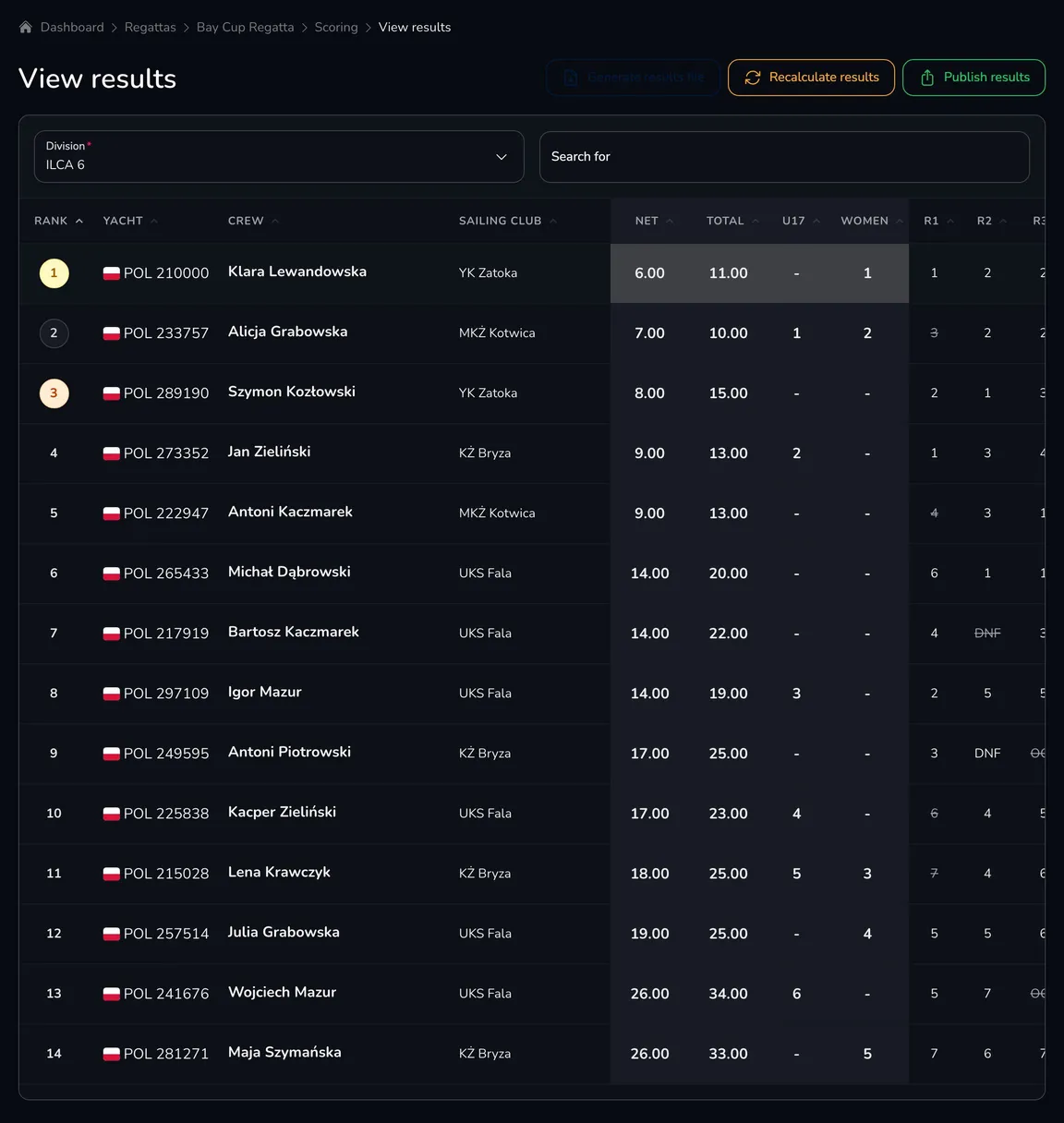
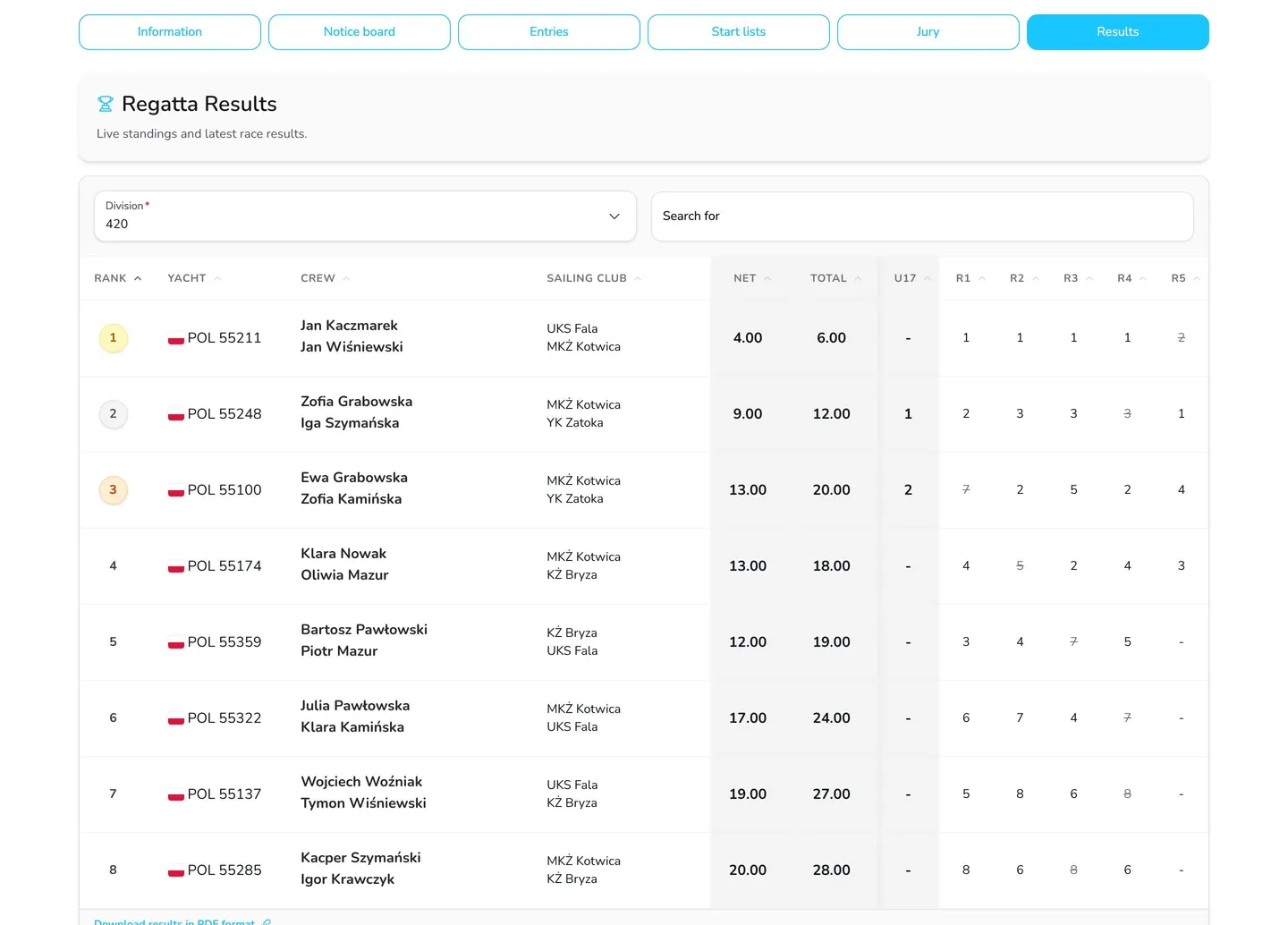
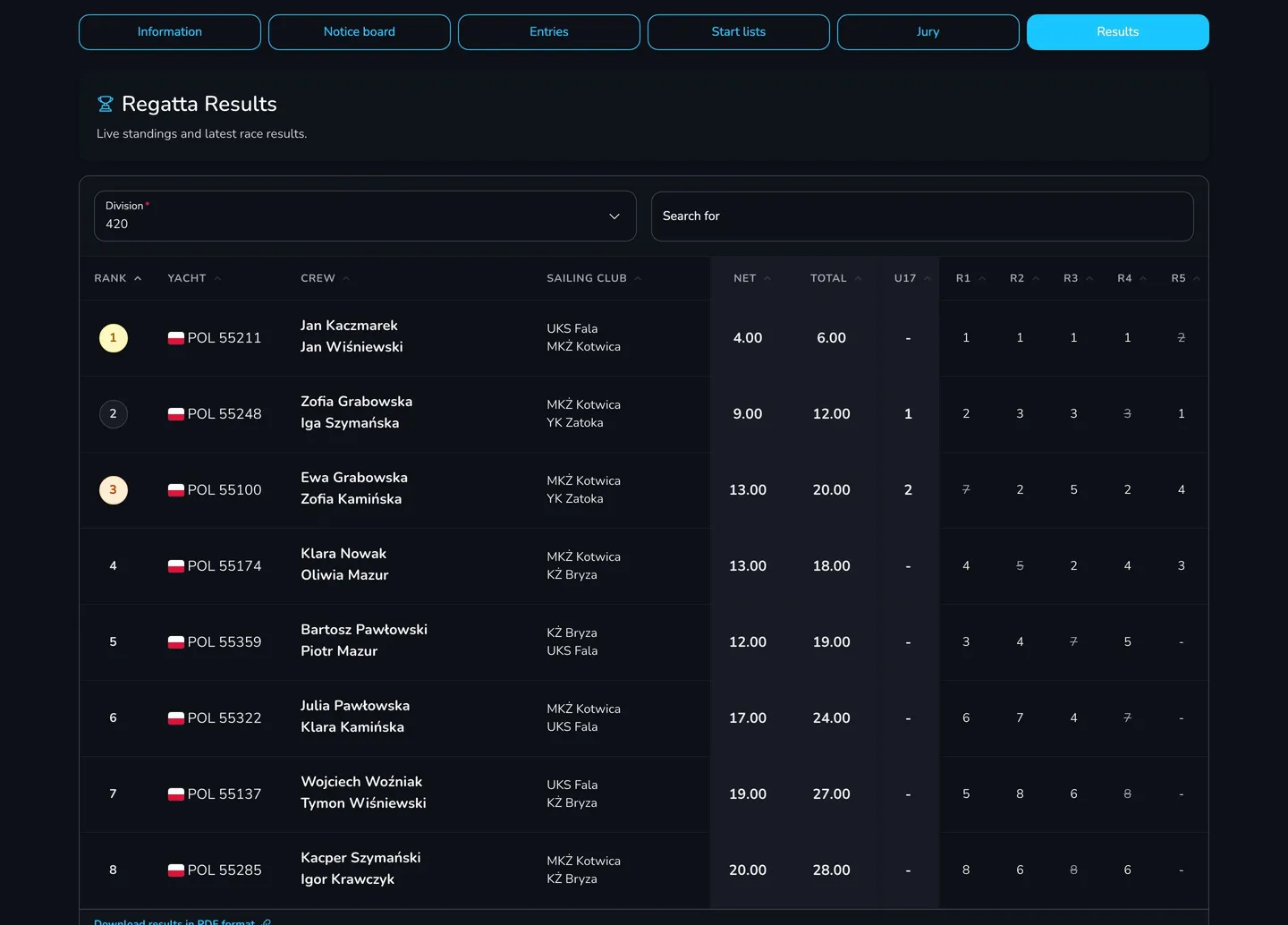
Section titled “View current results”The View current results button opens the draft results of all divisions – exactly as participants will see them after publication. Choose the division (or the leaderboard of a final fleet) with the Division field. Discards are struck through, and the category columns show the boat’s place in each category.
Recalculate the results
Section titled “Recalculate the results”Results are recalculated automatically after every change of a race result, when a race is created or deleted, when boats are assigned to different fleets and when the scoring settings change. A manual recalculation also recalculates the abbreviation points in all races from scratch – use it when the results look outdated.
-
In View current results, click Recalculate results.
-
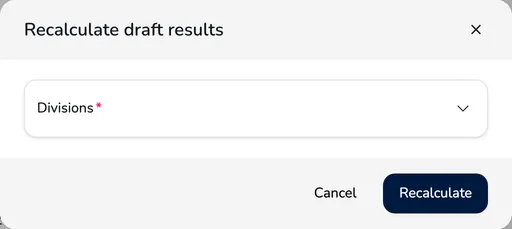
In the Recalculate draft results window, choose the Divisions and click Recalculate.
Automatic or manual publication of results
Section titled “Automatic or manual publication of results”For each division, Upwind24 keeps draft results (visible in the panel) and published results (visible on the regatta page). You choose the publication method with the Auto-publish results field in the scoring settings:
| Automatic publication | Manual publication | |
|---|---|---|
| When results reach the regatta page | right after every change | after clicking Publish results |
| The Publish results button | hidden | shown in View current results |
| New race results notifications | after the results are updated | after each publication |
| Who it’s for | “live” results, small regattas, an experienced team | regattas where results are checked before being announced |
Automatic publication is enabled by default.
With manual publication:
-
In View current results, click Publish results.
-
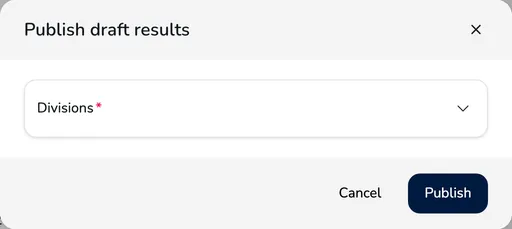
In the Publish draft results window, choose the Divisions (divisions with unpublished changes are marked (unpublished)) and click Publish.
Participants see the published results on the Results tab of the regatta page – once Show results tab is selected in the settings.
Export results to a file
Section titled “Export results to a file”-
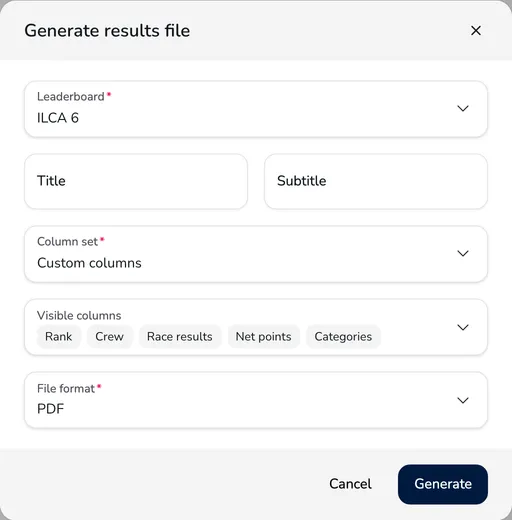
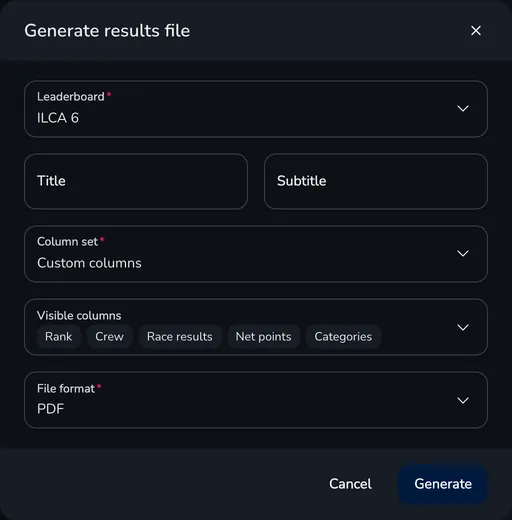
In View current results, click Generate results file.
-
Choose the Leaderboard and enter the document Title and Subtitle.
-
Choose the Column set: Custom columns (select the Visible columns) or the ready-made Youth Sport System (SSM) set.
-
Choose the File format (PDF, XLSX or CSV) and click Generate.
Export the results of a single race with the Generate finish table action in the race menu of the Races table (with a title, columns and format to choose). Participants download the published results from the regatta page with the Download results in PDF format link. Partner logos appear in the header of the PDF files.
Questions and answers
Section titled “Questions and answers”I typed a sail number and the boat “doesn’t exist”. What should I check?
A result can only be added for boats on the race start list. Check that the entry is confirmed, belongs to the right division and – with a fleet split – that the boat is assigned to the fleet racing in this race. Also check that the sail number in the entry is correct.
I got the finishing order wrong. How do I fix it?
Open the race view and click Edit next to the result to change the Rank, or Delete the wrong result and add it again with Add result in the Unfinished yachts table.
How many points does a boat get for DNF, DNS or DNC?
Under the low point system – the number of boats racing in the race plus one. In races sailed in fleets, the boats of the fleet the boat raced in are counted (e.g. 8 points in a 7-boat fleet), and with Use highest abbreviation score enabled – the boats of the largest fleet in the race with the same number.
I changed the discards in the settings, but the results table didn’t change.
After you save the settings, the results are recalculated in the background – refresh View current results after a few seconds. With manual publication, participants see the changes only after you publish the results. If the table still hasn’t changed, click Recalculate results.
Does a special race affect the leaderboard?
No. A Special race (e.g. a long-distance race sailed for a separate prize) is shown in the results, but its points are not included in the overall leaderboard.
I calculate results in another program. Can I publish them in Upwind24?
Yes. In the Additional result files section of the Scoring page, choose the division, click New file, add the results file and save – the file appears on the regatta page.
How do I unpublish results?
Published results can’t be “unpublished”, but you can correct them: fix the race results and publish the division again. The new publication replaces the previous one.
What’s next?
Section titled “What’s next?”

Manage the regatta yourself with an easy-to-use online platform.
© 2026 Upwind24. All rights reserved.