Creating a new account
An Upwind24 account is free and takes less than a minute to create. It lets you save your crew details for the next races, follow your entries and results and – as an organizer – create your own regattas.
Sign up with your e-mail address
Section titled “Sign up with your e-mail address”-
Open the Create a new account page – the New account button in the top right corner of every Upwind24 page, e.g. the home page, takes you there.
-
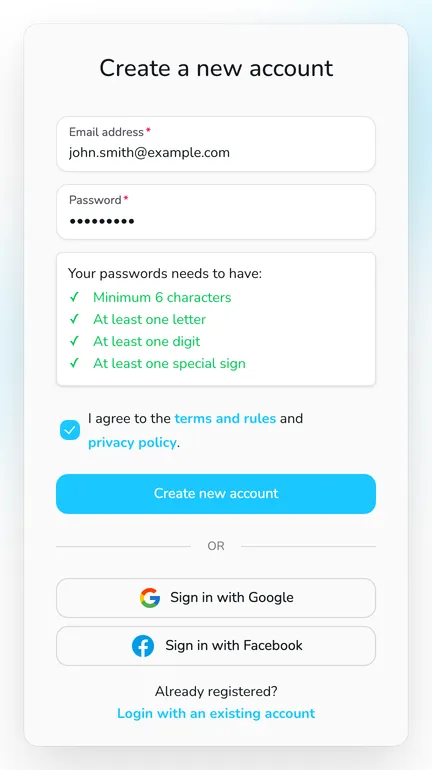
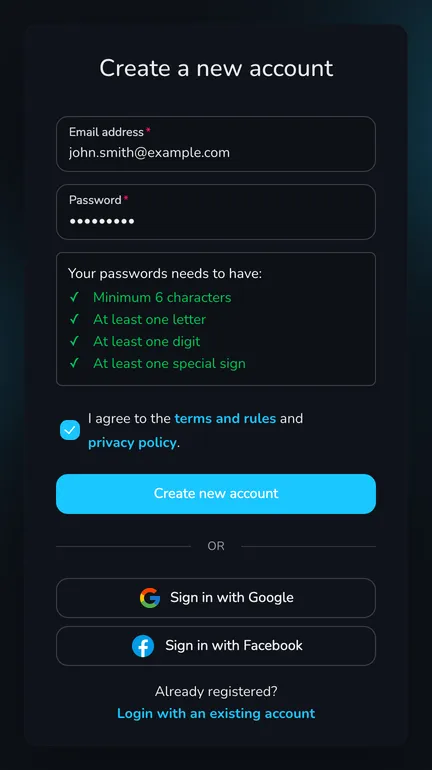
Enter your Email address and Password. Below the password field you can see which requirements are already met. The password must contain:
- at least 6 characters,
- at least one letter,
- at least one digit,
- at least one special sign, e.g.
!,@or#.
-
Tick I agree to the terms and rules and privacy policy.
-
Click Create new account.
Once the account is created, you see the message A new account has been created successfully. Please check your email to verify the account. and Upwind24 takes you straight to the user panel.
Sign up with Google or Facebook
Section titled “Sign up with Google or Facebook”Instead of coming up with a new password, you can use the Sign in with Google or Sign in with Facebook buttons below the registration form.
- If you don’t have an Upwind24 account yet, one is created automatically for the e-mail address of your Google or Facebook account. Such an account is confirmed right away, and your first name, last name and profile picture are copied from the selected service.
- If you already have an account with the same e-mail address, you are signed in to it – no second account is created.
Confirm your e-mail address
Section titled “Confirm your e-mail address”After signing up with your e-mail address, you receive the message Welcome aboard! Confirm your Upwind24 account.
-
Open the message and click the Confirm My Account button.
-
Upwind24 confirms your address and takes you to the user panel. If you are not signed in in this browser, you see the login page first – once you sign in, the confirmation completes automatically.
Choose your account type
Section titled “Choose your account type”The first time you open the user panel, you are asked to select your account type. Tick one or more types and click Submit. The window can’t be skipped – choose at least one type.
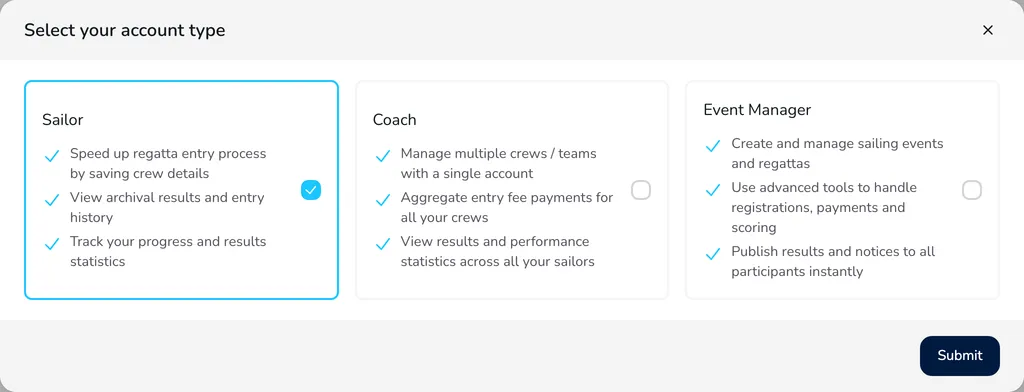
| Account type | Who it is for | Panel menu sections |
|---|---|---|
| Sailor | competitors and their parents | Crews |
| Coach | coaches and leaders of multiple crews | Coach, Crews |
| Event Manager | organizers, race officials, race offices | Regattas |
The Entries and Profile sections are available for all account types. Read more about what each type offers in What is Upwind24?
Questions and answers
Section titled “Questions and answers”I can’t find the confirmation e-mail. What should I do?
Check your spam folder and the promotions or updates tabs of your mailbox. Also make sure the e-mail address shown at the top of the panel (in the user menu) is spelled correctly. If the message still hasn’t arrived, let us know using the contact form.
The form says “Google reCAPTCHA validation failed”. Why?
The registration form is protected against bots by Google reCAPTCHA. The message may appear when the form is sent too quickly or when an ad or script blocker prevents the verification. Wait a moment, allow the Upwind24 site in your blocker and try again.
Next steps
Section titled “Next steps”
Manage the regatta yourself with an easy-to-use online platform.
© 2026 Upwind24. All rights reserved.