Access permissions
A regatta is rarely managed by one person. On the Permissions tab you invite the race office, the race committee, judges and the people responsible for results – and give each of them access only to the modules they need. For example, the race office can handle entries and invoices, while judges get only the jury panel.
Add a person to manage the regatta
Section titled “Add a person to manage the regatta”-
In the panel menu, in the Regattas section, choose the regatta from the list and click Permissions.
-
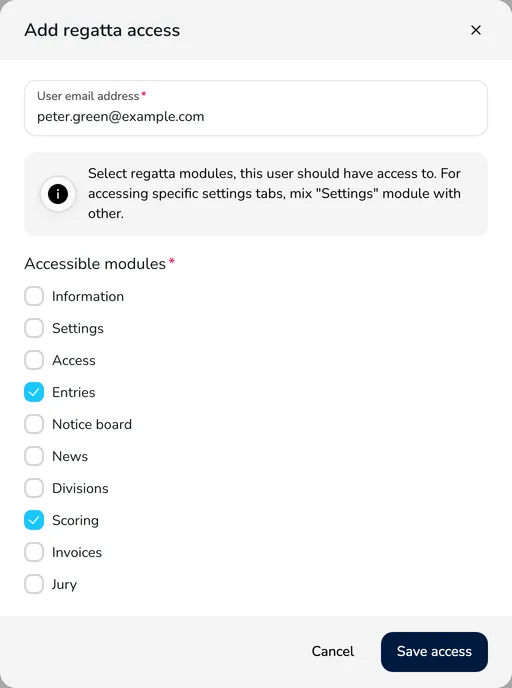
Click Add regatta access. If the button is inactive, the manager limit of the plan has been reached – the Upgrade your plan link in the warning above the table leads to a higher plan.
-
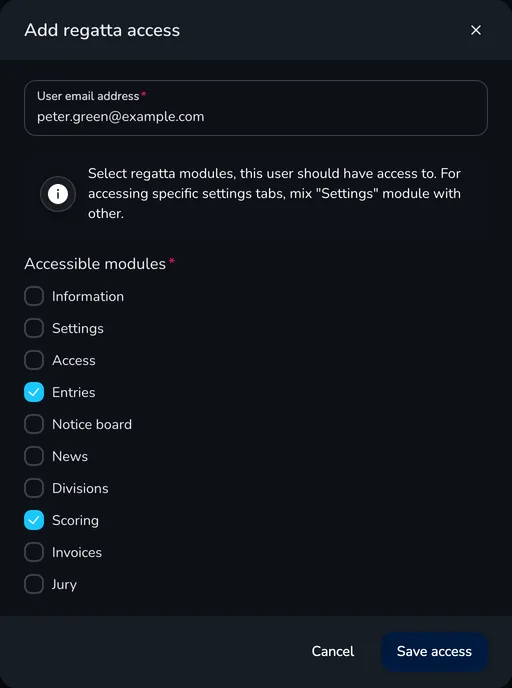
In the Add regatta access window, enter the User email address.
-
In the Accessible modules field, select the modules the person should use (the modules are described below).
-
Click Save access. You will see the message Regatta access has been granted successfully. and the person appears in the Users with regatta access table.
The invited person receives an e-mail about the regatta access:
- If they already have an Upwind24 account, the access works right away – the e-mail and the panel notifications contain a link to manage the regatta.
- If they don’t have an account, the e-mail contains a registration link. After creating an account with the same e-mail address, the regatta access is assigned automatically.
Access modules
Section titled “Access modules”Each module corresponds to a regatta tab in the panel menu:
| Module | What it gives access to |
|---|---|
| Information | Edit regatta – name, dates, classes, description, venue, documents, logos and publication of the regatta page |
| Settings | Settings – the General card and the cards of the other modules the person has access to |
| Access | Permissions – inviting more people and changing their permissions |
| Entries | Entries – the list, confirmation, payments, import and export of entries |
| Notice board | Notices – publishing notices on the notice board |
| News | News – articles on the regatta page (in plans with news) |
| Divisions | Divisions and fleets – divisions, fleets, categories and start lists |
| Scoring | Scoring – races, entering and publishing results |
| Invoices | Invoices – entry fee invoices and the payment list (in plans with invoicing) |
| Jury | Jury – requests for consideration, decisions, time limits and RRS 42 penalties (in plans with the jury panel) |
Modules not included in the regatta plan (e.g. Invoices or Jury) are not shown in the list.
Change or remove access
Section titled “Change or remove access”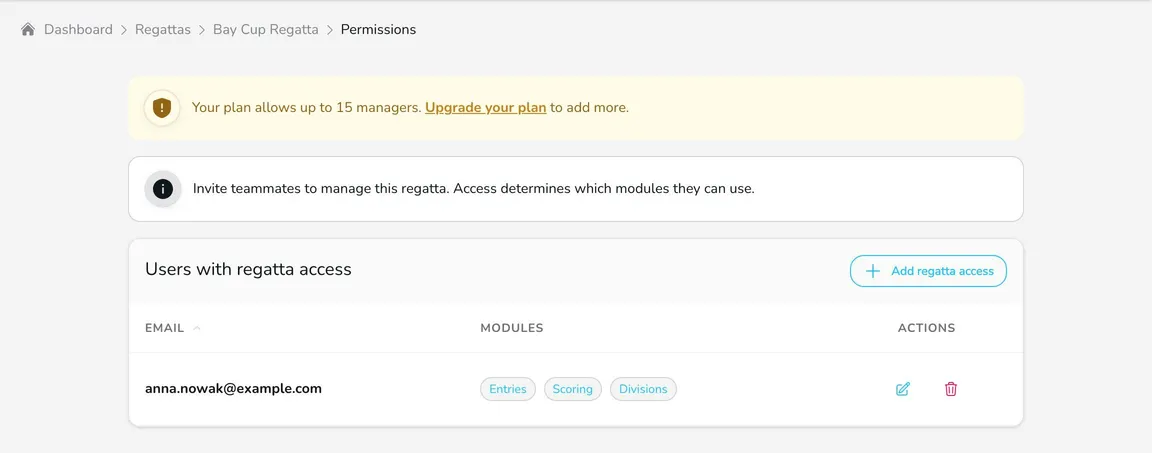
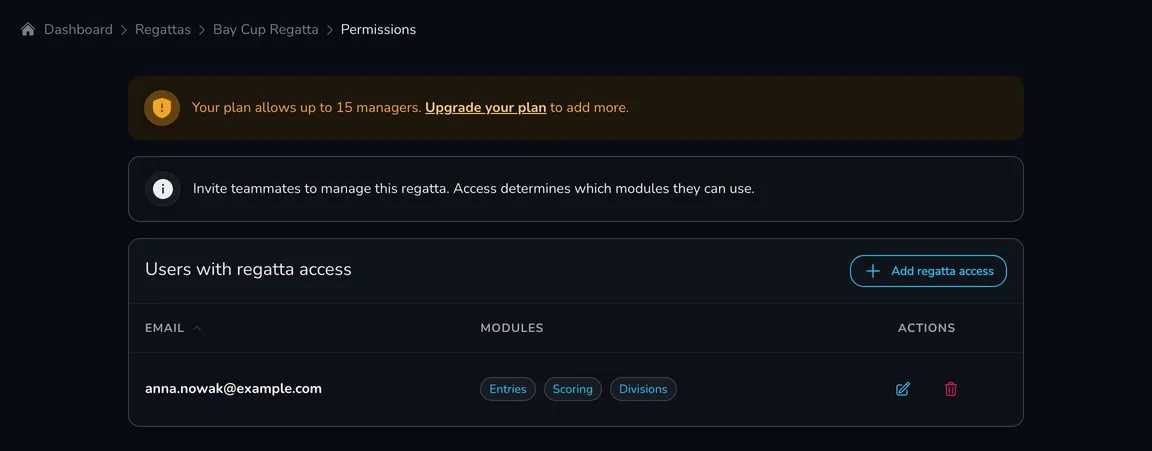
The Users with regatta access table shows each person’s e-mail address and modules.
- Click Edit to change the modules – the changes apply as soon as you click Save access.
- Click Remove to revoke the access. Upwind24 asks for confirmation, and the person immediately stops seeing the regatta in their panel.
Sample permission sets
Section titled “Sample permission sets”| Role | Modules |
|---|---|
| Race office | Entries, Invoices, Notice board |
| Race committee | Divisions, Scoring, Notice board |
| Chief judge / jury | Jury, Notice board |
| Results keeper | Scoring |
| Co-organizer | all modules |
Questions and answers
Section titled “Questions and answers”Can a manager delete the regatta or change the plan?
No. Only the regatta owner – the person who created it – can delete the regatta and upgrade the plan. Managers, even with access to all modules, cannot do it.
The invited person doesn’t see the regatta in the panel. What should I check?
Check that the person is logged in to the account created with the e-mail address the invitation was sent to and that they have the Event Manager account type. They will find the regatta in the drop-down list of the Regattas section of the panel menu.
What’s next?
Section titled “What’s next?”
Manage the regatta yourself with an easy-to-use online platform.
© 2026 Upwind24. All rights reserved.