Account settings
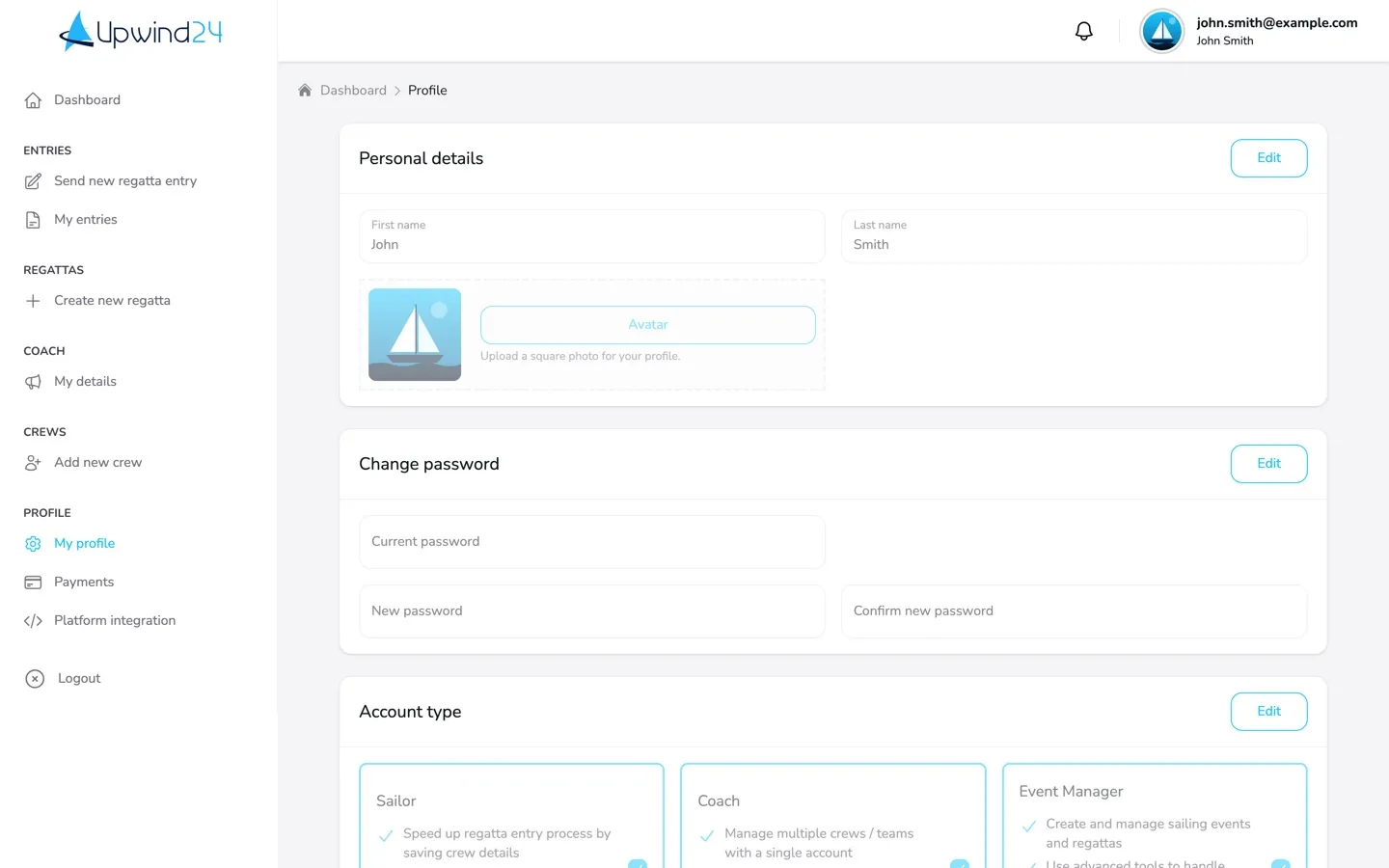
All your account settings are on the My profile page of the user panel. There are two ways to open it:
- in the menu on the left – Profile → My profile,
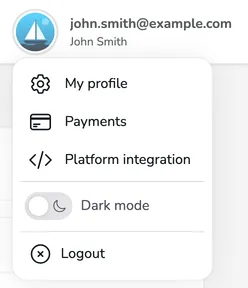
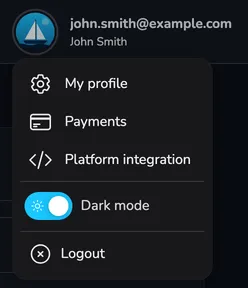
- in the user menu – click your avatar or e-mail address in the top right corner of the panel and choose My profile.
The page is divided into cards: Personal details, Change password, Account type, Account settings and Account deletion.
Personal details
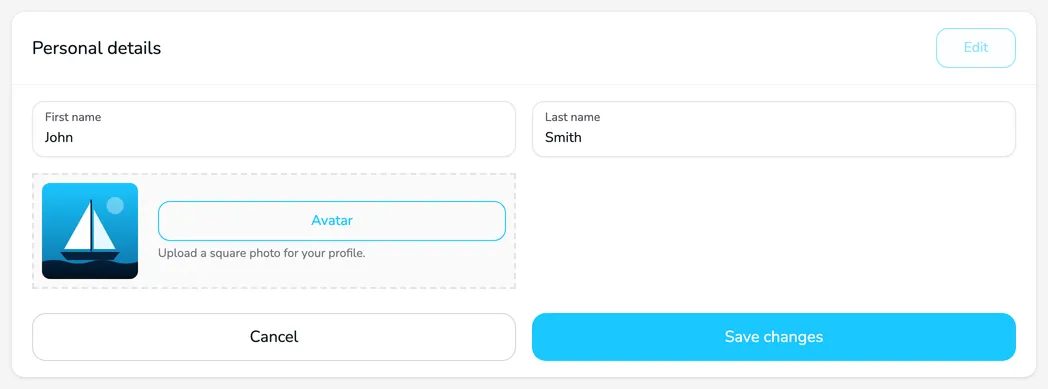
Section titled “Personal details”In this card you can fill in your First name, Last name and Avatar. Your name is shown in the user menu below your e-mail address.
-
In the Personal details card, click Edit.
-
Enter your First name and Last name.
-
To add a picture, click the Avatar button and choose a file, or drag it onto the avatar field. A square photo in JPG, PNG or GIF format of up to 3 MB works best.
-
Click Save changes.
Change password
Section titled “Change password”-
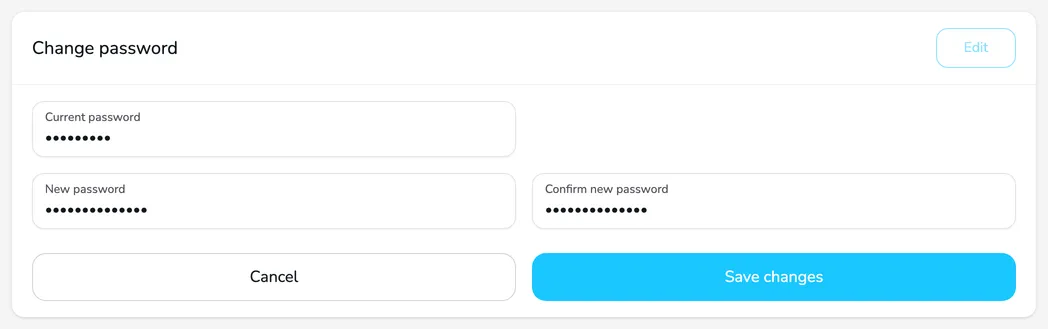
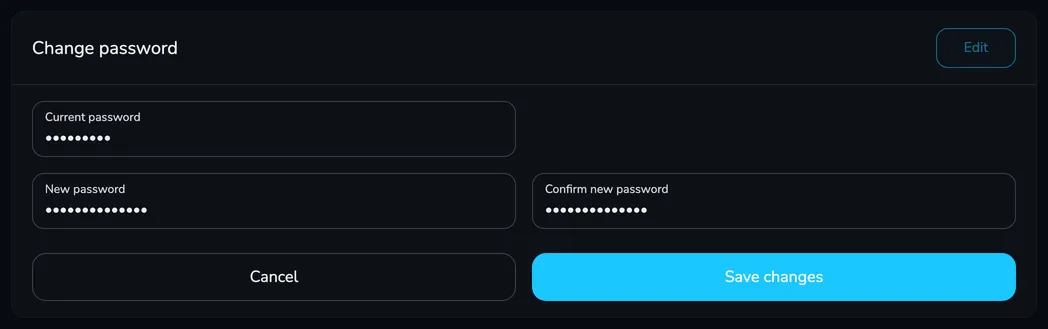
In the Change password card, click Edit.
-
Enter your Current password.
-
Enter the new password in the New password and Confirm new password fields. It must have at least 6 characters and contain at least one letter, one digit and one special sign.
-
Click Save changes. You see the message Your password has been changed successfully.
Don’t remember your current password? Use the password recovery – it is also the way to set a password for an account created with Google or Facebook.
Account type
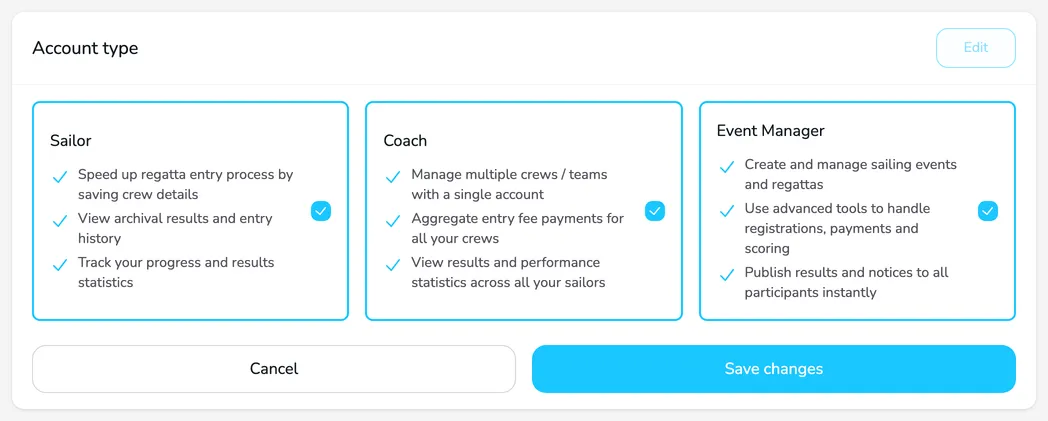
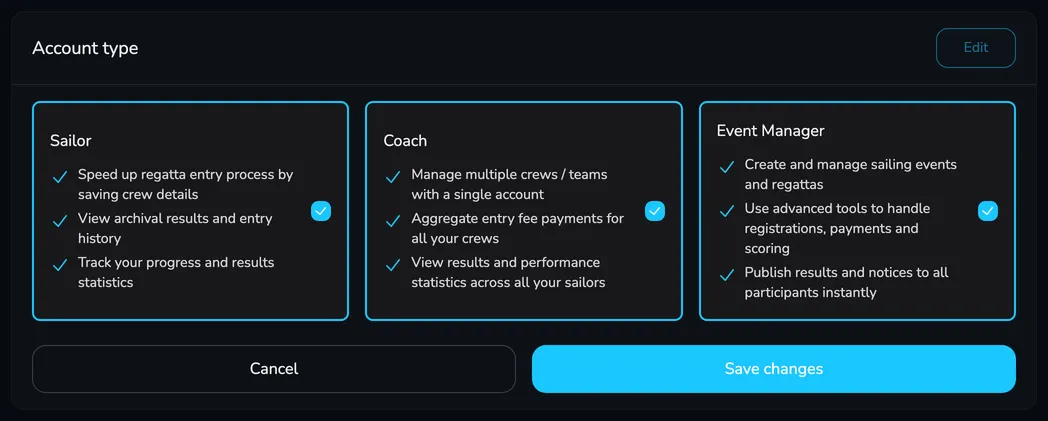
Section titled “Account type”Your account type decides which sections you see in the panel menu: Sailor unlocks the Crews section, Coach – the Coach and Crews sections, and Event Manager – the Regattas section. You can select any combination of types.
-
In the Account type card, click Edit.
-
Select or clear the account types. At least one type must stay selected.
-
Click Save changes – the panel menu updates right away.
Account settings
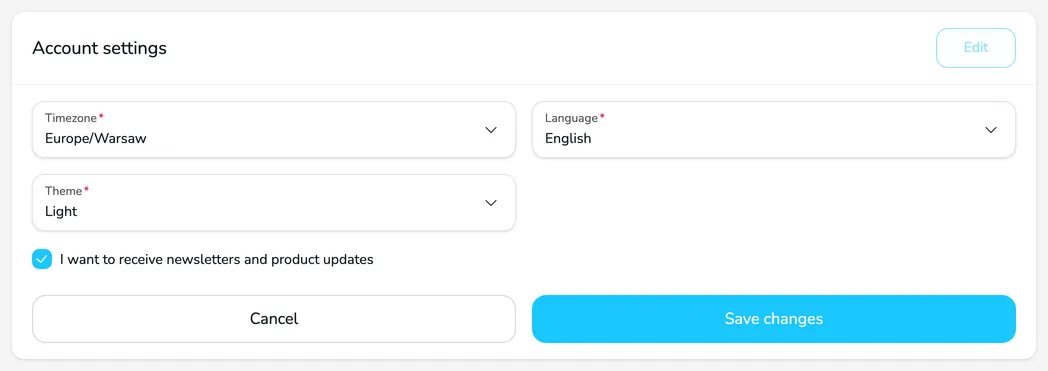
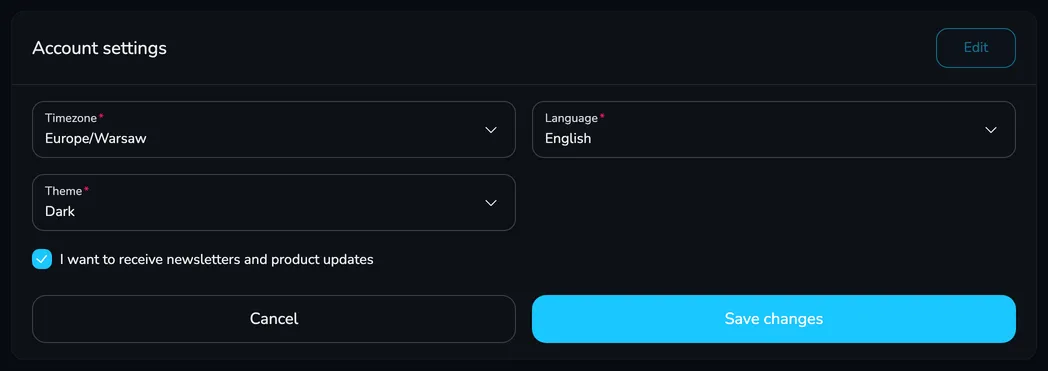
Section titled “Account settings”In the Account settings card you can adjust the platform to your needs:
- Timezone – the time zone of your account.
- Language – English or Polski. This is the language of the interface and of the e-mails and notifications you receive from Upwind24. After saving, the page switches to the selected language.
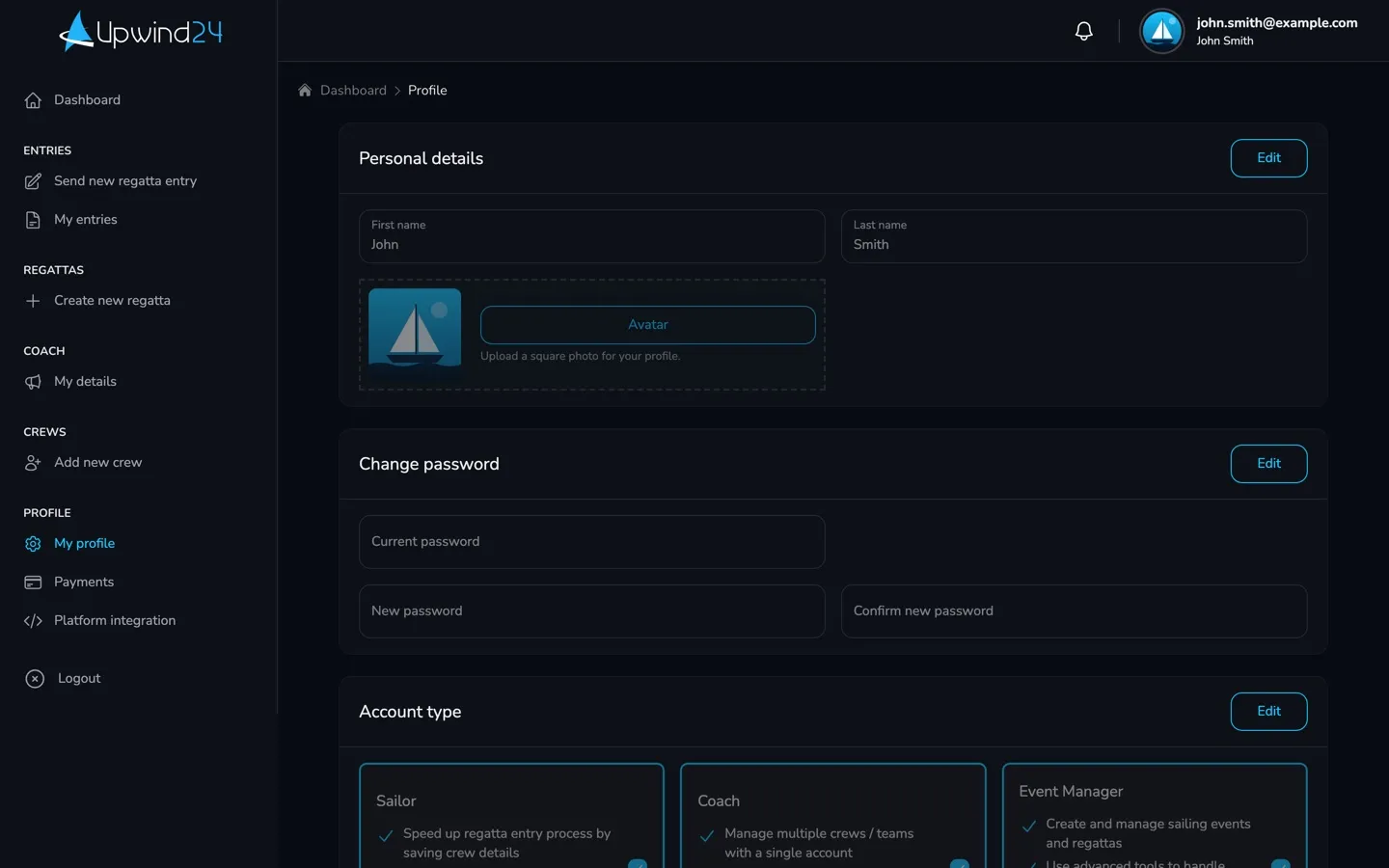
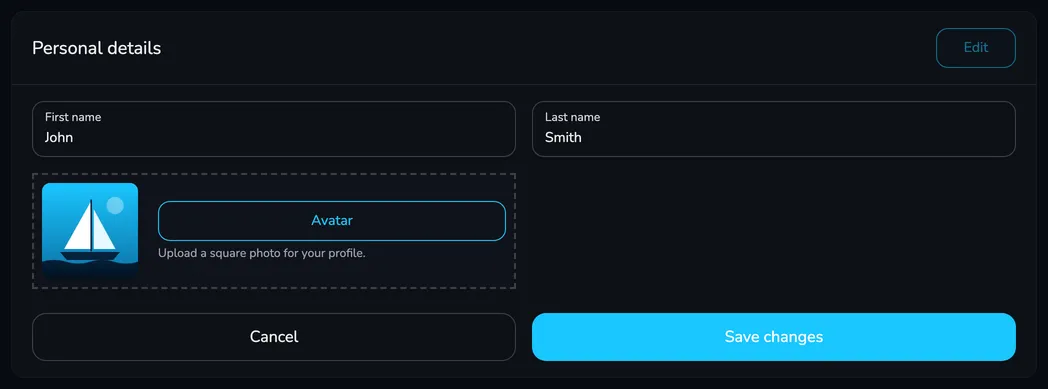
- Theme – Light or Dark.
- I want to receive newsletters and product updates – your consent to the Upwind24 newsletter. It is ticked by default for new accounts – clear it if you don’t want to receive the newsletter.
Account deletion
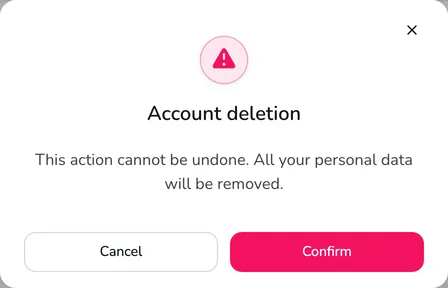
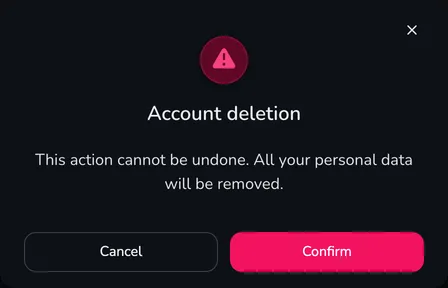
Section titled “Account deletion”Deleting your account is permanent – it removes your profile, settings and access, including your notifications and invitations.


-
In the Account deletion card, click Delete account.
-
In the Account deletion window, click Confirm.
-
You see the message Your account has been deleted. and are signed out of the platform.
Questions and answers
Section titled “Questions and answers”Can I change the e-mail address of my account?
You can’t change your e-mail address yourself on the My profile page – it is used to sign in and to link entries to your account. If you need to change it, let us know using the contact form.
What happens to my entries and results when I delete my account?
Entries, crews, payments and invoices don’t disappear from the platform – they are only unlinked from the deleted account. This way, the results of the regattas your crew sailed in remain in the archive and in the rankings.
Manage the regatta yourself with an easy-to-use online platform.
© 2026 Upwind24. All rights reserved.