Notifications
Upwind24 can keep you posted on what happens at selected regattas – new notices, start lists, results, protests and penalties. Notifications arrive directly on your phone or computer, even when the Upwind24 page is closed. With filters, you only get the ones that concern your crew or the sailors from your club.
Turn on regatta notifications
Section titled “Turn on regatta notifications”-
Open the page of the selected regatta – find it in the regatta list – and click Setup notifications in the regatta header.


-
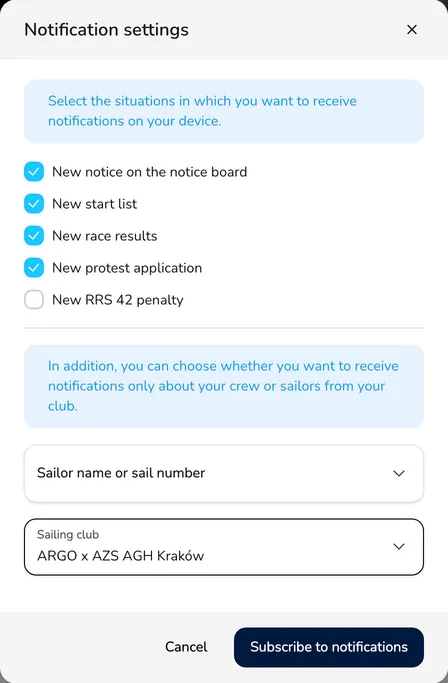
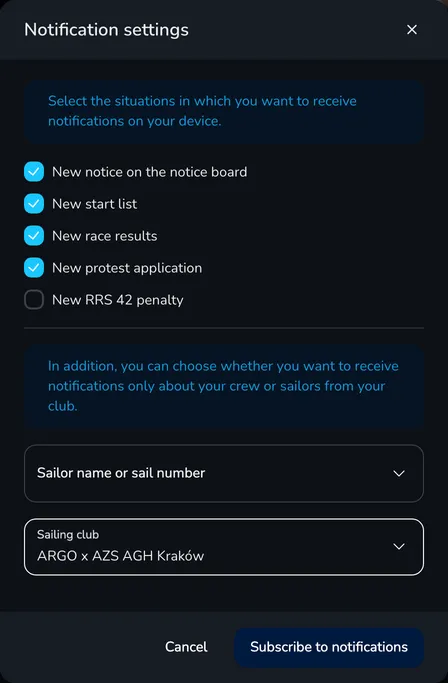
In the Notification settings window, tick the events you want to be notified about.
-
Optionally, limit the notifications to a selected crew or club – see Filter notifications.
-
Click Subscribe to notifications. If your browser asks for permission to show notifications, allow it.
Once saved, you see the message Your notification settings have been updated successfully. From now on, Upwind24 sends notifications about the selected events. Clicking a notification opens the related regatta page – e.g. the notice board, the results or the start list.
Notification events
Section titled “Notification events”The Notification settings window only lists the events that apply to the given regatta – e.g. protest and penalty notifications are available when the organizer uses the jury module.
| Event | When you get a notification | Filter applies? |
|---|---|---|
| New notice on the notice board | The organizer has published a new notice on the Notice board. | no |
| New news article | The organizer has published a news article (when the regatta has news turned on). | no |
| New start list | A new start list has been published in one of the divisions. | yes |
| New race results | The results of one of the divisions have been updated. | yes |
| New protest application | A new protest has been published in the Jury tab. | yes |
| New RRS 42 penalty | A new penalty for breaking rule 42 of the Racing Rules of Sailing has been published. | yes |
Filter notifications
Section titled “Filter notifications”In the lower part of the window, you can limit the notifications to those concerning a specific crew or club:
- Sailor name or sail number – choose a crew from the entries of this regatta.
- Sailing club – choose a club. A crew matches when at least one of its sailors belongs to this club.
The filter works for start lists, results, protests and penalties. You get a notification only when the selected crew is on the start list or in the results, is a party to the protest or has received the penalty. If you fill in both fields, it is enough that the event concerns the selected crew or a sailor from the selected club. Notices and news concern all participants, so you always receive them.
Change or turn off notifications
Section titled “Change or turn off notifications”-
Open the regatta page and click Setup notifications again – the window shows your current settings.
-
Change the selected events or filters. To stop receiving notifications from this regatta, clear all events.
-
Click Subscribe to notifications.
You can also turn off all Upwind24 notifications in your browser or system settings by blocking notifications for www.upwind24.com.
Notifications in the user panel
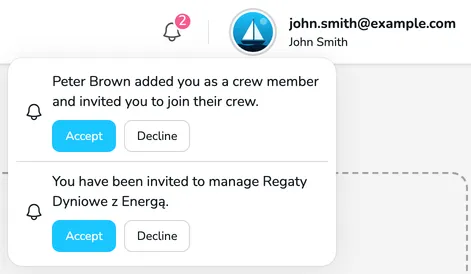
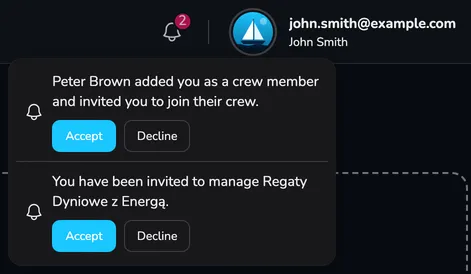
Section titled “Notifications in the user panel”After signing in, you see a bell icon in the top bar of the user panel. The red badge shows the number of unread notifications – they are marked as read when you open the list. When you have no notifications, the list says There are no notifications.
Among others, the panel shows invitations:
- to a crew – when someone adds you as a crew member or as their coach,
- to manage a regatta – when an organizer adds you as a regatta manager.
You can accept or decline an invitation with the Accept and Decline buttons directly in the notification list. These invitations are also sent by e-mail.
Questions and answers
Section titled “Questions and answers”I can’t see the Setup notifications button on the regatta page. Why?
The button is only shown in browsers that support push notifications. On an iPhone or iPad, first add Upwind24 to your Home Screen (in Safari: Share → Add to Home Screen) and open the regatta page from the icon on the screen – then the button appears.
After clicking Subscribe to notifications, I see “Your device does not allow notifications”. What should I do?
Notifications for Upwind24 are blocked in your browser or system. Click the icon next to the page address, allow notifications for www.upwind24.com and check in your system settings that the browser is allowed to show notifications. Then open the notification settings again and click Subscribe to notifications.
Manage the regatta yourself with an easy-to-use online platform.
© 2026 Upwind24. All rights reserved.