

Entries
The Entries tab is the race office’s workplace. It shows all entries sent by participants; here you confirm them, mark payments, add entries manually, generate entry lists and entry forms for printing and import entries from a file.
Browse entries
Section titled “Browse entries”In the panel menu, in the Regattas section, choose the regatta from the list and click Entries. Entries are shown separately for each division – change the division with the Division field above the table. The Unassigned item contains entries that don’t belong to any division (e.g. after a division was deleted).
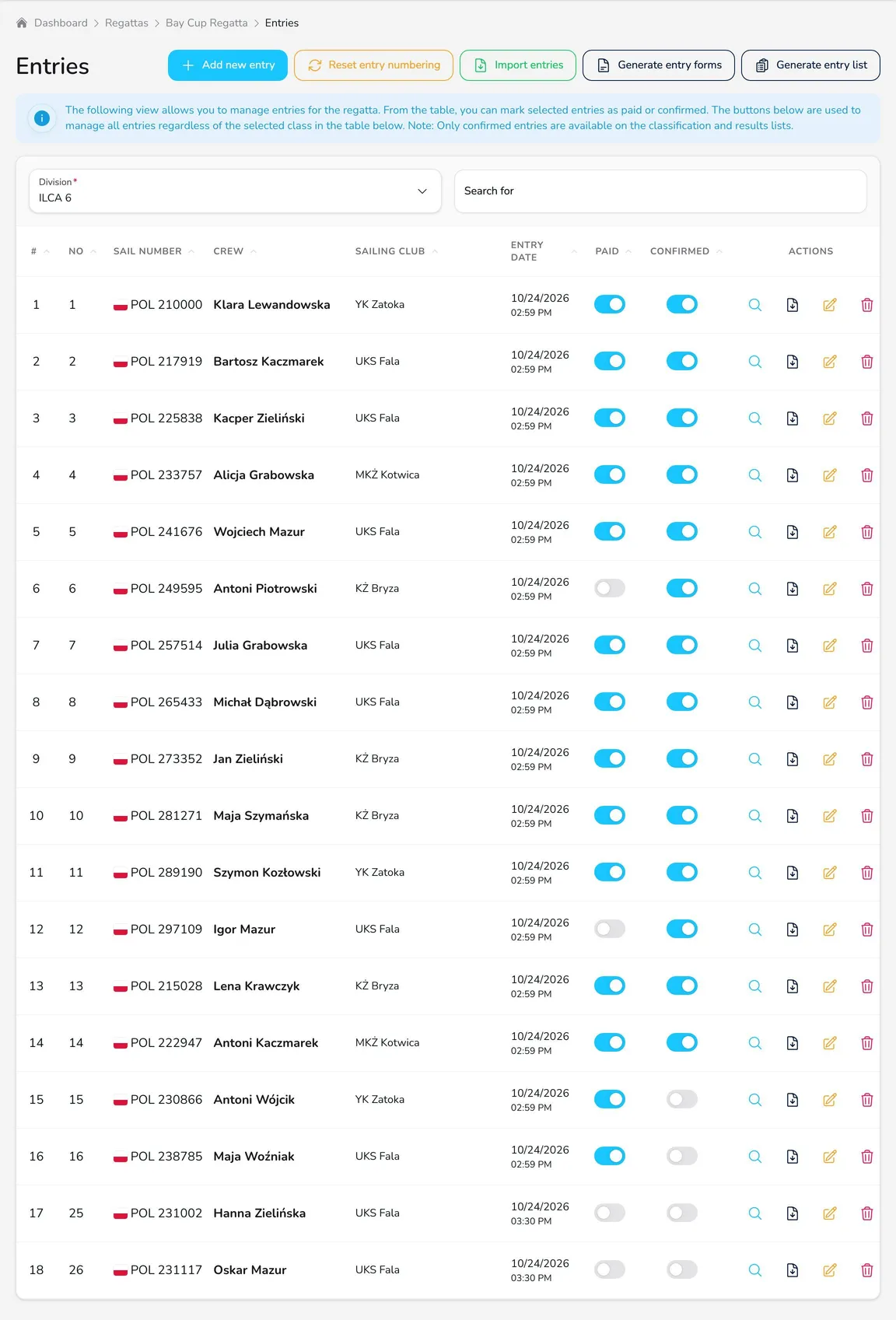
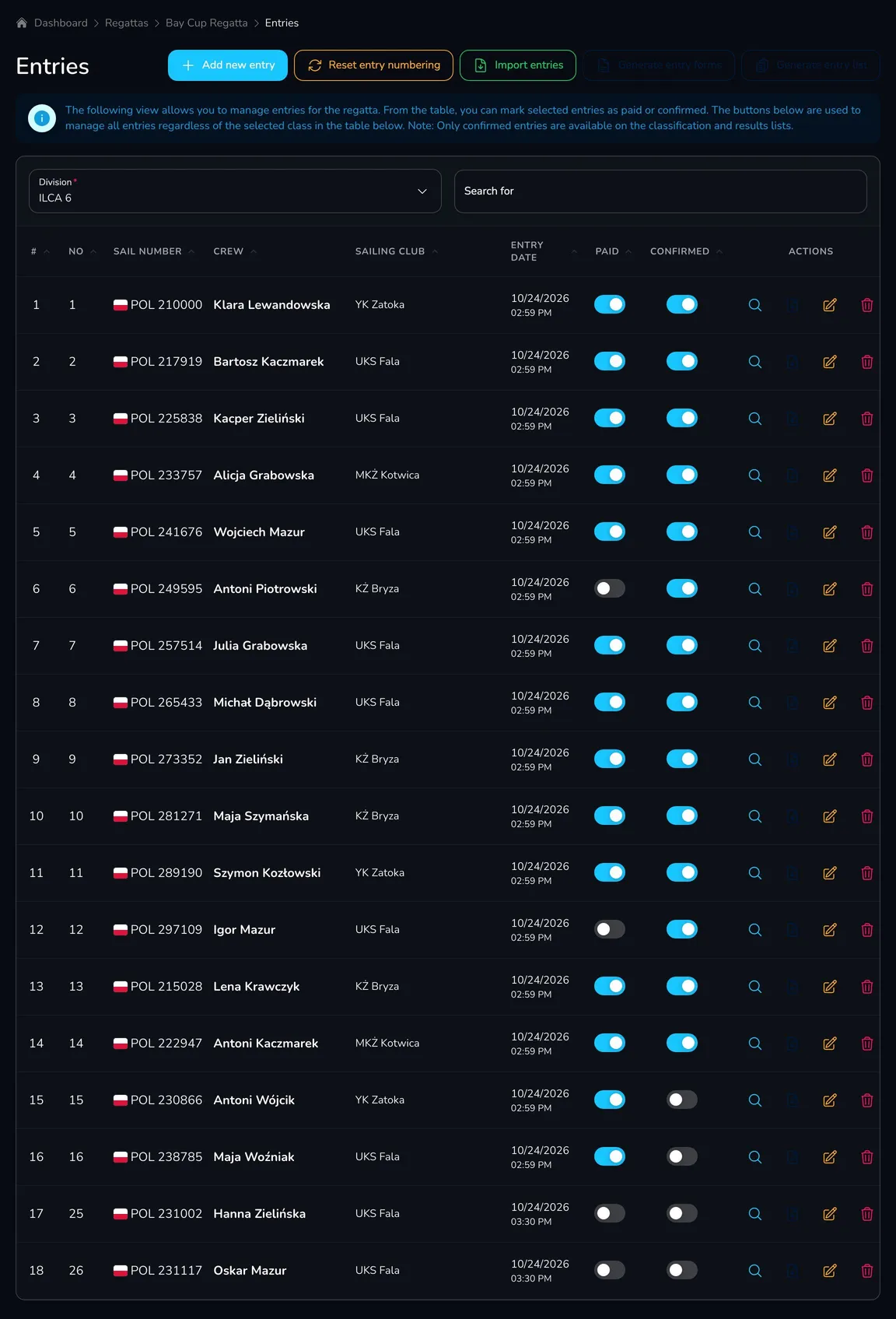
The table shows the entry number, sail number, crew, club, entry date and two switches:
- Paid – the entry fee has been paid. Entries paid online are marked automatically once the provider confirms the payment.
- Confirmed – the entry has been accepted by the organizer. Only confirmed entries are included in the start lists and results.
Next to each entry you will also find the actions Preview (entry details), Download entry form (PDF), Edit and Delete.
Plan entry limit
Section titled “Plan entry limit”The regatta plan limits the number of confirmed entries (e.g. 30 in the Starter plan). Once the limit is reached, new entries are still accepted but saved as unconfirmed. The warning above the table contains the Upgrade your plan link to a higher plan.
Entry numbering
Section titled “Entry numbering”Every entry gets the next number. Deleting entries leaves gaps in the numbering – the Reset entry numbering button gives all entries new numbers starting from 1, in the order they were sent.
Add an entry manually
Section titled “Add an entry manually”Enter entries received by e-mail, by phone or in the race office yourself:
-
Click Add new entry.
-
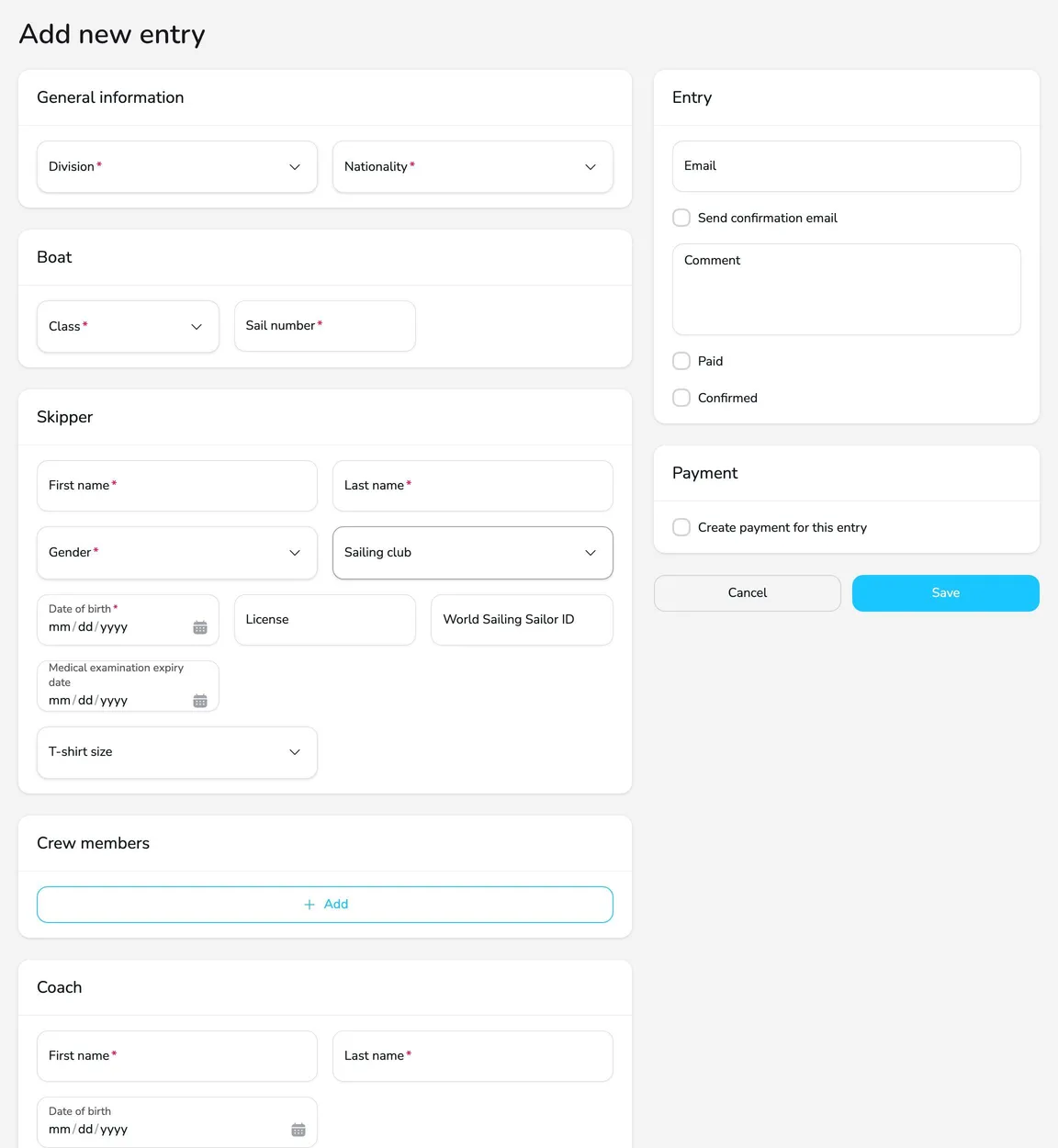
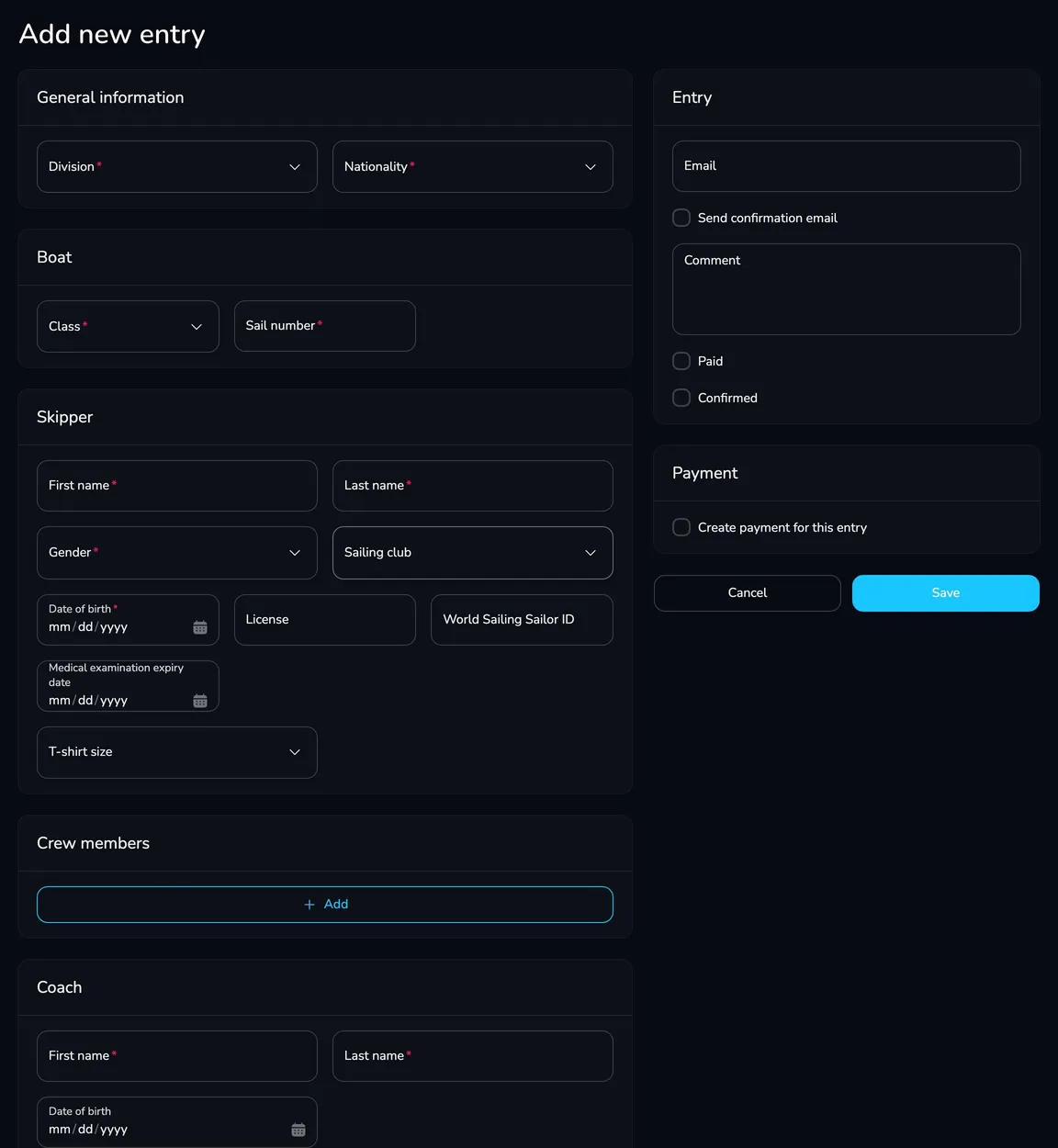
Choose the Division and fill in the team, boat, skipper, crew and – if you collect them – coach details.
-
On the Entry card, you can enter the Email of the person entering and select Send confirmation email – the participant receives an entry confirmation with the entry form in PDF. Here you can also add a Comment and mark the entry as Paid or Confirmed right away.
-
If the participant should pay online, select Create payment for this entry and enter the Payment name, Amount and Currency (optionally also the invoice details).
-
Click Save. You will see the message Entry has been created successfully.
Export entries to a file
Section titled “Export entries to a file”Entry list
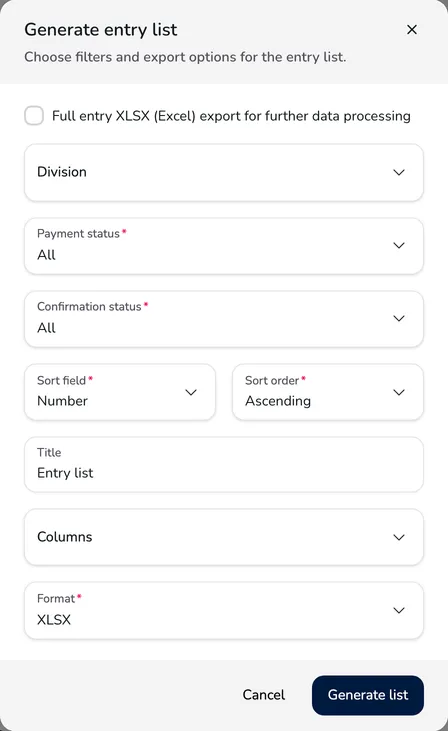
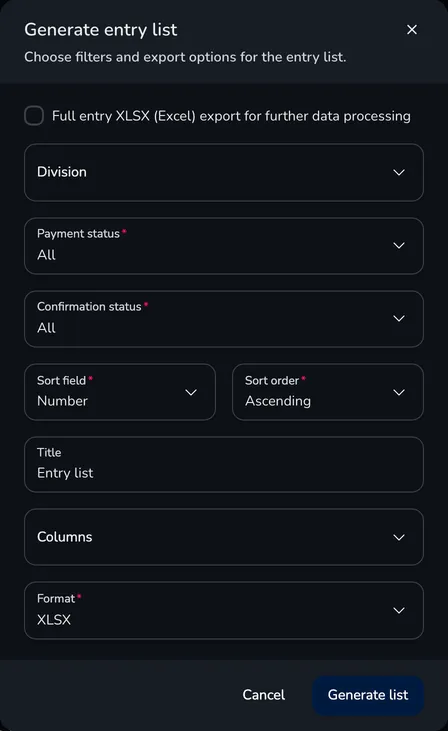
Section titled “Entry list”The Generate entry list button creates an entry list for printing or further processing.
-
Click Generate entry list.
-
Choose the Division, the Payment status (All, Paid, Unpaid) and the Confirmation status, and set the Sort field and Sort order.
-
Enter the list Title, choose the Columns and the Format: PDF, XLSX or CSV.
-
Click Generate list – the file opens in a new browser tab.
Full entry export
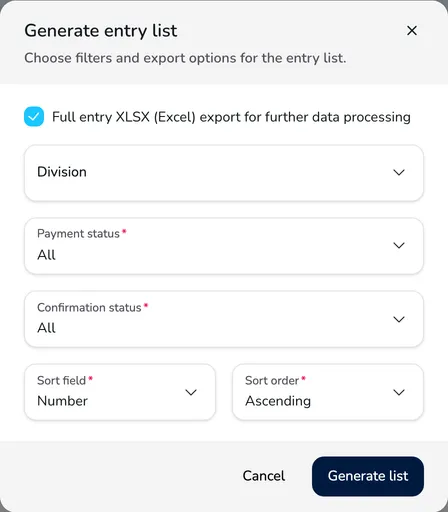
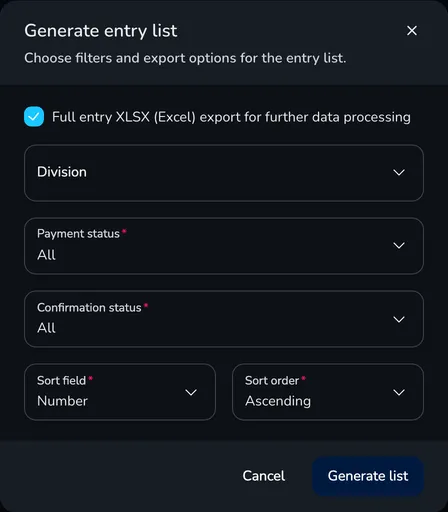
Section titled “Full entry export”Select Full entry XLSX (Excel) export for further data processing in the same window to download a spreadsheet with all entry data – including the details of all crew members, the coach, the e-mail address of the person entering, the payment and confirmation status and the answers to custom fields. The division, status and sorting filters still apply.
Entry forms
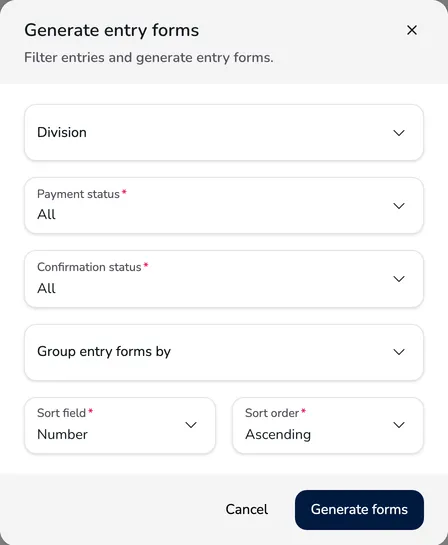
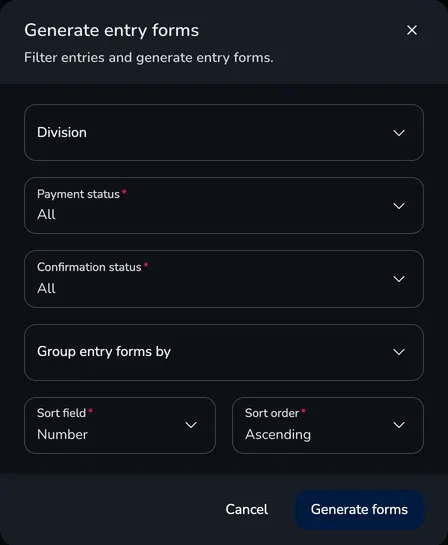
Section titled “Entry forms”The Generate entry forms button creates a PDF file with entry forms to be signed in the race office. You can filter the forms (division, payment and confirmation status) and group them by sailing club or nationality – e.g. to print a set of forms for each club. You can also download the form of a single entry with the Download entry form icon in the table.
Import entries from a file
Section titled “Import entries from a file”Import is useful when entries were collected outside Upwind24 – e.g. in a spreadsheet or another entry system.
-
Prepare a template: click Generate entry list, select Full entry XLSX (Excel) export for further data processing and click Generate list. Even if the regatta has no entries yet, you get a spreadsheet with all the columns.
-
Fill in the spreadsheet – one row is one entry:
- Division – the division name exactly as in the regatta (e.g. ILCA 6),
- Paid and Confirmed – Yes or No,
- Gender – M (male) or F (female),
- dates – in the YYYY-MM-DD format, e.g. 2009-06-14.
-
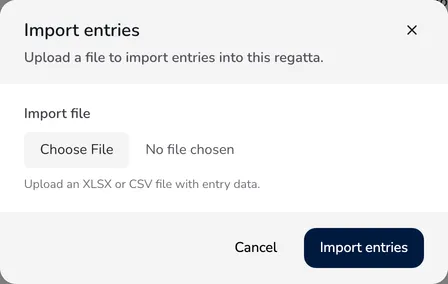
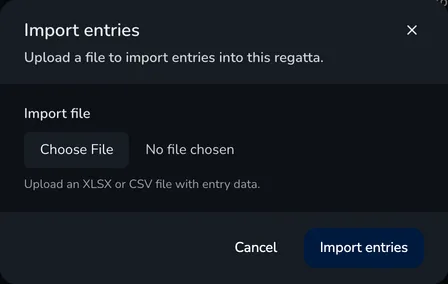
Click Import entries, choose an XLSX or CSV file in the Import file field and click Import entries.
-
When the import succeeds, you will see the message Entries have been imported. and the entries appear in the table.
Questions and answers
Section titled “Questions and answers”A participant sent an entry with a mistake. Can I correct it?
Yes. Click Edit next to the entry, correct the data and save the changes. You can also change the entry division – the entry is moved to the start list of the new division.
Does the participant receive an e-mail when the entry is confirmed?
The participant receives an e-mail with a confirmation and the entry form in PDF right after sending the entry through the regatta page. For an entry added manually, the e-mail is sent if you enter the address and select Send confirmation email.
I deleted an entry by mistake. Can I restore it?
No – deleting an entry cannot be undone. Add the entry again with Add new entry. If you only want to exclude an entry from the start lists, turn off the Confirmed switch instead of deleting it.
What’s next?
Section titled “What’s next?”

Manage the regatta yourself with an easy-to-use online platform.
© 2026 Upwind24. All rights reserved.