
How to create a new regatta?
Every regatta in Upwind24 starts with choosing a regatta plan. The plan sets the limits (the number of entries, classes, divisions and managers) and the available modules – online payments, invoicing, the jury panel or news. In this article you create a regatta, add boat classes to it (including one that is missing from the list) and learn when you can publish the regatta page.
Choose a regatta plan
Section titled “Choose a regatta plan”-
In the user panel, open Regattas → Create new regatta.
-
Compare the plans on the Classic tab. The Partnership tab contains partner plans prepared for selected class associations and federations – usually limited to specific boat classes.
-
Click Select under the chosen plan.
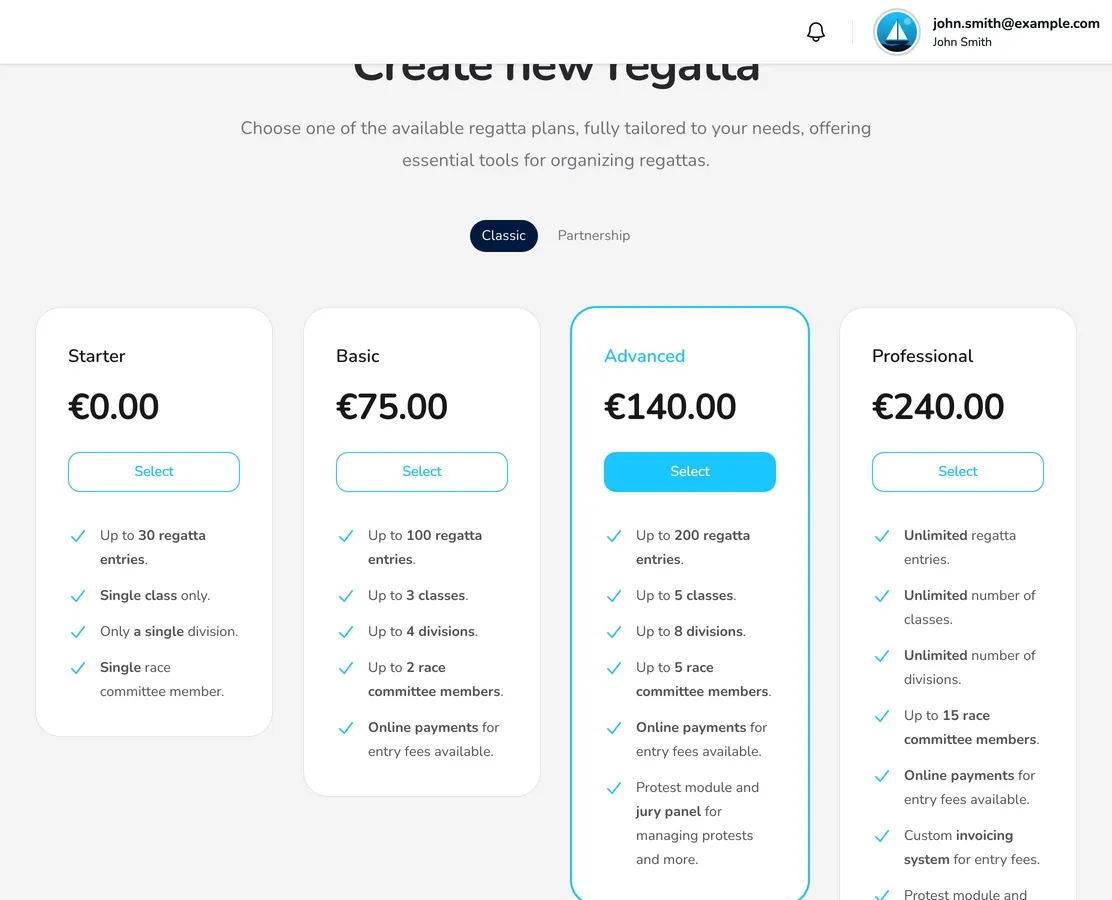
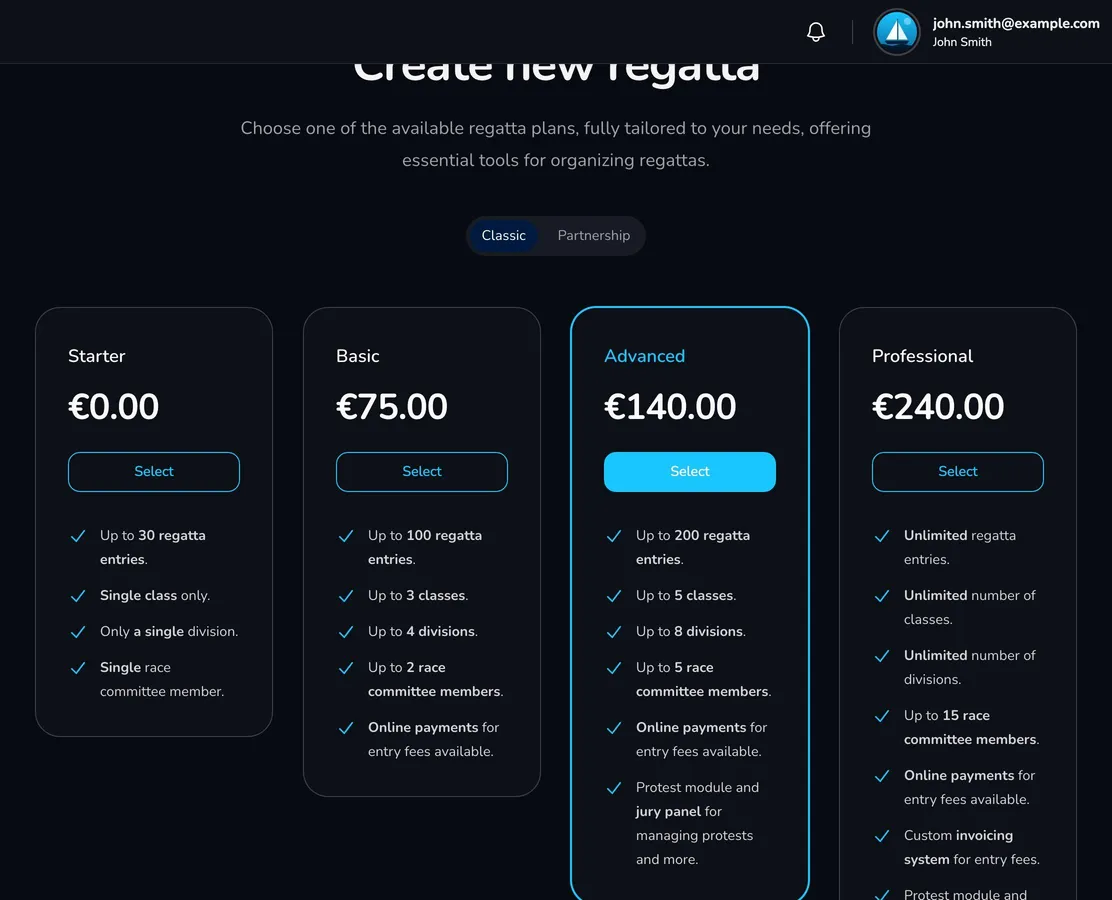
The main differences between the classic plans:
| Starter | Basic | Advanced | Professional | |
|---|---|---|---|---|
| Entries | up to 30 | up to 100 | up to 200 | unlimited |
| Classes | 1 | up to 3 | up to 5 | unlimited |
| Divisions | 1 | up to 4 | up to 8 | unlimited |
| Race committee members (managers) | 1 | up to 2 | up to 5 | up to 15 |
| Online payments for entry fees | – | ✓ | ✓ | ✓ |
| Jury panel (protests, RRS 42 penalties) | – | – | ✓ | ✓ |
| Entry fee invoicing | – | – | – | ✓ |
| Custom fields in the entry form | – | – | – | ✓ |
| News on the regatta page | – | – | – | ✓ |
Current prices and a full description of the plans are available on the offer page. The Starter plan is free – a good choice if you want to try Upwind24 first.
Fill in the regatta details
Section titled “Fill in the regatta details”-
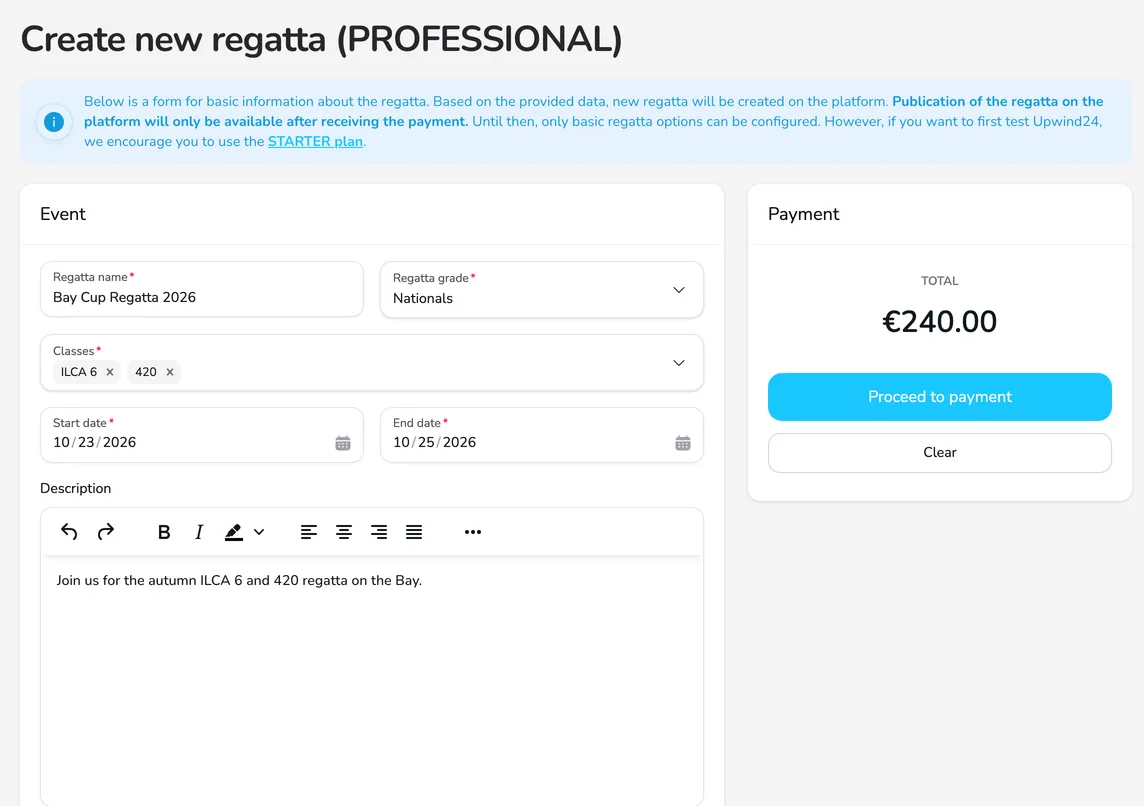
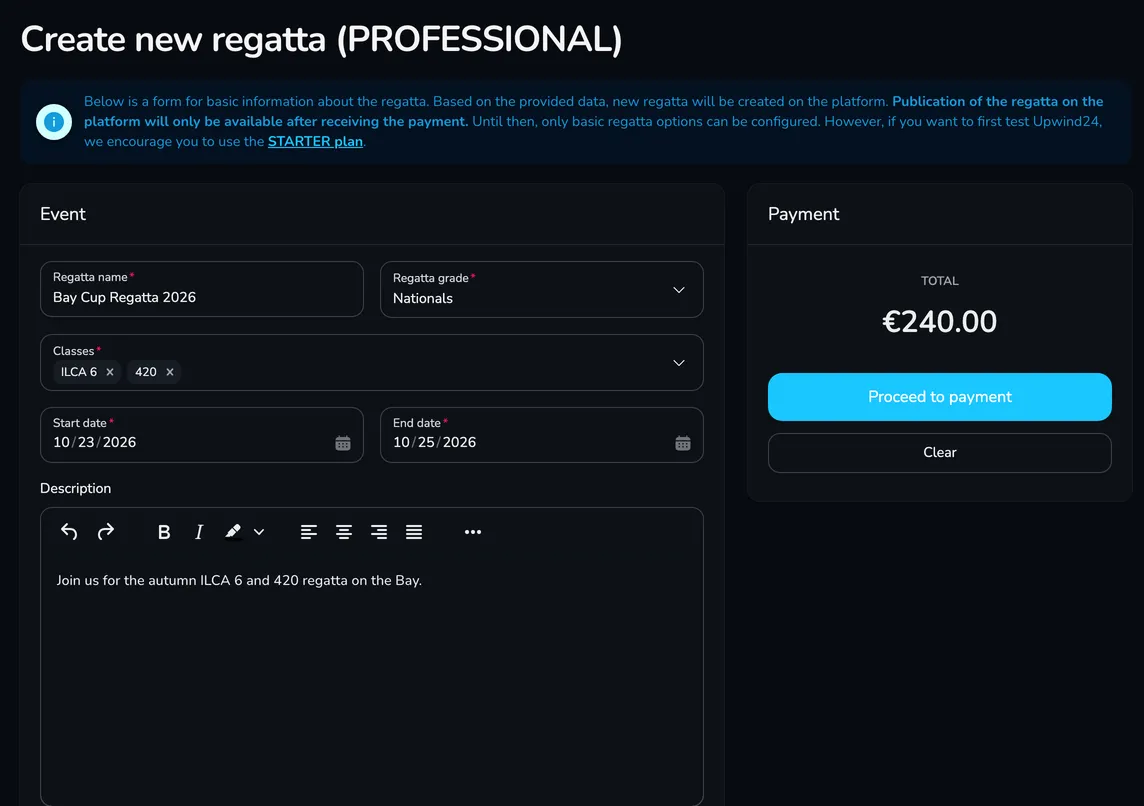
On the Event card, enter the Regatta name and choose the Regatta grade.
-
In the Classes field, choose the boat classes that will race. The number of classes depends on the plan – when you reach the limit, a warning with a link to a higher plan appears above the field.
-
Set the Start date and End date and optionally add a Description. Participants see the description in the About section of the regatta page.
-
On the Venue card, search for the regatta venue. It is shown in the regatta page header and on a map.
-
For a paid plan, you can select I would like to receive an invoice and enter the invoice details for the plan.
-
Click Create regatta (free plan) or Proceed to payment (paid plan). You will see the message Regatta has been created successfully. With a free plan, Upwind24 opens the Edit regatta page, and with a paid plan – the plan payment page.
Divisions are created automatically
Section titled “Divisions are created automatically”For each chosen class, Upwind24 automatically creates a separate division named after the class – for the ILCA 6 and 420 classes you get two divisions. Each division has its own start list, races and leaderboard. Read more about divisions, fleets and categories in Divisions, fleets and categories.
Add your own boat class
Section titled “Add your own boat class”If the class the participants race in is not on the list, add it while choosing the classes:
-
Type the class name in the Classes field, e.g. Finn Masters.
-
Click the Add “…” to the list option.


-
In the Boat Class window, check the Name, choose the Type (Single-handed, Double-handed or Other) and click Add class.
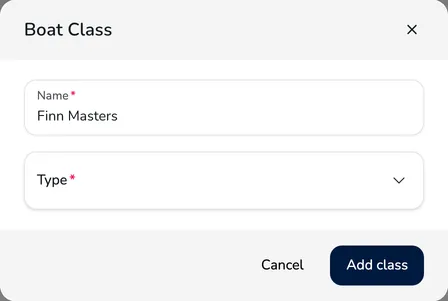
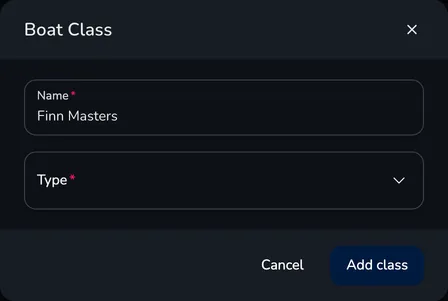
The class type defines the entry form: for single-handed classes the form has no crew section, for double-handed classes it has one crew member slot, and for the Other type the person entering adds further crew members themselves.
Pay for the plan and publish the regatta
Section titled “Pay for the plan and publish the regatta”A regatta with a free plan can be published right away. With a paid plan, publication of the regatta on the platform is only available after receiving the payment – until then you can configure the regatta, but its page is not visible to participants.
-
After you click Proceed to payment, Upwind24 opens the plan payment page right away – complete the payment with the payment provider.
-
If you interrupt the payment, you can return to it at any time: open Profile → Payments and click Pay next to the payment for the platform access in the chosen plan.


-
Once the payment is booked, open Regattas → Edit regatta. Until the payment is confirmed, you will see the warning Publication is disabled until payment is confirmed. and the publication field is inactive.


-
Select Publish regatta website on the platform and click Save. The regatta is now visible on the regatta list and participants can browse its page.
Questions and answers
Section titled “Questions and answers”Can I change the classes or dates after creating the regatta?
Yes. You can change the name, grade, classes, dates, description and venue at any time in Regattas → Edit regatta – see Basic regatta configuration. For a newly added class, Upwind24 creates a separate division (as long as the division limit of the plan allows it). Also remember that changing the regatta name changes its page address – if the regatta link has already been shared, participants will need to use the new one.
Who can delete a regatta?
Only the regatta owner – the person who created it. The Delete regatta button is in the top right corner of the Edit regatta page. This cannot be undone – entries, results, notices and news are deleted together with the regatta. A regatta that is part of a ranking cannot be deleted.
What’s next?
Section titled “What’s next?”
Manage the regatta yourself with an easy-to-use online platform.
© 2026 Upwind24. All rights reserved.